SIMPO Addressable Fire Alarm Panel – Maintenance Menus
15
3.4.2 Extinguishing Output
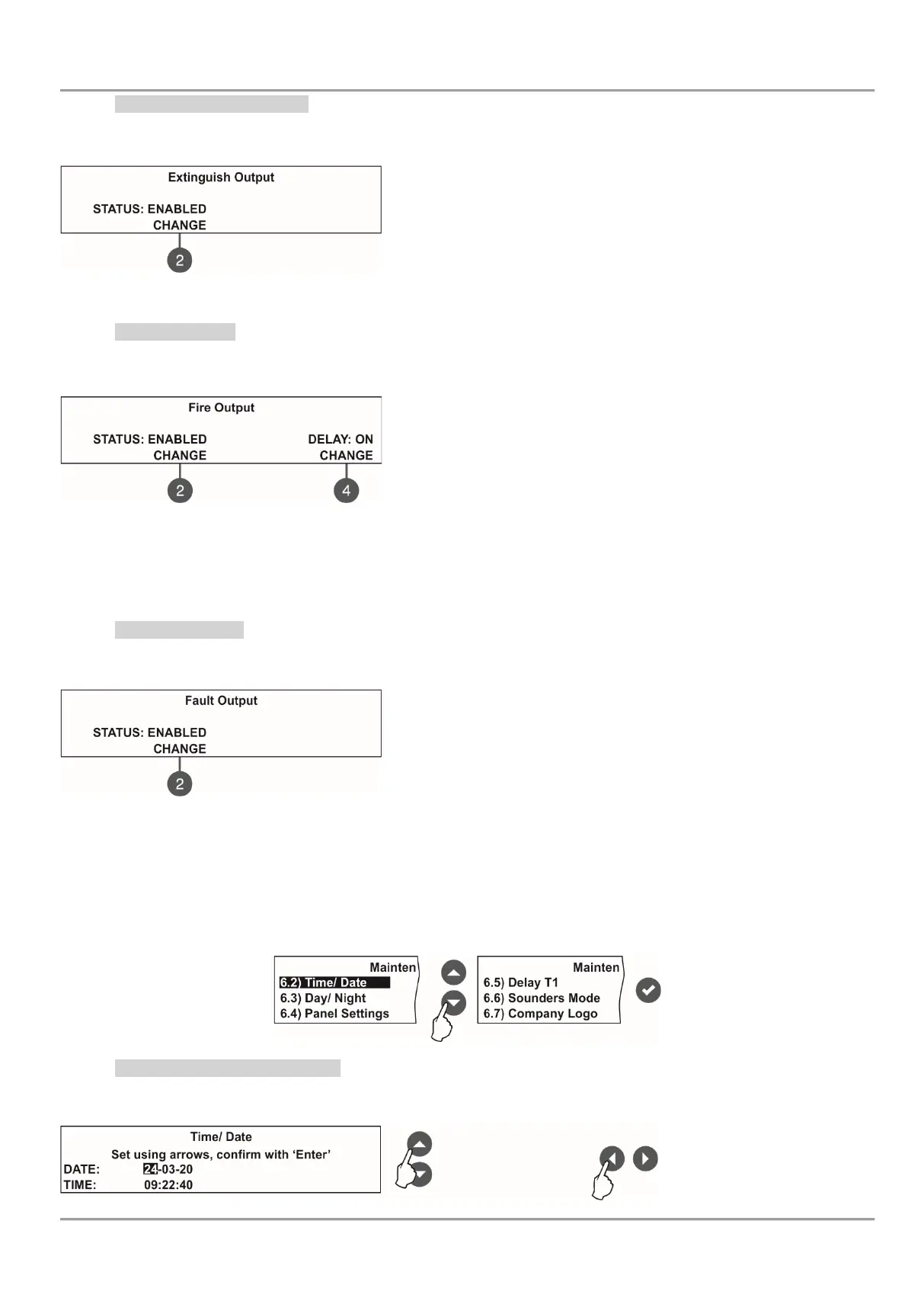
In this submenu the technician can disable/ enable the extinguish output activation. To access the EXTINGUISH
submenu, enter in menu - 5. PANEL OUTPUTS – EXITING. (2).
The functional button has the following action:
(2) - Press to change the status of the extinguish output. Every
pressing of the button changes alternatively the ENABLED -
DISABLED status. When the extinguish output is disabled the LED
‘‘Disable’ light on permanently.
All set parameters are confirmed with ENTER button.
3.4.3 Fire Output
In this submenu the technician can disable/ enable the fire output activation and the time delay operation.
To access the FIRE submenu, enter in menu - 5. PANEL OUTPUTS - FIRE (3).
The functional buttons have the following action:
(2) - Press to change the status of the fire output. Every pressing of
the button changes alternatively the ENABLED - DISABLED status.
When the fire output is disabled the LEDs ‘Fire Output Fault/ Disable’
and ‘Disable’ light on permanently.
(4) - Press to set the time delay operation. Every pressing of the button
changes the ‘Delay’ setting:
• ON - The delay of fire output will be active when DAY operation mode is set.
• OFF - No delay of fire output activation. The fire output is activated immediately.
• SCHEDULE - The delay of fire output will be active on schedule.
All set parameters are confirmed with ENTER button.
3.4.4 Fault Output
In this submenu the technician can disable/ enable the fault output activation.
To access the FAULT submenu, enter in menu - 5. PANEL OUTPUTS – MORE> (4) – FAULT (1).
The functional button has the following action:
(2) - Press to change the status of the fault output. Every pressing of
the button changes alternatively the ENABLED - DISABLED status.
When the fault output is disabled the LED ‘Disable’ light on
permanently.
All set parameters are confirmed with ENTER button.
3.5. General Settings Menu
This menu allows the technician to make some common settings for the fire panel.
A list with submenus is displayed after entering the maintenance menu - 6. GENERAL SETTING. The currently selected
submenu is blinking. To enter into a submenu press ‘ENTER’.
3.5.1 Setting the Date and Time
In this submenu the technician can set the current time and date for the panel.
To access the TIME/ DATE submenu, enter in menu - 6. GENERAL SETTING - 6.2) TIME/ DATE. The screen displays:
Switching between the
editable fields



 To Next Page