I
Adjusting Screen and Keyboard
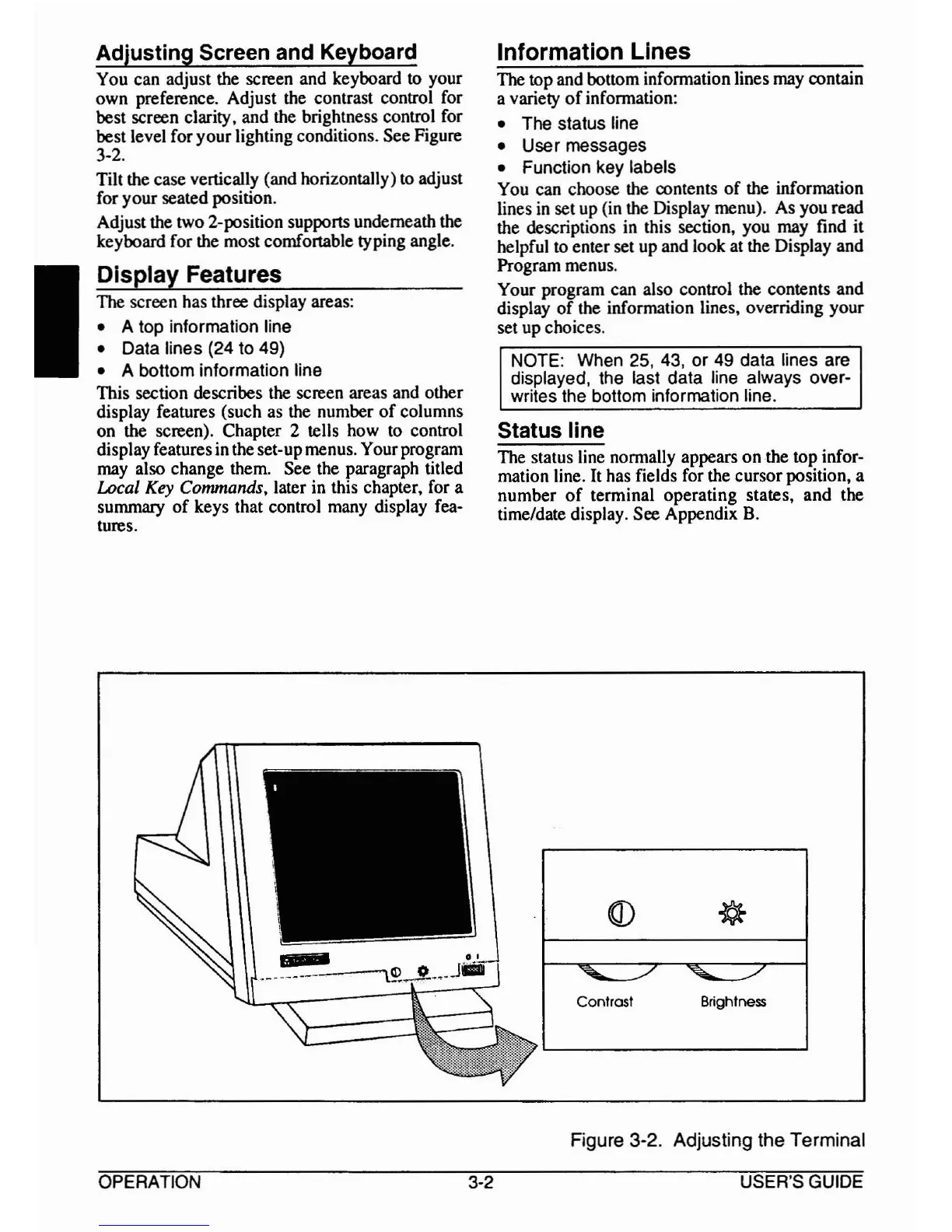
You can adjust the screen and keyboard to your
own preference. Adjust the contrast control for
best screen clarity. and the brightness control for
best level for your lighting conditions. See Figure
3-2.
Tilt the case vertically (and horizontally) to adjust
for your seated position.
Adjust the two 2-position supports underneath the
keyboard for the most comfortable typing angle.
Display Features
The screen has three display areas:
• A top information line
•
Data
lines (24 to 49)
• A bottom information line
This section describes the screen areas and other
display features (such as the number
of
columns
on the screen). Chapter 2 tells how to control
display features in the set-upmenus. Your program
may also change them. See the paragraph titled
Local
Key
Commands, later in this chapter, for a
summary
of
keys that control many display fea-
tures.
Information Lines
The top and bottom information lines may contain
a variety
of
information:
• The
status
line
•
User
messages
• Function key labels
You can choose the contents
of
the information
lines
in
set up (in the Display menu). As you
rea~
the descriptions in this section, you may find It
helpful to enter set up and look at the Display and
Program menus.
Your program can also control the contents and
display
of
the information lines, overriding your
set up choices.
NOTE: When 25, 43,
or
49
data
lines
are
displayed,
the
la~t
data
I~ne
~Iways
over-
writes the bottom Information hne.
Status line
The status line normally appears
on
the top infor-
mation line. It has fields for the cursor position, a
number
of
terminal operating states, and the
time/date display. See Appendix
B.
Contrast
Brightness
OPERATION 3-2
Figure 3-2. Adjusting the Terminal
USER'S GUIDE



 To Next Page