This chapterdescribes how to operate the terminal.
It tells how
to adjust the screen and keyboard for
your comfort, followed
by
details on display fea-
tures, the keyboard, communicating with a com-
puter, and printing.
Troubleshooting procedures are covered
in
Chap-
ter
4.
You will encounter frequent references to choos-
ing operating values
in
set-up mode. Chapter 2
explains how you can control the terminal's opera-
tions in set-up mode.
The descriptions in this chapter apply
to local
keyboard functions, and
to
communications with
your host computer(s). Many
of
the functions
described
in
this chapter can
be
changed
by
your
operating system
or
an
application program.
If
a
feature described here does not operate
as
ex-
pected, contactyoursystem managerorconsult the
manuals for your computer and application pro-
gram.
If
you suspect the terminal is not working properly,
first look at the troubleshooting suggestions in
Chapter 3
OPERATION
Chapter4. Then
if
you need help, call your system
administrator, dealer,
or
distributor.
Starting Up
This section assumes that the terminal is already
installed.
If
it has not been installed, see Chapter
I,Installation, for instructions.
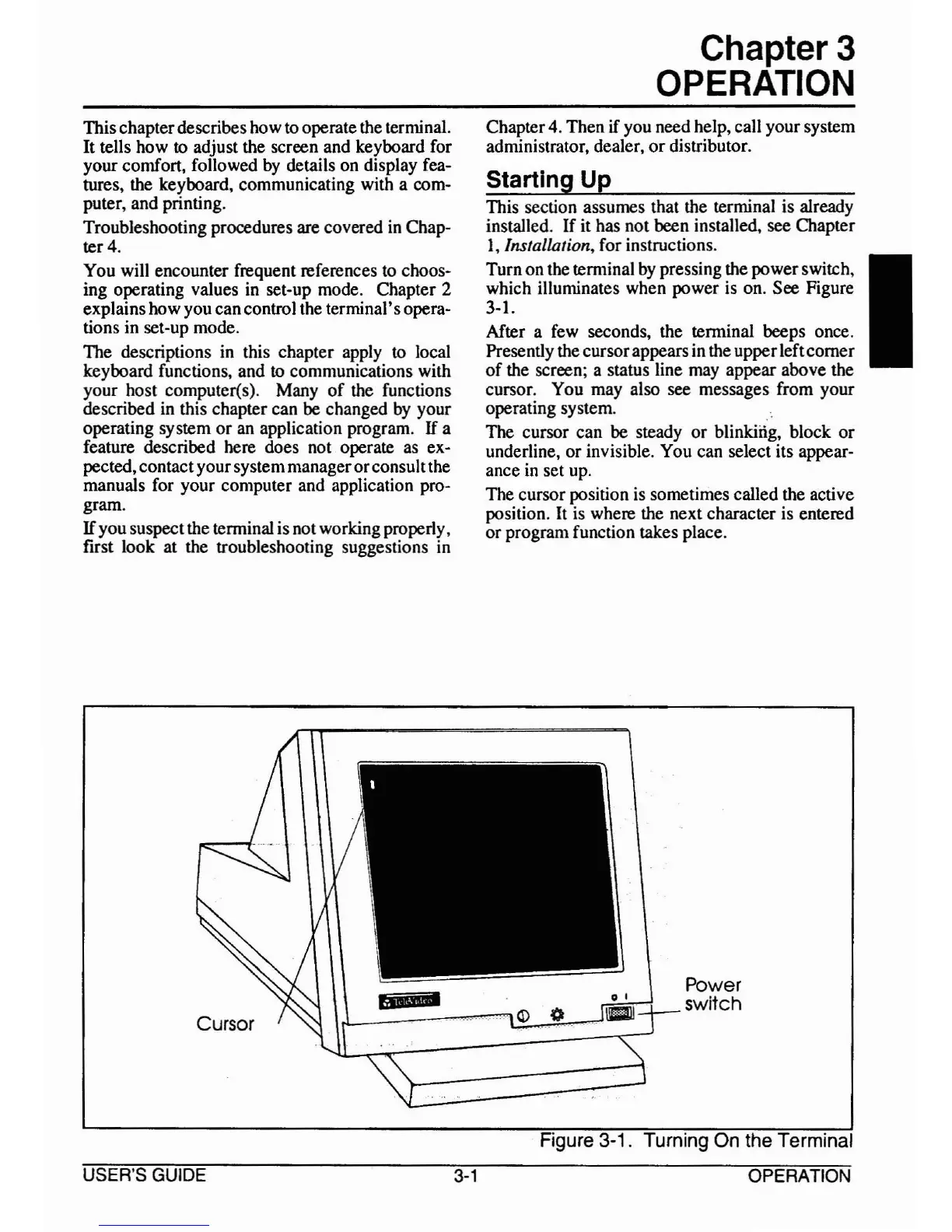
Turn on the terminal
by
pressing the powerswitch, I
which illuminates when power
is
on. See Figure
3-1.
After a few seconds, the terminal beeps once.
Presently the cursorappears in the upperleftcomer
of
the screen; a status line may appear above the
cursor. You may also see messages from your
operating system.
The
cursor can be steady or blinking, block or
underline, or invisible. You can select its appear-
ance
in
set
up.
The cursor position
is
sometimes called the active
position. It is where the next character is entered
or program function takes place.
',L.-~-"""""'=,\.
<D
4)
Power
switch
USER'S GUIDE
3-1
Figure 3-1. Turning On the Terminal
OPERATION



 To Next Page