TEMPUR-PEDIC ACTIVEBREEZE® USER MANUAL | 11
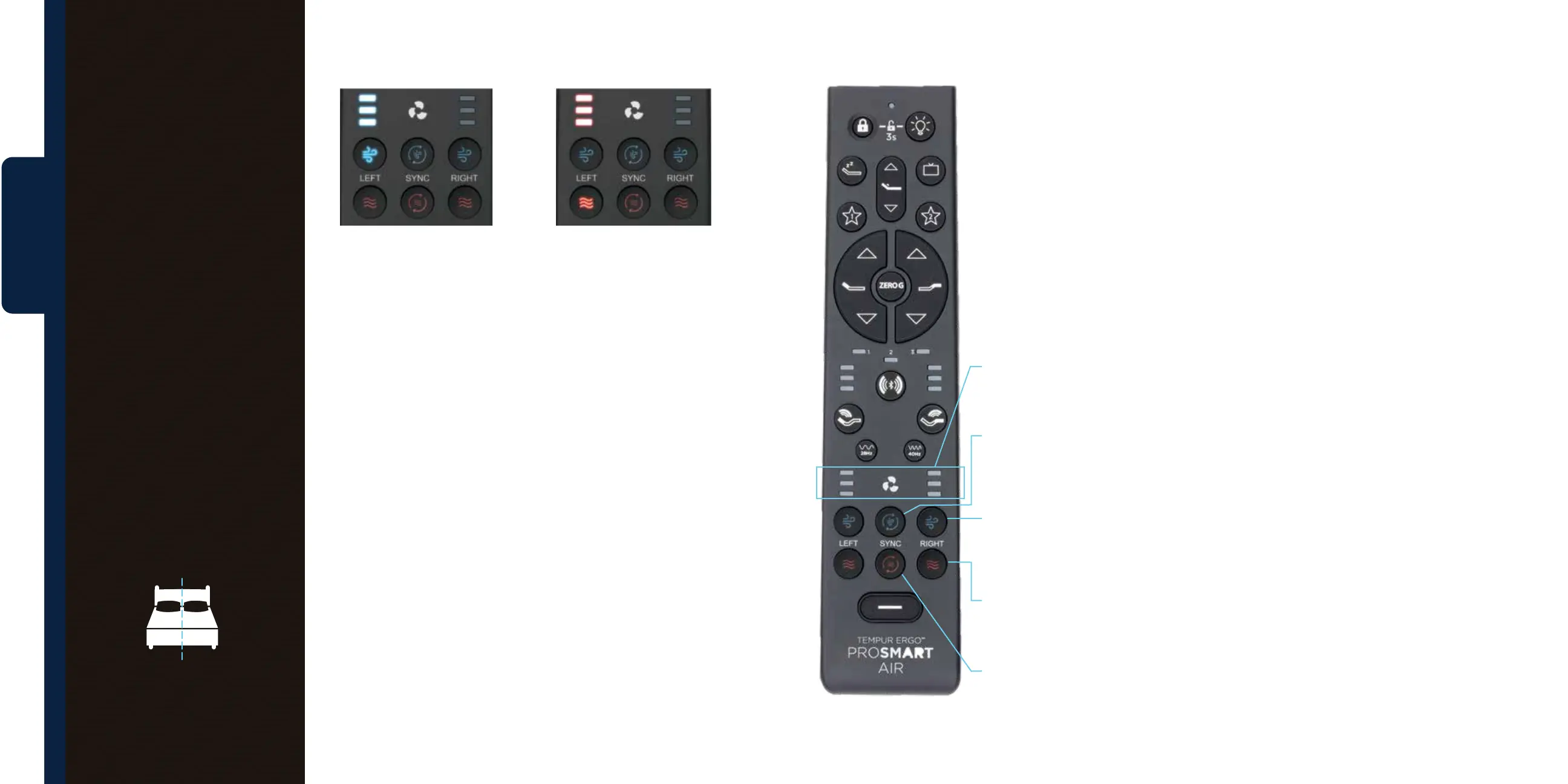
Blue LED Lights
Blue LED lights indicate the fan
level setting that is selected and
active. The bottom blue LED
indicates the low setting, the
middle blue LED indicates the
medium fan setting, and top
blue LED indicates the high
fan setting.
Blue Cooling Buttons
Select the cooling fan level
setting and program for the
right or left side of the bed
independently, using the
cooling buttons that correlate
to your side of the mattress, or
sync both sides together
by pressing the middle
blue button.
Red LED Lights
Red LED lights indicate the
60-minute bed warming setting
is selected and active. When
bed warming is selected, all
three red LEDs are illuminated.
Red Warming Buttons
Select the 60-minute bed
warming setting for the
right or left side of the bed
independently, using the red
warming buttons that correlate
to your side of the mattress, or
sync both sides together with
the middle red button.
PROSMART® AIR REMOTE GUIDE
Sleep
temperature
control.
The remote allows you to
select from three levels
of cooling, two cooling
programs and a 60-minute
bed warming feature with
a simple press of a button.
Below is a representation
of the sides when you are
lying on the bed.
Right Side Left Side
All-Night Cooling Control
Press the right, left, or middle blue
cooling button to select the fan
level setting and cooling program
as described below:
Before making your cooling
or warming selection, keep the
below in mind:
o If the remote is inactive for a
period, press any button on the
remote to activate first before
selecting any other function.
o Once the remote is active, if the
TEMPUR-ActiveBreeze® fan is
o, the first press of the blue
cooling or red warming button
will turn the fan on low.
o Once the remote is active, if the
TEMPUR-ActiveBreeze® fan is
on, the first press of the blue
cooling or red warming button
will indicate the fan level setting.
The second press of the blue
cooling or red warming button
will select level and program.
o The remote is preset with
the Temp-Curve mode as
the default all-night cooling
program.
How to select level of cooling on
Temp-Curve mode:
If you prefer the preset automated
program that will gradually
decrease and then increase
airflow to mimic the body’s natural
temperature rhythm through the
night, select Temp-Curve mode
program.
Temp-Curve Mode:
Low-Level Setting
Once the remote is active, press
the blue cooling button once, then
release to activate the low fan
setting. The first blue LED light
will come on.
Temp-Curve Mode:
Medium-Level Setting
Once the remote is active, press
the blue cooling button twice, then
release to activate the medium
fan setting. The first two blue LED
lights will come on.
Temp-Curve Mode:
High-Level Setting
Once the remote is active, press
the blue cooling button three
times, then release to activate the
high fan setting. All three blue LED
lights will come on.
If you prefer 10-hours of
consistent, continuous all-night
cooling, select the Constant Mode
program.
Fan level setting
selected and
active for cooling
or warming.
Select level
of cooling and
cooling program
for both sides of
the bed (SYNC).
Select level
of cooling and
cooling program
for each side
of the bed.
Select 60-minute
bed warming
for each side
of the bed.
Select 60-minute
bed warming for
both sides of the
bed (SYNC).



 To Next Page