EasyManua.ls Logo

Ten-Tec JUPITER - Page 16

Ten-Tec JUPITER
92 pages
Print Icon
To Next Page IconTo Next Page
To Previous Page IconTo Previous Page
Loading...
2.
GETTING STARTED
2.1.
INTRODUCTION
Some
JUPITER
controls
are
constantly
in
use,
and
some
need
changing
only
occasionally
according
to
your
operating
preferences.
The
default
settings
listed
below
will
allow
you
to
get
started
with
JUPITER.
You
can
customize
the
operation
to
more
closely
fit
your
preferences,
as
you
become
familiar
with
the
transceiver.
When
approximately
5
seconds
of
inactivity
occur
after
a
control
change,
JUPITER
saves
your
settings
in
non-
volatile
memory.
This
happens
automatically
and
does
not
require
a
standby
battery
as
older
technology
did.
A
pound
sign
(#)
appears
in
the
lower
right-
hand
comer
of
the
screen
to
verify
the
automatic
store.
If
you
power
down
the
radio
with
the
#
in
place,
your
current
settings
will
return
the
next
time
you
apply
power.
2.2.
POWERING
JUPITER
FOR
THE
FIRST
TIME
Connect
a
suitable
resonant
antenna
(SWR
less
than
2:1)
to
the
rear
panel
50
OHM
ANTENNA
connector.
Connect
a
suitable
DC
power
source
to
the
transceiver
(see
paragraph
1-1).
Tum
on
your
power
supply
first,
then
JUPITER.
At
power-on,
you
will
see
the
firmware
version
message
briefly
on
the
display,
after
which
the
screen
will
resemble
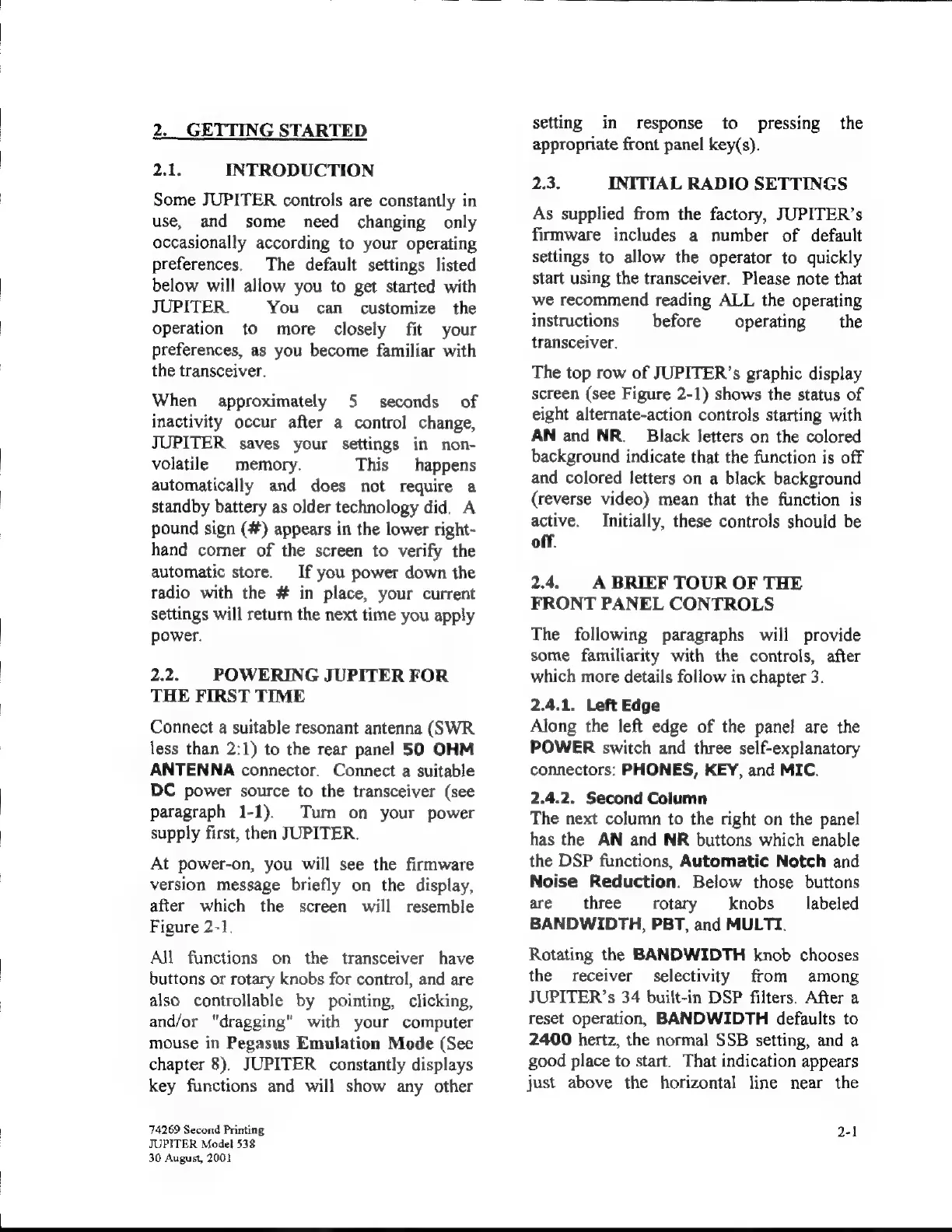
Figure
2-1.
АП
functions
on
the
transceiver
һауе
buttons
or
rotary
knobs
for
control,
and
are
also
controllable
by
pointing,
clicking,
and/or
"dragging"
with
your
computer
mouse
in
Pegasus
Emulation
Mode
(See
chapter
8).
JUPITER
constantly
displays
key
functions
and
will
show
any
other
74269
Second
Printing
JUPITER
Model
538
30
August,
2001
setting
іп
response
to
pressing
the
appropriate
front
panel
key(s).
2.3.
INITIAL
RADIO
SETTINGS
As
supplied
from
the
factory,
JUPITER's
firmware
includes
a
number
of
default
settings
to
allow
the
operator
to
quickly
start
using
the
transceiver.
Please
note
that
we
recommend
reading
ALL
the
operating
instructions
|
before
`
operating
е
transceiver.
The
top
row
of
JUPITER’s
graphic
display
screen
(see
Figure
2-1)
shows
the
status
of
eight
alternate-action
controls
starting
with
AN
and
NR.
Black
letters
on
the
colored
background
indicate
that
the
function
is
off
and
colored
letters
on
a
black
background
(reverse
video)
mean
that
the
function
is
active.
Initially,
these
controls
should
be
off.
2.4.
A
BRIEF
TOUR
OF
THE
FRONT
PANEL
CONTROLS
The
following
paragraphs
will
provide
some
familiarity
with
the
controls,
after
which
more
details
follow
in
chapter
3.
2.4.1.
Left
Edge
Along
the
left
edge
of
the
panel
are
the
POWER
switch
and
three
self-explanatory
connectors:
PHONES,
KEY,
and
MIC.
2.4.2.
Second
Column
The
next
column
to
the
right
on
the
panel
has
the
AN
and
NR
buttons
which
enable
the
DSP
functions,
Automatic
Notch
and
Noise
Reduction.
Below
those
buttons
are
three
rotary
|
knobs
labeled
BANDWIDTH,
РЕТ,
and
MULTI.
Rotating
the
BANDWIDTH
knob
chooses
the
receiver
selectivity
from
among
JUPITER's
34
built-in
DSP
filters.
After
а
reset
operation,
BANDWIDTH
defaults
to
2400
hertz,
the
normal
558
setting,
and
a
good
place
to
start.
That
indication
appears
just
above
the
horizontal
line
near
the
2-1
E3222
ss

Related product manuals