EasyManua.ls Logo

Ten-Tec JUPITER - Page 22

Ten-Tec JUPITER
92 pages
Print Icon
To Next Page IconTo Next Page
To Previous Page IconTo Previous Page
Loading...
|
Еог
example:
а
РХ
station
is
transmitting
on
14.195
MHz
and
listening
for
calls
around
14.200.
Tune
the
main
display
frequency
to
the
DX
at
14.195.
Tap
Ше
A=B
key
to
set
both
VFOs
ағ
14.195.
Select
SPLIT
operation,
then
press
and
hold
REV.
VFO
A
tunes
the
receiver
on
the
split
(transmit)
frequency
while
you
hold
the
button.
Tune
and
listen
around
14.200
to
determine
where
to
transmit.
(You
might
choose
a
relatively
clear
frequency
or
you
might
choose
to
use
the
same
frequency
as
a
successful
caller.
When
you
release
REV,
the
receiver
is
back
on
the
DX
station's
frequency
and
the
transmitter
is
ready
on
the
SPLIT
frequency
you
chose
by
monitoring
in
REV.
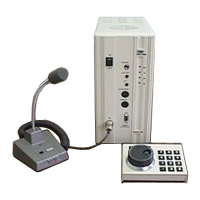
The
optional
Model
302J
remote
encoder/keypad
can
also
control
REV.
RIT
and
XIT
provide
yet
another
way
to
split
frequencies
in
this
versatile
radio.
See
paragraph
2.4.8.
2.5,
RECEIVER
OPERATION
JUPITER's
receiver
provides
general
coverage
reception
from
below
500
kHz
to
30.0
MHz.
The
BAND
key
cycles
through
the
amateur
bands,
but
the
receiver
will
tune
over
its
entire
range
from
any
starting
frequency,
automatically
switching
band
filters
as
necessary.
All
receiver
features
are
functional
throughout
the
range.
2.5.1.
Receive
Filter
Selection
JUPITER
comes
with
34
built-in
receive
filters.
To
choose
any
filter,
rotate
the
BANDWIDTH
knob
(which
is
always
active).
This
updates
the
filter
bandwidth
legend
to
the
left
of
the
frequency
display.
Except
for
FM,
where
JUPITER’s
selectivity
is
fixed
at
74269
Second
Printing
JUPITER
Model
538
30
August,
2001
15
KHz,
all
filter
choices
are
independent
of
mode.
2.5.2.
Passband
Tuning
(PBT)
This
is
perhaps
the
most
useful
of
all
of
the
receiver
controls,
especially
in
a
crowded
band.
Use
the
alternate
action
PBT
button
to
enable
or
reset
passband
tuning.
The
PBT
knob
allows
you
to
move
the
receiver
passband
back
and
forth
across
the
desired
signal.
It
can
“drop
QRM
off
one
side
or
the
other”
of
the
passband.
Adjusting
it
can
often
improve
the
quality
and
intelligibility
of
a
signal.
Note
the
PBT
offset
reading
below
the
first
two
digits
of
VFO
A.
2.5.3.
Audio
and
RF
Gain
Controls
Use
the
AF
button
and
the
MULTI
control
to
the
left
side
of
the
graphic
display
to
adjust
audio
level.
Push
the
RF
button
to
assign
the
MULTI
control
to
the
RF
gain
function.
JUPITER's
receiver
design
provides
good
selectivity
and
dynamic
range.
Under
most
conditions,
leave
RF
gain
at
100%.
Should
you
experience
receiver
overload,
the
RF
gain
control
can
limit
receiver
distortion
and/or
overload
response
in
the
presence
of
extremely
strong
signals.
There
is
also
a
switchable
20
dB
front-end
attenuator
(see
paragraph
2.4.3).
2.5.4.
Automatic
Gain
Control
(AGC)
The
AGC
button
selects
the
decay
time
constant
of
the
AGC
circuit.
It
steps
through
FAST,
MEDIUM,
ог
SLOW
settings
by
pushing
the
ALT+AGC
buttons.
The
current
AGC
setting
appears
just
above
and
to
the
right
of
the
VFO
A
readout.
2.5.5.
DSP
Noise
Reduction
Pushing
the
NR
(noise
reduction)
button
activates
or
deactivates
JUPITER's
DSP
noise
reduction
algorithm.
This
system
identifies
desired
signals
mathematically
2-7

Related product manuals