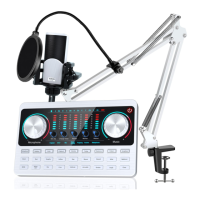
background music, and highlight the voice of the human, suitable for live chat scenes.
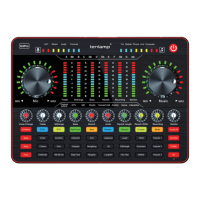
9. Denoise button: can automatically reduce the ambient sound from the microphone
input. Press the button to turn this function on/off, corresponding button lights on and
off.
10-12. 3 Voice Changer Buttons:Children's, Uncle, Goddess; at the same time the
buttons status lights are on.
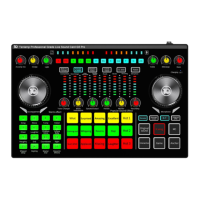
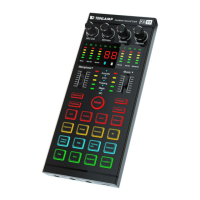
13. Soundl effects buttons area:18 popular warm-up sound effects.
14. Metaphone button: Short press to switch cyclically the Radio sound mode,
Telephone voice mode, and Robot sound mode.
15. MIC EQ knob: Adjust the treble effect of the microphone to the right, and adjust the
bass effect of the microphone to the left.
16. Microphone knob: Adjust the volume of the microphone input.
17. Changing Voice knob:Fine-tune the effect of the current voice changer mode.
18. BT indicator light: The indicator light is always on to indicate a successful Bluetooth
connection. (BT function is only used for BT accompaniment)
19. Reverb knob: Increase the reverberation effect to the right, and vice versa
20. Electronic music tone mode light:12 kinds of electronic tones.
21. Battery indicator light:the green light flashes when the battery power is low, the red
light on when charging, and the green light is always on after the battery power is full.
22. Monitor knob:Audio/Earphone/headset monitor volume adjustment and speaker
volume adjustment.
23. Decrease the volume of the special effect:long press the "Debut" button to reduce
the volume of the special effect, short press the "Debut" effect sound.
24. Increase the volume of special effects:Long press the "applause" button to
increase the volume of special effects, short press the "applause" special effects sound.
25. LED dynamic display light: Respond to the corresponding knob parameter when
adjusting, and when static, it is the overall volume bounce display.
Loopback function: It means that the digital signal directly returns to the inside of the
software without going through the physical interface of the sound card. It can capture
all the sound sources in the computer system, including the microphone input, web
pages, and the sound in the music software, as the input sound source, and send it to
the other party on the network. Or record it.
Turn on loopback, can hear your accompaniment or other audio sources in the live room,
and can hear the sound of your microphone, but it will cause the other streamer to be
unable to speak;
Close the loopback, the problem(unable to speak) is solved, can still hear the sound of
your microphone in the live streaming room, but cannot hear your accompaniment;
Open loopback, you can record the accompaniment from the computer, the sound of the
web page, and the sound of the microphone together;
Turn off loopback, only the sound of your microphone can be recorded, but the sound
from the computer can not be recorded.


 To Next Page
 Loading...