To Next Page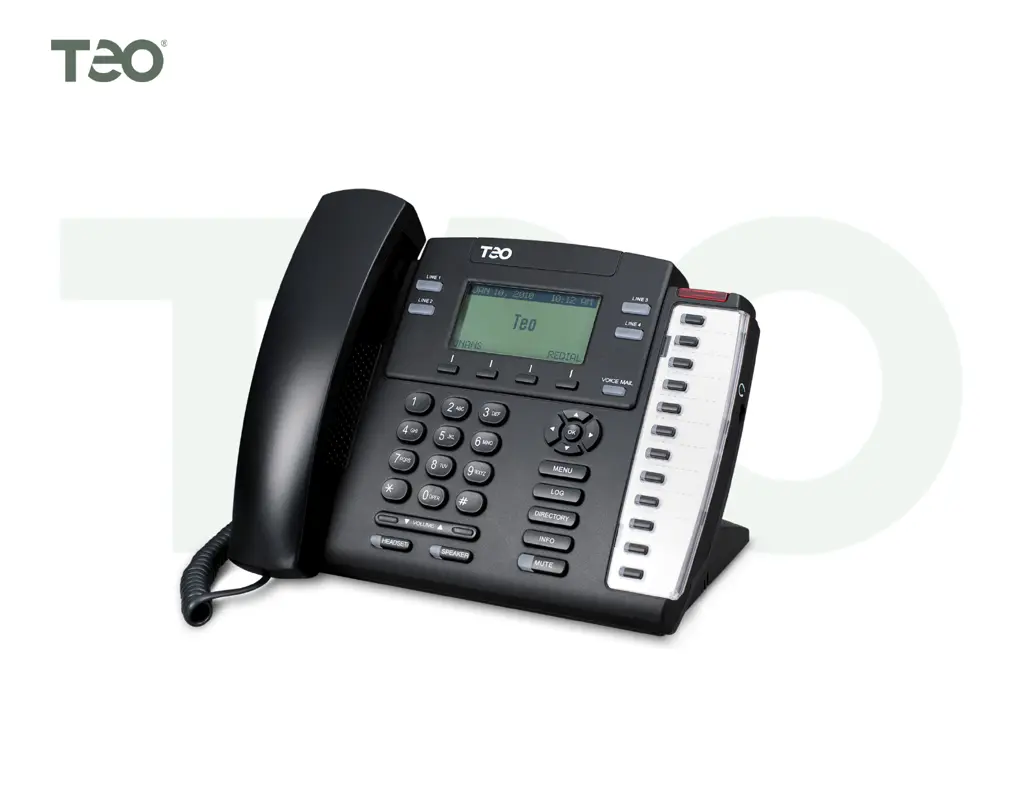

T
Thomas MathewsSep 3, 2025
How to update server IP address on Teo 4104 when it shows 'UPDATE= EDIT'?
- PPamela DavisSep 3, 2025
If your Teo IP Phone shows 'UPDATE= EDIT', enter the appropriate update server IP address or server name.

How to update server IP address on Teo 4104 when it shows 'UPDATE= EDIT'?
If your Teo IP Phone shows 'UPDATE= EDIT', enter the appropriate update server IP address or server name.
How to configure subnet mask on Teo 4104 when it shows 'SUBNET=000.000.000.000 EDIT'?
If your Teo IP Phone displays 'SUBNET=000.000.000.000 EDIT', enter the appropriate subnet mask.
How to set up gateway on Teo 4104 if it shows 'GATEWAY= EDIT'?
If your Teo IP Phone displays 'GATEWAY= EDIT', enter the appropriate gateway IP address or server name.
How to fix 'IP4 ADDR=000.000.000.000 EDIT' on Teo 4104 IP Phone?
If your Teo IP Phone shows 'IP4 ADDR=000.000.000.000 EDIT', enter the correct phone IP address or name. Alternatively, change the IP Configuration Update IPv4 address from STATIC to IPv4 to allow the DHCP server to assign an address.
What to do if Teo IP Phone displays 'Registering Lines Continue'?
If your Teo IP Phone displays 'Registering Lines Continue', verify the LINE ID, AUTH ID, and AUTH passwords for all additional lines and re-enter them as required.
What does 'DHCPv4 ERROR' mean on my Teo 4104 and how to fix it?
If your Teo IP Phone displays a 'DHCPv4 ERROR', verify that the DHCP server is operating and accessible. If your LAN or WAN does not have a DHCP server, disable IP configuration via DHCP and manually enter the appropriate IP values (phone, default gateway, subnet mask, update) using the INSTL?IP Menu.
Why does my Teo 4104 keep 'Registering Lines'?
If your Teo IP Phone is stuck on 'Registering Lines', verify all entries, including LINE ID, AUTH ID, AUTH Password, all IP addresses, and the subnet mask. Re-enter any incorrect information as needed.
What to do if my Teo 4104 IP Phone shows 'No Ethernet Connection'?
If your Teo IP Phone displays 'No Ethernet Connection', check the connections to your LAN or WAN.
Explains the phone's display screen and the function of navigation and softkeys.
Details the use of multifunction keys for line appearance, DSS/BLF, and feature activation.
Covers keys like VOICE MAIL, MENU, LOG, MUTE, SPEAKER, HEADSET, and physical ports like headset jack.
Guides on initiating calls, pre-dialing, automatic/manual line selection, and character entry.
Explains Last Number Redial, Speed Dial keys, and dialing from Call Log/Directory.
Covers answering calls, muting, switching audio devices, and ringing control.
Details procedures for placing calls on hold, transferring, and setting up conference calls.
Guides on setting up call forwarding for all, busy, or no-answer calls.
Provides crucial safety guidelines for using the telephone equipment.
 General
| Lines | 4 |
|---|---|
| HD Voice | Yes |
| Protocols | SIP |
| Audio Codecs | G.711 |
| Power Supply | 5V DC adapter |