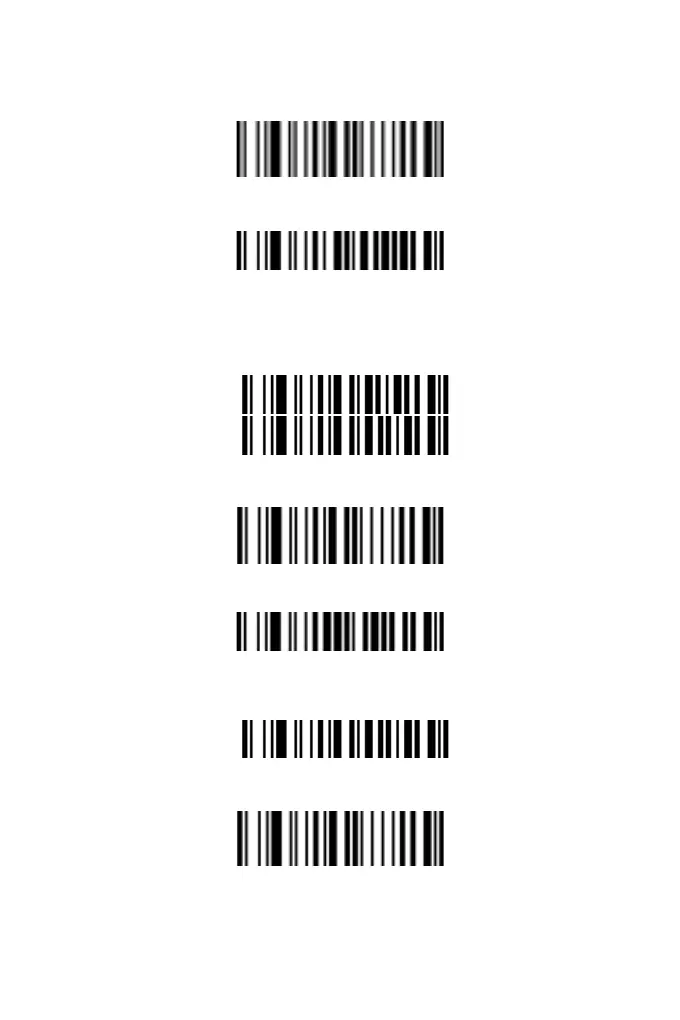
3. Scan the "End Parameter Input" setting barcode. If you hear "Du-
Di", the setup has successed.
End Parameter Input
4. Scan the setting barcode "Start setting G1 position".
Start Setting G1 Position
5. Scan the parameter barcodes and enter the two-digit position
parameters in sequence. For example, in order to insert G1
after the first character of the barcode, then scan the parameter
barcodes 0 and 1.
0
1
6. Scan the "End Parameter Input "setting barcode. If you hear "Du-
Di", the setup has successed.
End Parameter Input
7. Scan the barcode " Insert String 1".
Insert String 1
8. Scan the number of the string to be inserted. (1 and 2
correspond to G1 and G2 respectively; 0 means no insertion.)
1
9. Scan the "End Parameter Input "setting barcode. If you hear "Du-
Di", the setup has successed.
End Parameter Input
10. Scan the setting barcode "Start setting G2”.
8



 To Next Page