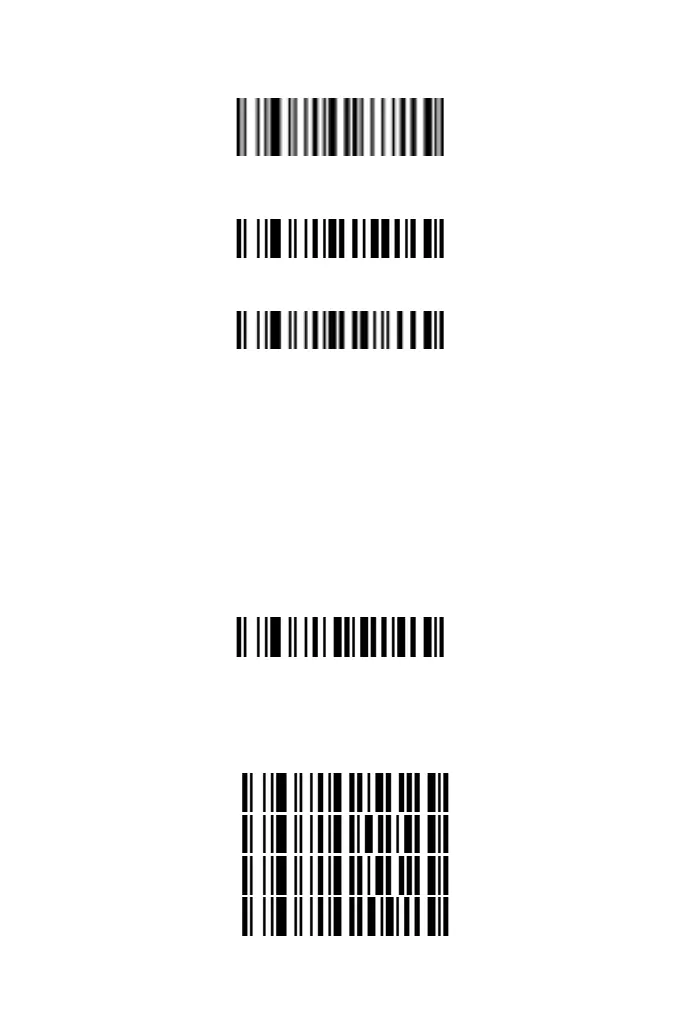
setup has successed.
End Parameter Input
4. Scan the “Enable Suffix” setting barcode to complete adding
suffix.
Enable Suffix
Clear Added Sufx
Clear Added Suffix
Insert String Setting
Users can insert one or two strings: G1 and G2, with a range of
0-16 characters in the appropriate position of the barcode data
according to their needs (the length of 0 means an empty string).
G1 and G2 can be inserted into any position of barcode characters
of a specific barcode type, or into any position of barcode
characters of all barcode types. G1 and G2 must be set separately
(when G2 is set to a null character, it means that only one string G1
has been inserted).
Please set and and insert strings as follows:
1. Scan "Start setting G1 character".
Start Setting G1 Character
2.According to the content that needs to be added, refer to
Appendix 1, scan the corresponding setting codes to the custom
the string. Each character corresponds to 2 hexadecimal numbers,
for example, "AB" corresponds to "41 42".
4
1
4
2
7



 To Next Page