16
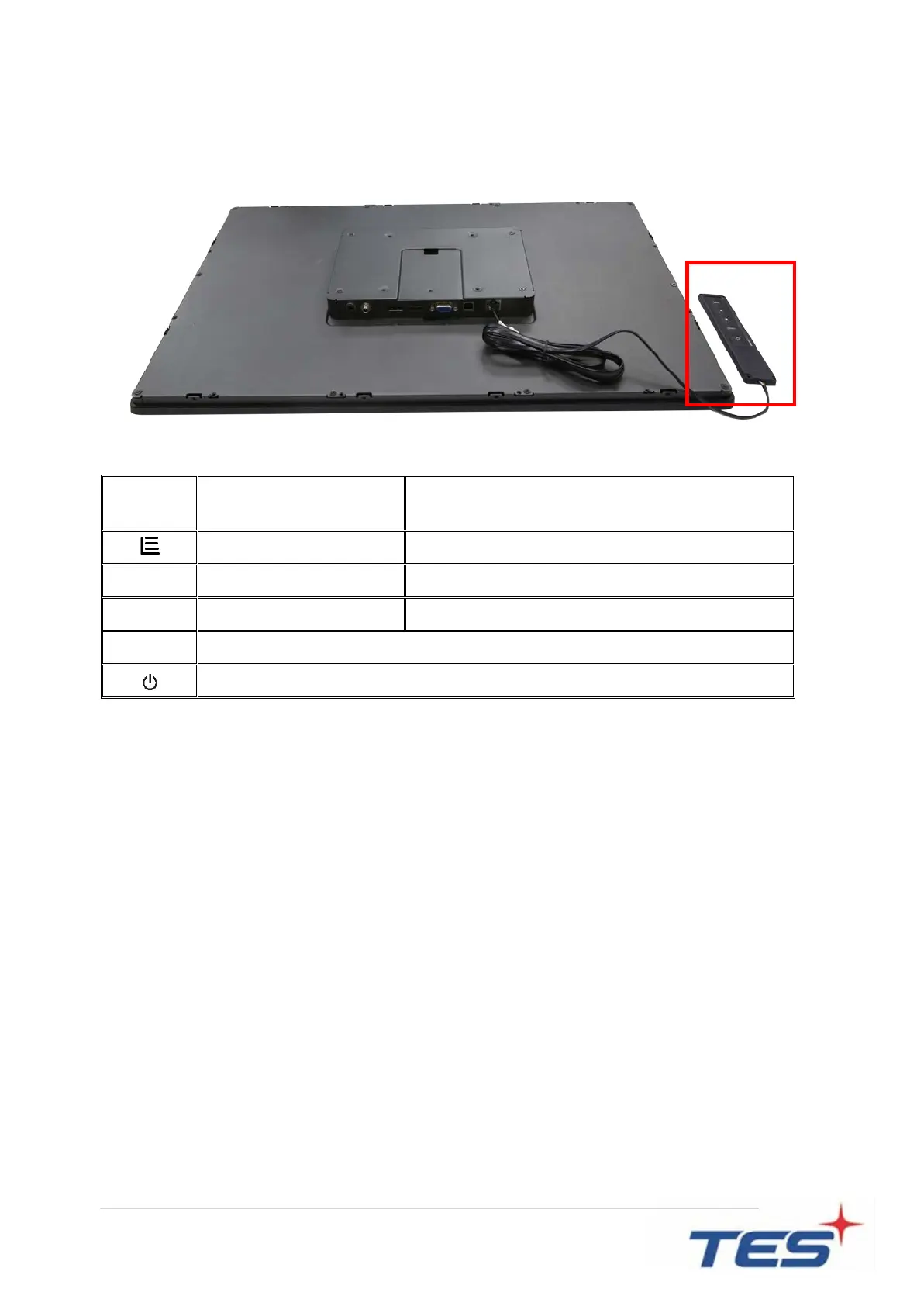
2.3 On-Screen Display
OSD Key Menu off status Menu on status
Menu appear Menu disappear/ return to main item
▲ Brightness Main item select up/ Adjust up
▼ Contrast Main item select down/ Adjust down
Enter/Select sub-item function
A. Press the “MENU” button to pop up the “on-screen menu” and press “Up” or “Down” button to
select among the five functions in the main menu.
B. Choose the adjustment items by pressing the “Enter” button.
C. Adjust the value of the adjustment items by pressing the “Up” or “Down” button.
D. With the OSD menu on screen, press “Menu” button to return main menu or exit OSD.
E. The OSD menu will automatically close, if you have left it idle for a pre-set time.
F. To Lock the OSD / Power menu buttons, please follow the instructions below.
(Please note: the monitor has to be turned ON with a valid signal pre-set)
a. Press “Menu” key, the OSD menu will pops upon display.
b. Press and hold the “Menu” key again with the OSD menu on the screen, the OSD menu
will disappear. Then press the "Power" key 1 time while the menu key is still being pressed.
The “Lock/Unlock” menu will appear for 3 seconds.
c. Use the "Enter" key to select OSD or Power setting then set at “Lock” by pushing the "UP"
or "Down" button.



 To Next Page