
 To Next Page


H
Holly OrrAug 30, 2025
Why can't a web page be displayed completely on my Tesla 3 Series?
- MMark AlvaradoAug 30, 2025
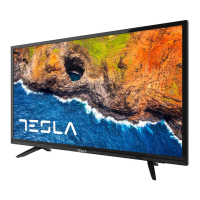
If a web page cannot be displayed completely on your Tesla LED TV, some third-party extensions may not be supported.

Why can't a web page be displayed completely on my Tesla 3 Series?
If a web page cannot be displayed completely on your Tesla LED TV, some third-party extensions may not be supported.
Why does my Tesla Air Cleaner turn on, then suddenly turn off?
If your Tesla Air Cleaner turns on and then suddenly turns off, it may be defective or malfunctioning. Immediately discontinue use and contact Customer Support. Do not attempt to open the air purifier for self-servicing.
What to do if my Tesla LED TV says ‘This file is invalid’?
If your Tesla LED TV displays ‘This file is invalid’ or the audio is normal but the video is abnormal, the media file may be damaged. Check if the file can be played on a PC and verify if the video and audio codec is supported.
How to troubleshoot no picture and no sound on Tesla 3 Series?
If your Tesla LED TV shows no picture and no sound, check the following: 1. Ensure the fuse or circuit breaker is working correctly. 2. Plug another electrical device into the outlet to confirm it's functioning and turned on. 3. Verify that the power plug is making good contact with the outlet. 4. Check the signal source.
What to do if my Tesla 3 Series LED TV won't turn on?
If your Tesla LED TV won't turn on, first make sure the AC cord is plugged in. Then, check the wall outlet to ensure the AC output works normally and stably. Also, verify that the Key Lock function in the OPTION Menu is unchecked.
Why is my Tesla 3 Series LED TV not turning on?
If your Tesla LED TV shows no picture, no sound, and the indicator light is off, first ensure that the power cord is properly plugged in. If it is, check if the power is turned on. If not, turn the power on.
What to do if my Tesla 3 Series has no picture but normal sound?
If your Tesla LED TV has no picture but the sound is normal, first try adjusting the brightness and contrast settings. If that doesn't work, the issue might be due to a broadcasting failure.
What to do if my Tesla LED TV has no picture and no sound?
If your Tesla LED TV shows no picture and produces no sound, start by verifying the signal source. Next, plug another electrical device into the outlet to confirm that the outlet is working properly. Check that the power plug makes good contact with the outlet and check the signal.
How to fix Tesla 3 Series remote control that is not working?
If your Tesla LED TV remote control isn't working, first check the remote sensor. Then, try replacing the batteries, ensuring they are correctly installed. Also, make sure the main power is connected.
How to fix poor picture quality on Tesla LED TV?
If the sound is fine but the picture quality is poor on your Tesla LED TV, check the connection stability and correctness. For AV input, ensure the yellow video cable connects to the yellow Video In jack on the side of your TV. For Component input, the three Y, Pb, Pr video cables (red, blue, and green) should be connected to the corresponding input jacks on the side of your TV. Check the antenna connections. Also, try adjusting the color features to improve the picture.
Step-by-step guide on how to replace the batteries in the remote control unit.
Description and function of the physical buttons located on the TV set.
How to start recording and play back content immediately using a single button press.
Setting up scheduled recordings for TV programs using a timer.
Using the EPG to access recording menus and manage recorded content.
Displaying detailed information about selected TV programs via the EPG.
Viewing and managing the schedule of recorded programs through the EPG.
Setting reminders for upcoming programs using the EPG interface.
How to navigate and operate the TV menu, specifically in DTV mode.
Adjusting various picture settings like mode, color temperature, and aspect ratio.
Configuring sound settings such as mode, bass, treble, balance, and surround sound.
Automatic search and storage of TV channels for DVB-T or DVB-C signals.
Configuring satellite dish settings for program searching via DVB-S.
Manually searching and storing digital TV channels.
Manually tuning analog TV channels and adjusting settings.
Making minor adjustments to individual channel tuning for optimal picture and sound.
Editing, renaming, deleting, or reordering TV programs and adding to favorites.
Adjusting time zone, auto sync, clock, and summer time settings.
Configuring sleep timers for automatic TV standby.
Managing lock system, setting passwords, blocking programs, and parental guidance.
List of file types (photo, video, music) supported by the TV via USB.
Controls and options for playing movie files from a USB device.
Controls and options for playing music files from a USB device.
Controls and options for viewing photo files from a USB device.
Troubleshooting steps when the TV displays no image and no audio.
Steps to resolve issues where the remote control is unresponsive.
Diagnosing and fixing problems when the TV has a picture but no sound.
Addressing picture issues caused by weak signals or external interference.
 General