Need help?
Do you have a question about the TESmart HKS0402A2U and is the answer not in the manual?
Information regarding the copyright and usage restrictions of the user manual.
Provides the contact address for the manufacturer, Tesla Elec Technology Co., Ltd.
Essential safety guidelines for using the KVM switch, including avoiding water and heat.
Details on the remote control's battery requirements and proper disposal of batteries.
Outlines the product's warranty period, coverage, and repair conditions.
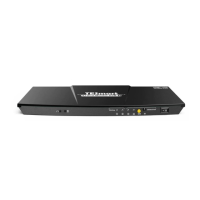
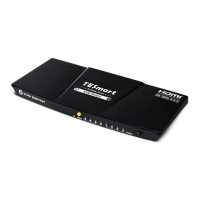
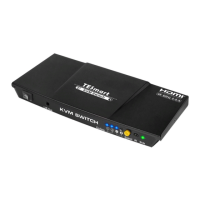
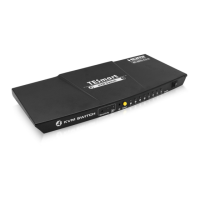
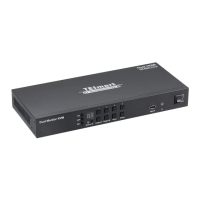
Introduces the 4x2 HDMI KVM Switch, its capabilities, and benefits.
Lists the main functionalities and specifications of the KVM switch, such as multi-PC control and resolution support.
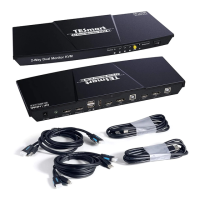
Details all items included in the product package, such as the KVM switch and cables.
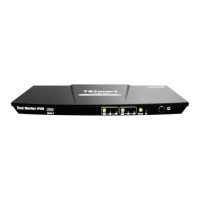
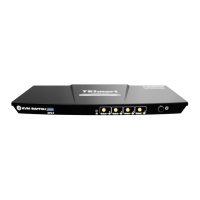
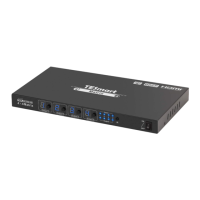
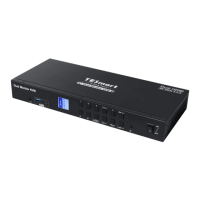
Identifies and explains the function of the front panel components and ports.
Explains the function of the rear and side panel connectors and ports.
Illustrates the physical connections required for the KVM switch and connected devices.
Provides steps and considerations for preparing the workspace and cables before making connections.
Details the sequential steps for connecting PCs, monitors, and peripherals to the KVM switch.
Guides on connecting external mouse, keyboard, and USB 3.0 devices to the KVM.
Instructions for connecting HDMI displays and external audio devices to the KVM.
Details on connecting the power adapter and powering on the KVM switch.
Displays a visual example of a fully connected KVM workbench setup with PCs and monitors.
Explains the two display modes: duplicate and extended desktop.
Details the mixed display mode where monitors show different PCs.
Describes the KVM's capability to charge external devices via USB ports.
Explains how to lock audio and USB focus independently for better usability.
Details the auto scan feature for automatically switching between input devices.
Describes how to use the mouse wheel for quick input source switching.
Explains how to operate the KVM using the front panel buttons and the LCD interface.
Provides a schematic explanation of the LCD interface elements and panel icons.
Details the function of the 1-4 buttons for PC selection and display mode switching.
Explains how to switch keyboard and mouse focus between connected PCs.
Describes the procedure for locking the L/R audio to a specific PC.
Details how to lock USB 3.0 devices to a specific PC.
Explains the use of up and down navigation buttons in the settings menu.
Describes how to access and configure various settings via the settings button.
Explains how to lock the KVM, its effects, and how to unlock it.
Information on changing passwords and restoring factory defaults.
Details how to use the infrared remote control for KVM operation.
Explains how to use keyboard shortcuts for various KVM functions.
How to switch PCs on specific monitors in display mode 2.
How to switch peripheral focus between PCs in mixed display mode.
Hotkey to enable/disable mouse wheel switching functionality.
Hotkeys to turn auto scan on/off and adjust its time interval.
Hotkey to enable or disable the buzzer sound.
How to change hotkey combinations via the LCD menu.
How to cycle through different trigger hotkeys using keyboard shortcuts.
Explains the concept and benefits of pass-through mode for KVM compatibility.
Lists representative keyboard and mouse models tested for compatibility.
 General
| Type | KVM Switch |
|---|---|
| Number of Ports | 4 |
| Number of Consoles | 2 |
| USB | USB 2.0 |
| Bandwidth | 10.2 Gbps |
| Storage Temperature | -20°C to 60°C |
| Product Type | KVM Switch |
| Ports | 4 |
| Control Method | Front Panel Buttons, Hotkeys, Remote Control |
| Switching Mode | Manual |
| USB Ports | USB 2.0 |
| Audio | Yes |
| HDCP | HDCP 1.4 |
| EDID | Yes |
| Power Supply | DC 5V/2A |
| Operating Temperature | 0°C to 40°C |

 To Next Page