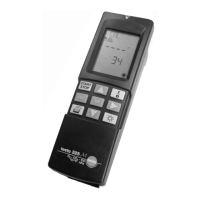
Inputting numerical values
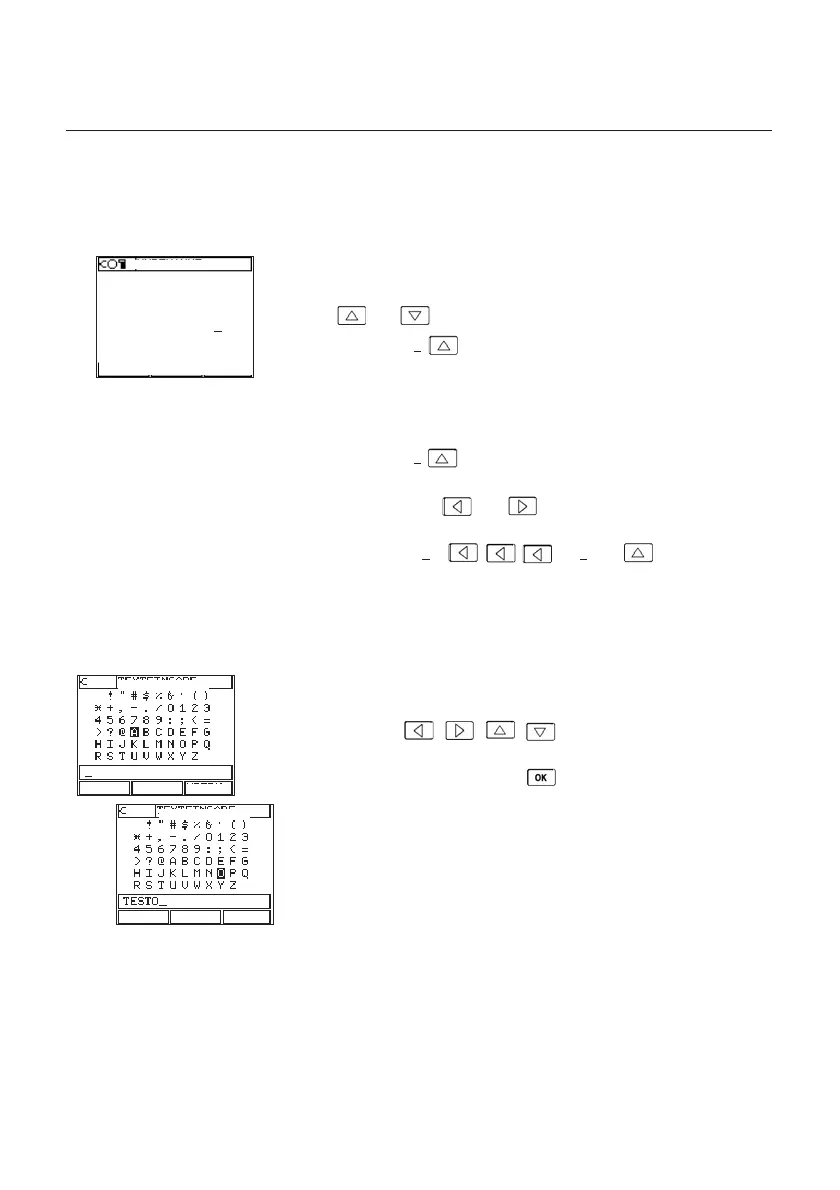
The cursor first turns up at a position on the respective digit. With the arrow
buttons and you can increase and decrease the numerical value.
Example: 0.2
➞➞
0.3
If you keep the button pressed the values will increase or decrease. If the
number 9 or 0 is exceeded the values will be counted on by one decimal
place.
Example: 19.9
➞➞
20.0
Using the arrow buttons and the respective decimal place can be
reached and changed.
Example: 110.5
➞➞
110.5
➞➞
210.5
Text input (alphanumeric characters)
The respective required character is selected from the list of all available
characters via the , , , arrow buttons and is
transmitted to the text line via STORE.
The last character in the text line is deleted via DELETE. Once the text is
input, save the complete text line with .
Maximum 20 characters per text line are visible. More characters can be
entered in some cases. The text line then moves automatically to the left.
Initial operation
Operating the analyser
8
SSN/Heat carrier temp.
HHeeaatt ccaarrrriieerr tteemmpp..::006600°°CC
TEXT INPUT
DELETE
STORE
TEXT INPUT
DELETE
STORE


 To Next Page