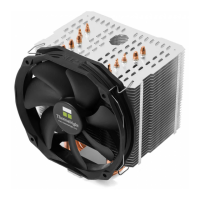
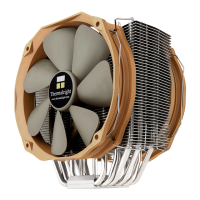
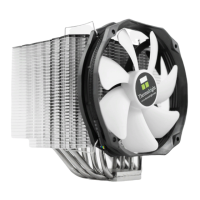
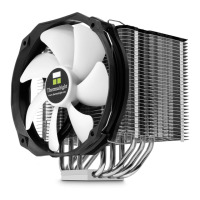
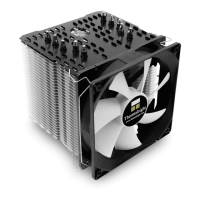
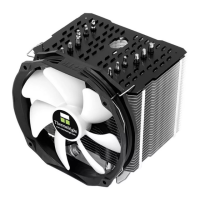
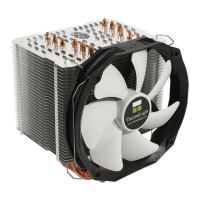
Silver Arrow TR4 Installation Manual
r
t
Continue by adding 4 more drops (5-6mm diameter) of Silver
Arrow TR4 in a square pattern at the center as shown below:
Caution: Applying too much thermal paste will lower heat conductivity
STEP 3:
Applying thermal paste
If there are residual traces of thermal paste or
thermal pads on
your CPU, please clean them off rst.
Then press 9 small drops (4-6mm diameter) of
Archon TR4 onto the the heatspreader in a TR4
pattern as shown below:
Caution: Gently tighten the screws until they stop, but don’t use excessive force (max. torque 0.6 Nm).
STEP 4:
Attaching the 4 pieces Anti-Vibration Pads
and fan clips
Extra fan clips step:
“Caution, right and left fan clips are not the same! When facing the front of cooler the
right side fan clip is labeled with red and left side fan clip is labeled with white. All
white labeled left side fan clips go on the left side of cooler and all red labeled right
side fan clips go on the right side of cooler including the optional rear fan.”
STEP 5:
Attaching cooler crossbar to mount wiht M3L7 screws
STEP 6:
Attaching TY-143 fan and fan clips
STEP 1:
Screw Pillar Installation
Install the four TR4 screws pillars on AMD TR4
processor socket.
STEP 2:
TR4-S Mounting Kits Installation
Place the TR4-S mounting kits on the screw pillars,
and then screw the four Screw Nuts on TR4 mount-
ing kit and ensure they are parallel to socket and
each other.
TR4 Screw Pillars x4
TR4-S mounting kit x2
Screw Nut x4
Required mounting parts:
Required mounting parts:
Required mounting parts:
M3L7 screws x2
Required mounting parts:
fan clips x2
TY-143 x1
Fan clips install start from the bottom to the top
R
L
L fan clipx2
R fan clipx2

 Need help?
 General

 To Next Page