EasyManua.ls Logo

ThermoFisher Scientific QuantStudio 3 - User Manual

ThermoFisher Scientific QuantStudio 3
66 pages
Print Icon
To Next Page IconTo Next Page
Loading...
For Research Use Only. Not for use in diagnostic procedures.
QuantStudio
Design and Analysis v2
USER GUIDE
for use with:
QuantStudio
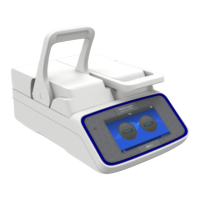
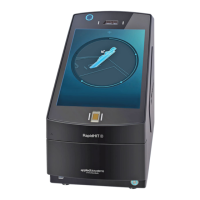
7 Pro Real-Time PCR System
QuantStudio
6 Pro Real-Time PCR System
QuantStudio
5 Real-Time PCR System
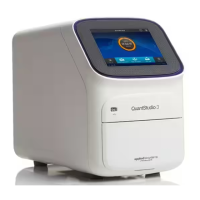
QuantStudio
3 Real-Time PCR System
QuantStudio
1 Real-Time PCR System
Publication Number MAN0018202
Revision F.0

Table of Contents

Other manuals for ThermoFisher Scientific QuantStudio 3

Questions and Answers

  • C
    cameronoliviaAug 4, 2025
    What to do if I see a high fluorescence signal in my ThermoFisher Scientific Laboratory Equipment?
    • D
      Diane MartinAug 4, 2025
      A high fluorescence signal could be due to several factors. First, verify that the reaction volumes in the plate are accurate and match the volume entered in the Run Method tab. Also, check the bottom of the reaction plate for any fluorescent contaminants. If contamination is present, prepare and run a new plate. Finally, identify the location of contamination on the plate or sample block. For detailed instructions, see the instrument documentation.
  • J
    jasonburkeAug 9, 2025
    Why is there inconsistent communication between my ThermoFisher Scientific QuantStudio 3 Laboratory Equipment and the computer?
    • A
      Arthur AlvarezAug 9, 2025
      Inconsistent communication can occur for several reasons. Ensure that only one connectivity option is plugged into the instrument (either an Ethernet cable or a wireless adapter, but not both). Configure for wired or wireless network connection. If you are using a wireless connection, try changing the configuration to a wired connection. Also, try to use a wireless network with a stronger or more consistent signal.
  • C
    Connor PattersonAug 15, 2025
    How to fix inconsistent communication between ThermoFisher Scientific QuantStudio 3 and computer/Cloud?
    • J
      James ClarkAug 15, 2025
      To resolve inconsistent communication issues between your ThermoFisher Scientific Laboratory Equipment and your computer or the Cloud, ensure that only one type of network connection is active at a time. If you're using both a wired (Ethernet cable) and a wireless adapter, disconnect one of them. If you're using wireless, consider switching to a wired connection for more stability, or use a wireless network with a stronger signal.
  • G
    garzadeniseAug 19, 2025
    What to do if the touchscreen is black on ThermoFisher Scientific QuantStudio 3 Laboratory Equipment?
    • M
      Michelle JohnsonAug 20, 2025
      If the touchscreen on your ThermoFisher Scientific Laboratory Equipment is black, first, touch the screen to see if it's just in sleep mode. If that doesn't work, check if the instrument is powered on using the power switch on the rear panel. Also, verify that the power supply is properly connected.
  • J
    Jennifer HansonAug 25, 2025
    How to resolve 'insufficient disk space' message on ThermoFisher Scientific Laboratory Equipment?
    • J
      Jesus WatsonAug 26, 2025
      If your ThermoFisher Scientific Laboratory Equipment displays an 'insufficient disk space' message, you'll need to free up some space. Here’s how: 1. Go to the home screen and touch 'Settings'. 2. Select 'Run History', then 'Manage'. 3. From there, you can delete or transfer experiments from the instrument to create more space.
  • J
    Justin HansenAug 29, 2025
    What to do if the ThermoFisher Scientific QuantStudio 3 Laboratory Equipment connection to computer is not recognized?
    • C
      Catherine WilliamsAug 29, 2025
      If your ThermoFisher Scientific Laboratory Equipment isn't recognized by your computer, try power cycling the instrument. Turn the instrument off, and then turn it back on again.

Summary

About the software

Compatible instruments

Lists the QuantStudio real-time PCR systems compatible with the software.

Compatible data files

Lists the real-time PCR instruments whose data files are compatible with the software.

Workflow

Set up a plate file

Select a system template or existing plate file to set up a new plate file

Guide on creating a new plate file by selecting a system template or existing file.

Confirm or edit run method

Details on how to review and modify the run method parameters for an experiment.

Confirm or edit plate setup

Procedures for setting up the plate layout, including selecting wells and assigning samples.

Set up the standard curve

Detailed steps for configuring standard curves for quantitative analysis.

Review and analyze data

Workflow: General procedures to review the primary analysis results

Overview of the steps involved in reviewing and analyzing the data generated from an instrument run.

Open a data file

Instructions for opening existing data files for analysis and review.

Review results in the Amplification Plot

Steps to examine amplification curves, baseline, and threshold settings in the Amplification Plot.

Identify and omit outliers from analysis

How to identify wells with outlier Cq values and exclude them from analysis.

Edit primary analysis settings

Procedures for adjusting primary analysis parameters like Cq, Melt, and QC settings.

Override the calibration data

Steps to replace instrument calibration data with data from another instrument.

Export results

Export the Well Table

How to export the well data, including Cq values and status, to a file.

Generate a report

Steps to create a customizable report summarizing experiment results.

General procedures to analyze data in the Quality Check tab

View the post-run summary

How to access and review a summary of the instrument run details.

Review individual well results in the Well Table

Procedures for examining detailed results for each well in the Well Table.

Manage plate files and data files

Save a plate file or data file

Instructions for saving plate files and data files, including options for new names.

Manage analysis modules

About analysis modules

Explanation of analysis modules as plugins for extending software functionality.

Select an analysis module

How to choose and activate an analysis module for specific data analysis tasks.

Manage export settings

View or edit export settings

Instructions for customizing which data columns and types are included in exports.

About data analysis

About the quantification cycle (Cq)

Explanation of the quantification cycle (Cq) and its role in gene expression analysis.

Guidelines for manual threshold and baseline settings for Cq analysis

Recommendations for manually setting thresholds and baselines for accurate Cq determination.

Troubleshooting

Documentation and support

Information on accessing user guides, technical support, and other resources.

ThermoFisher Scientific QuantStudio 3 Specifications

General IconGeneral
BrandThermoFisher Scientific
ModelQuantStudio 3
CategoryLaboratory Equipment
LanguageEnglish

Related product manuals