card might already be installed in your computer. In some countries or regions, a nano-SIM card is part of the
shipping contents that come with your computer.
Attention: When installing or removing the nano-SIM card, do not touch the nano-SIM card metal
connectors.
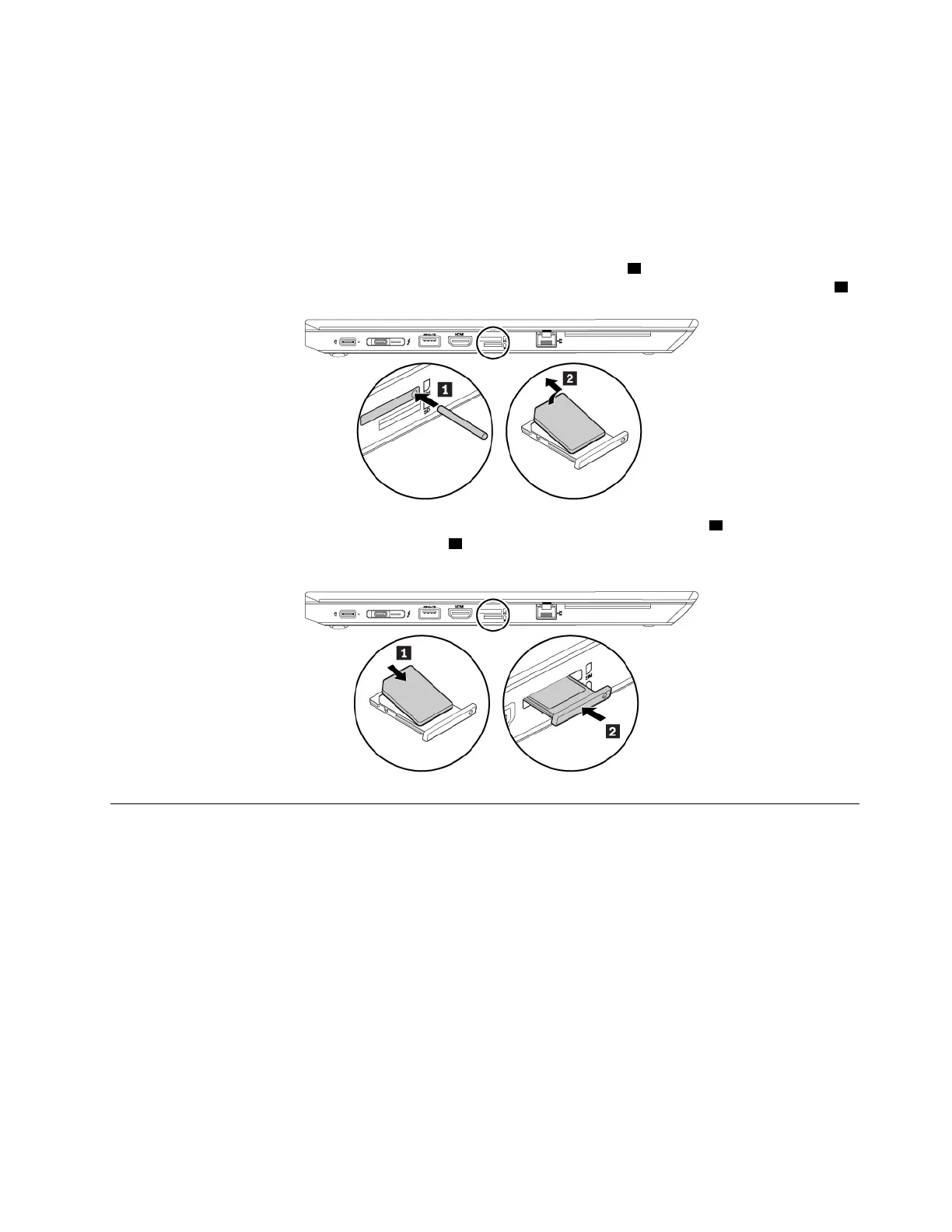
To replace the nano-SIM card, do the following:
1. Locate the nano-SIM-card tray at the left side of the computer.
2. Insert a straightened paper clip into the hole in the nano-SIM-card tray
1 . The tray ejects. Then, slide the
tray out of the computer. If a nano-SIM card is installed, gently take thenano-SIM card out of the tray
2 .
3. Install a new nano-SIM card into the tray with the metal contacts facing downward 1 . Insert the tray into
the nano-SIM-card slot until you hear a click
2 . Ensure that the new nano-SIM card is installed in correct
orientation.
Replacing the microSD card
Before you start, read “Important safety information” on page v and print the following instructions.
Your computer has a microSD card reader that supports the following types of cards:
Note: Your computer does not support the content protection for recordable media (CPRM) feature for the
SD card.
• Secure Digital (SD) card
• Secure Digital High-Capacity (SDHC) card
• Secure Digital eXtended-Capacity (SDXC) card
Attention: During the data transfer, do not put your computer into sleep or hibernation mode before the data
transfer is completed; otherwise, your data could get damaged.
To replace a microSD card, do the following:
Chapter 9. Replacing devices 101


 To Next Page