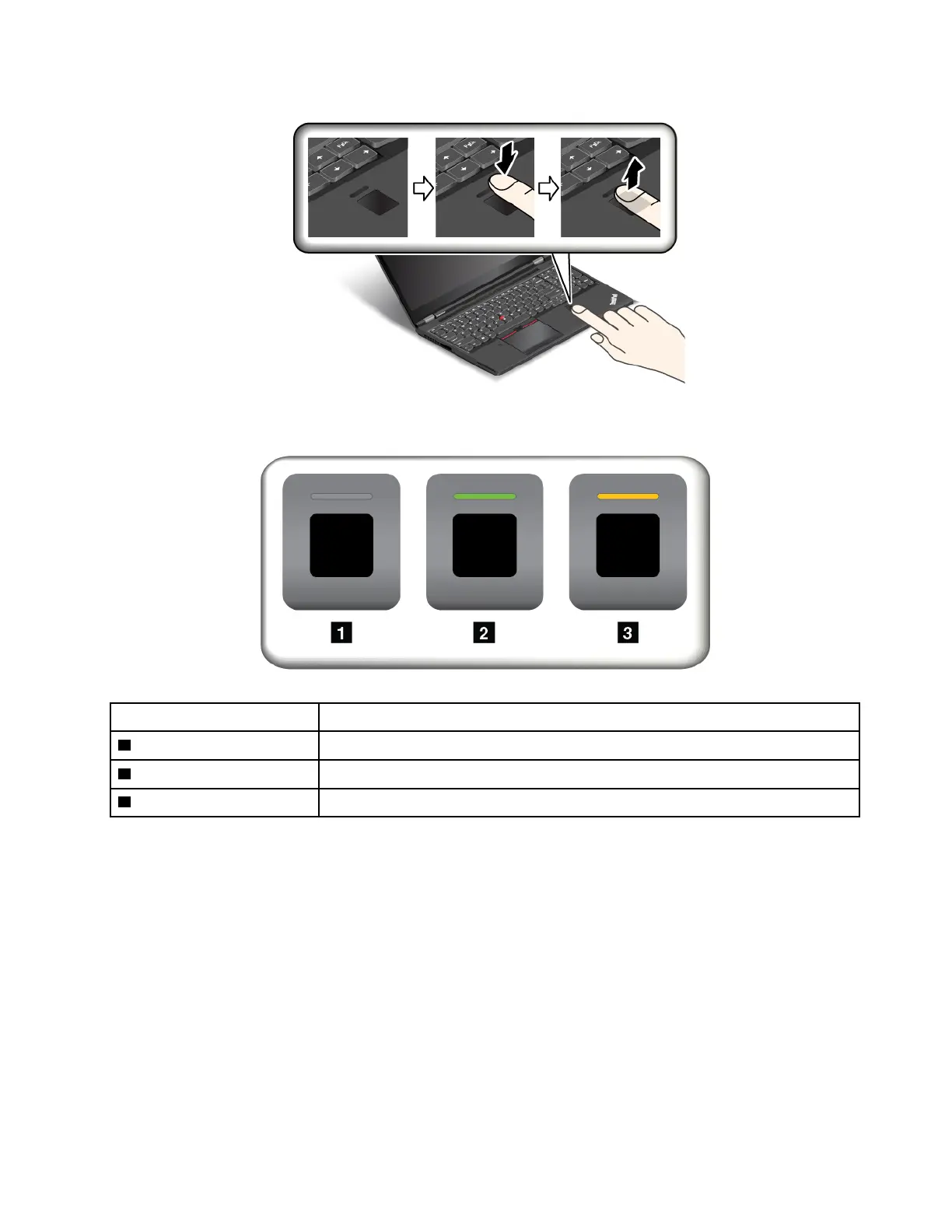
Behavior of the fingerprint reader indicator
Indicator behavior Description
1 Off The fingerprint reader is not ready for tapping.
2 Solid green The fingerprint reader is ready for tapping.
3 Amber, blinking The fingerprint cannot be authenticated.
Associating your fingerprints with your power-on password and hard disk password
To associate your fingerprints with your power-on password and hard disk password, do the following:
1. Turn off and then turn on the computer.
2. When prompted, scan your finger on the fingerprint reader.
3. Enter your power-on password, hard disk password, or both as required. The connection is created.
When you start the computer again, you can use your fingerprints to log in to the computer with no need to
enter your Windows password, power-on password, and hard disk password.
Attention: If you always use your fingerprint to log in to the computer, you might forget your passwords.
Write down your passwords, and keep them in a safe place. If you forget your power-on password, you must
take your computer to a Lenovo authorized servicer or a marketing representative to have the password
canceled. If you forget your hard disk password, Lenovo cannot reset your password or recover data from
the storage device. You must take your computer to a Lenovo authorized servicer or a marketing
Chapter 5. Security 61



 To Next Page