13
Connecting the product to an iOS device
Connecting via Wi-Fi
1. On your iOS device, open the App Store, and download and install
THINKWARE CLOUD.
2. Run THINKWARE CLOUD.
3. Tap Dash cam connection is required. at the bottom of the screen.
4. Tap Wi-Fi connection.
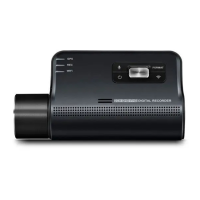
5. On the product, press the Wi-Fi (
) button.
6. From the THINKWARE CLOUD, tap Next.
The Wi-Fi Settings screen will appear.
7. From the network list, select the Wi-Fi network starting with "Thinkware."
8. Enter "123456789" in the Passwordeld,andtapJoin.
The product is connected to your iOS device via Wi-Fi.
Connecting via hotspot
1. On your iOS device, open the App Store, and download and install
THINKWARE CLOUD.
2. Run THINKWARE CLOUD.
3. Tap Dash cam connection is required. at the bottom of the screen.
4. Tap Hotspot Connection > Congure New Connection.
5. On the product, press the Wi-Fi (
) button.
6. From the THINKWARE CLOUD, tap Next.
The Wi-Fi Settings screen will appear.
7. From the network list, select the Wi-Fi network starting with "Thinkware."
8. Enter "123456789" in the Passwordeld,andtapJoin.
The product is connected to your iOS device via Wi-Fi.
9. Return to the THINKWARE CLOUD, enter the password for your
hotspot, and tap Next.
To view the password for your hotspot, from the home screen of your iOS
device, tap Settings > Personal Hotspot.
Q800PRO_QSG_ACMA-025FAM103.indb 13Q800PRO_QSG_ACMA-025FAM103.indb 13 2021-08-09 오후 1:20:182021-08-09 오후 1:20:18


 To Next Page