Need help?
Do you have a question about the Thinkware F200 and is the answer not in the manual?
Purpose, limitations, and operational guidance for the dashcam.
Information on the guide's content, potential changes, and intended use for F200 models.
Copyrights for content/maps and registered trademarks of THINKWARE products.
Compliance with IC radiation exposure limits for uncontrolled environments.
Device compliance with FCC rules, conditions for operation, and interference measures.
Device compliance with Industry Canada's license-exempt RSSs and operational conditions.
Explains the meaning of Warning, Caution, and Note symbols used throughout the manual.
Safety guidelines for operating the product while driving and installing it.
Safety precautions for handling power cables, using genuine accessories, and secure connections.
Warning to keep the product out of reach of children and pets to prevent injury.
Guidelines for product handling, temperature limits, cleaning, and general usage precautions.
Lists the standard items included in the product box and optional accessories.
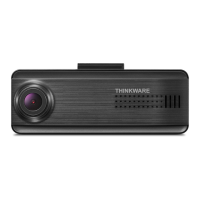
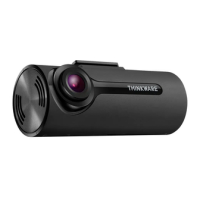
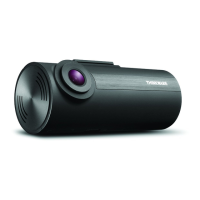
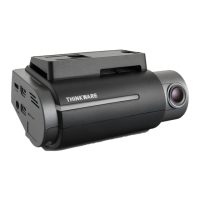
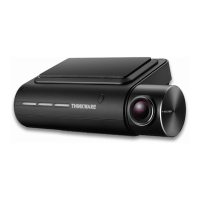
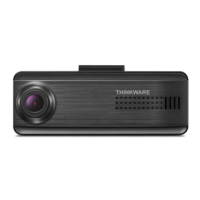
Identifies various components of the front camera unit.
Detailed diagram and labels for the front view of the main dash cam unit.
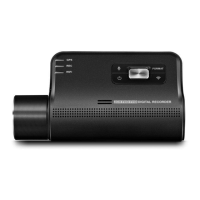
Diagram and labels for the rear view of the main dash cam unit, including buttons and LEDs.
Diagram and labels for the optional rear camera unit.
Step-by-step instructions on how to safely remove and insert the microSD memory card.
Instructions for properly installing the main front camera unit.
Guidance on choosing an optimal location on the windshield for the front camera.
Steps for securely attaching the dash cam to the windshield mount.
Detailed steps for mounting the dash cam and adjusting its vertical angle.
Instructions for connecting the car charger or hardwiring cable to power the device.
Guidance on choosing an optimal location on the rear windshield for the rear camera.
Steps for securely attaching the optional rear camera to the windshield.
Instructions for connecting the rear camera cable to the main unit.
Information on how the dash cam automatically turns on and starts recording.
Details on where recorded videos are stored in folders and file naming conventions.
Explanation of how continuous recording works, including segment length and incident detection.
Instructions on how to initiate manual recording and its duration.
Details on using parking mode, its options (Motion Detection, Energy Saving), and requirements.
Step-by-step guide to download and connect the dash cam to a smartphone via the app.
Overview of the mobile application's interface and its various functions.
Lists the minimum hardware and software requirements to run the PC viewer software.
Section dedicated to using the PC viewer software on Windows operating systems.
Instructions for downloading and installing the PC viewer software on Windows.
Detailed breakdown of the PC viewer interface for Windows, explaining controls and information display.
Step-by-step guide on how to play recorded video files using the PC viewer.
Explains the functions of various playback controls within the PC viewer software.
Instructions for downloading and installing the PC viewer software on Mac.
Detailed breakdown of the PC viewer interface for Mac, explaining controls and information display.
Step-by-step guide on how to play recorded video files using the PC viewer on Mac.
Explains the functions of various playback controls within the PC viewer software for Mac.
Options for managing the microSD card, including partitioning and formatting.
How to adjust storage space for different video recording types by partitioning the memory card.
Instructions on how to format the memory card, which erases all data.
Setting the dash cam to overwrite older videos with new ones automatically.
Adjusting the brightness settings for both the front and rear camera views.
How to adjust the brightness level for the front camera recording.
How to adjust the brightness level for the rear camera recording.
Adjusting sensitivity for detecting impacts during continuous driving recording.
Configuring the dash cam's operating mode for when the vehicle is parked.
Adjusting sensitivity for detecting impacts while the vehicle is parked.
Adjusting sensitivity for detecting motion near the vehicle during parking.
Setting a preset time for the dash cam to record videos in parking mode.
Enabling or disabling the feature that protects the vehicle's battery from depletion.
Setting the minimum voltage to stop recording to prevent battery drain.
Applying low voltage protection based on specific months during cold seasons.
Enabling or disabling alerts for speed limit zones and safety cameras.
Turning on or off alerts for mobile speed cameras or zones.
Adjusting global system settings like display language and screen brightness.
Adjusting the volume level for voice guidance and buzzer sounds.
Selecting the correct time zone for accurate recording timestamps.
Enabling or disabling the daylight saving time adjustment for accurate timekeeping.
Choosing the preferred unit for displaying vehicle speed (km/h or mph).
Enabling or disabling the feature to display the vehicle's speed on recorded videos.
How to access and view basic product details like model name and firmware version.
Information on how GPS data is used and how to initialize the GPS module.
Step-by-step instructions for updating the dash cam's firmware to the latest version.
Common problems users might encounter and their corresponding solutions.
Detailed technical specifications of the THINKWARE F200 dash cam.
Information on operating and storage temperature ranges for the device.
Important advice on backing up data before sending the product for repair.
 General
| Frame Rate | 30 fps |
|---|---|
| Viewing Angle | 140° |
| Wi-Fi | Yes |
| Parking Mode | Yes |
| G-Sensor | Yes |
| Night Vision | Yes (Super Night Vision) |
| Video Resolution | 1920 x 1080 |
| Memory Card Support | MicroSD, up to 128GB |
| Operating Temperature | -10°C to 60°C |
| Resolution | Full HD 1080p |
| GPS | Optional (External GPS Antenna) |


 To Next Page