EasyManua.ls Logo

Thinkware DC-M2-FG - User Manual

Thinkware DC-M2-FG
35 pages
Print Icon
To Next Page IconTo Next Page
Loading...
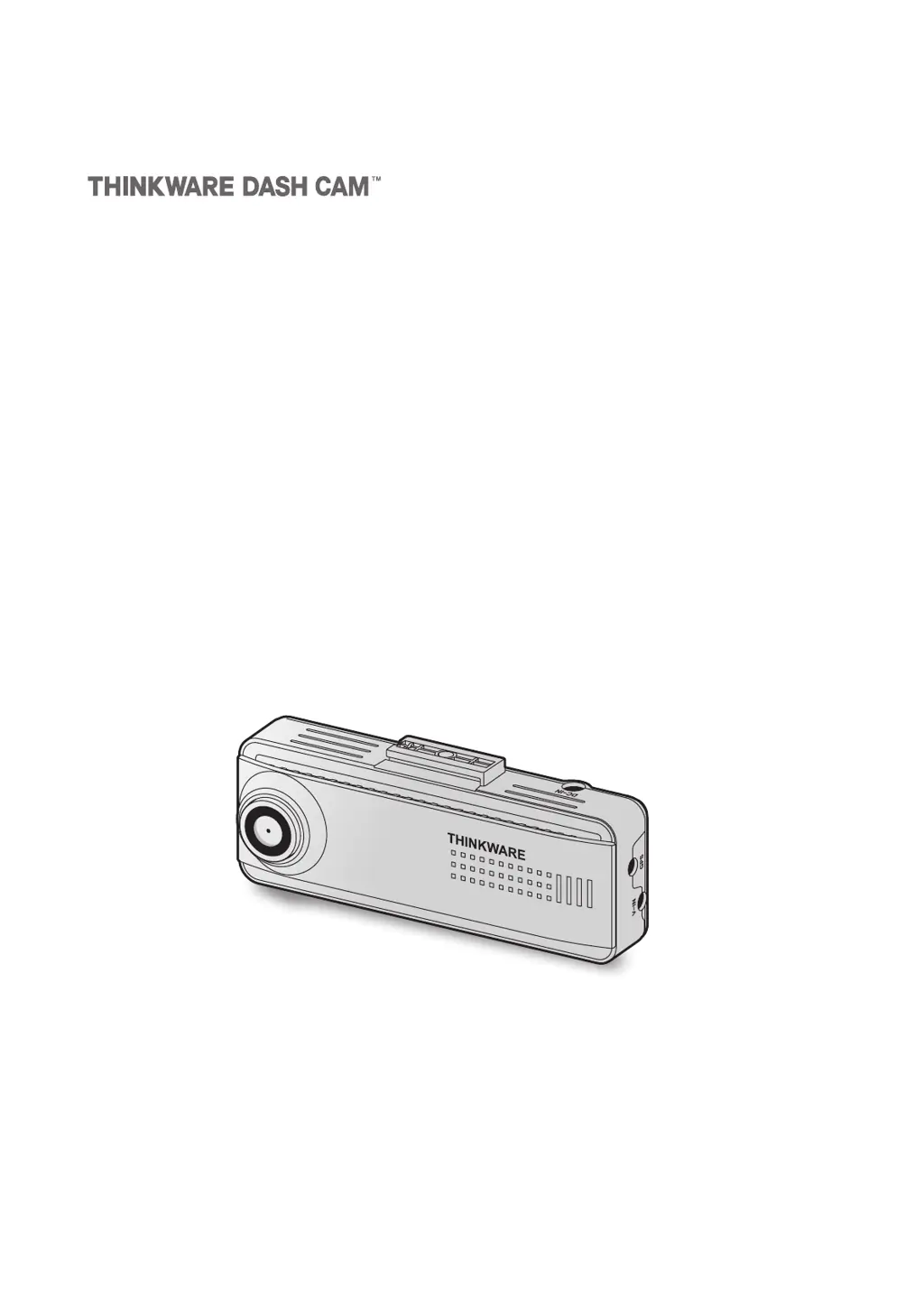
This product records videos while the vehicle is operating.
Read and follow the instructions in this guide to properly use and maintain the product.
User Guide
DC
-
M2
-
FG

Table of Contents

Questions and Answers

Summary

Before Using the Product

About the Product

Describes the dashcam's purpose, limitations, and accident recording capabilities.

User Guide Information

Explains the guide's content, potential errors, and disclaimers.

Legal and Trademark Notices

Covers copyrights, registered trademarks, and regulatory statements.

Regulatory Statements

FCC Compliance Statement

Details FCC rules, interference guidelines, and cautions.

Industry Canada Compliance

Outlines Industry Canada regulations and user notices.

Safety Information

Safety Symbols and Definitions

Explains the meaning of warning, caution, and note symbols.

Driving and Product Operation Safety

Crucial safety tips for using the product while driving.

Safety Information (continued)

Power Supply Safety Precautions

Guidelines for safe handling of power cables and connections.

Child and Pet Safety Measures

Safety advice regarding product placement away from children/pets.

Other Product Information

Product Management and Operation

Guidelines for product care, temperature, and handling.

1. Product Overview

1.1 Included Items

Lists all components provided in the product box.

1.2 Part Names

Identifies and describes the key parts of the dashcam.

1.2 Part Names (continued)

1.2.1 Front Camera - Front View

Details the components visible on the front of the main unit.

1.2.2 Front Camera - Rear View

Details the components visible on the rear of the main unit.

1.2 Part Names (continued)

1.2.3 Rear Camera

Describes the rear camera and its connection.

1.2.4 IR Camera

Describes the IR camera and its connection.

1.3 Memory Card Management

Removing and Inserting Memory Card

Instructions for proper memory card handling.

2. Installing the Product

2.1 Front Camera Installation

Steps to install the main dashcam unit.

2.1.1 Location Selection

Guidance on choosing the optimal installation spot.

2.1.2 Securing the Product

Instructions for attaching the dashcam to the mount.

2. Installing the Product (continued)

Front Camera Installation Steps

Continues the process of attaching the front camera to the windshield.

2. Installing the Product (continued)

2.2 Rear Camera Installation

Steps to install the rear camera.

2.2.1 Location Selection

Guidance for rear camera placement.

2.2.2 Securing the Rear Camera

Instructions for attaching the rear camera.

2. Installing the Product (continued)

2.2.3 Connecting Rear Camera Cable

Instructions on connecting the rear camera cable.

2. Installing the Product (continued)

2.3 IR Camera Installation

Steps to install the IR camera.

2.3.1 Location Selection

Guidance for IR camera placement.

2.3.2 Securing the IR Camera

Instructions for attaching the IR camera.

2. Installing the Product (continued)

2.3.3 Connecting IR Camera Cable

Instructions on connecting the IR camera cable.

3. Using Recording Features

3.1 Powering On and Off

How to turn the dashcam on and off.

3.2 File Storage Locations

Explains how video files are organized.

3. Using Recording Features (continued)

3.3 Continuous Recording Feature

Details how continuous recording works.

3.4 Manual Recording

Instructions for manually starting a recording.

3.5 Parking Mode Introduction

Overview of the parking mode feature.

3. Using Recording Features (continued)

Parking Mode Options Configuration

Detailed description of various parking mode settings.

3. Using Recording Features (continued)

3.6 Super Night Vision

Explanation of the low-light enhancement feature.

3.7 Road Safety Features

Description of ADAS features like LDWS and FCWS.

4. Using the Mobile Viewer

4.1 Connecting to Smartphone

Steps to link the dashcam to a mobile device.

4.2 Mobile Viewer Screen Layout

Overview of the mobile application interface.

5. Using the PC Viewer

5.1 System Requirements

Hardware and software requirements for the PC viewer.

5.2 PC Viewer for Windows

Instructions for installing the PC viewer on Windows.

5.2.1 Windows PC Viewer Installation

Detailed steps for installing the viewer.

5. Using the PC Viewer (continued)

5.2.2 Windows PC Viewer Screen Layout

Description of the PC viewer interface for Windows.

5. Using the PC Viewer (continued)

5.2.3 Playing Videos on Windows PC Viewer

Guide to playing recorded videos using the PC viewer.

5. Using the PC Viewer (continued)

5.2.4 Mac PC Viewer Screen Layout

Description of the PC viewer interface for macOS.

5. Using the PC Viewer (continued)

5.2.5 Playing Videos on Mac PC Viewer

Guide to playing recorded videos using the PC viewer on macOS.

6. Settings

6.1 Memory Card Management

Settings for managing the memory card.

6.2 Camera Settings

Adjustments for camera brightness.

6.3 Recording Features Settings

Configuration for recording sensitivity, night vision, parking mode.

6. Settings (continued)

Recording and Battery Settings

Settings for motion detection, record timer, battery protection.

6.4 Road Safety Features Settings

Configuration of ADAS and safety features.

6. Settings (continued)

6.5 System Settings Configuration

Settings for language, volume, date/time, speed unit.

7. Accessing Product Information

7.1 Viewing Product Information

Accessing model name, firmware version, etc.

7.2 GPS Information and Configuration

Details on GPS connection, signal, and initialization.

8. Firmware Upgrade

Firmware Upgrade Process

Step-by-step guide to updating the device firmware.

9. Troubleshooting

Common Problems and Solutions

Lists and resolves frequent user issues.

Service Center Contact Advice

Guidance before contacting customer support.

10. Specifications

Detailed Product Specifications

Comprehensive list of technical specifications.

Thinkware DC-M2-FG Specifications

General IconGeneral
BrandThinkware
ModelDC-M2-FG
CategoryDash Cameras
LanguageEnglish

Related product manuals