3EC 36716 BAAA TCZZA Ed. 01
3 SpeedTouch™ for Microsoft Windows
14
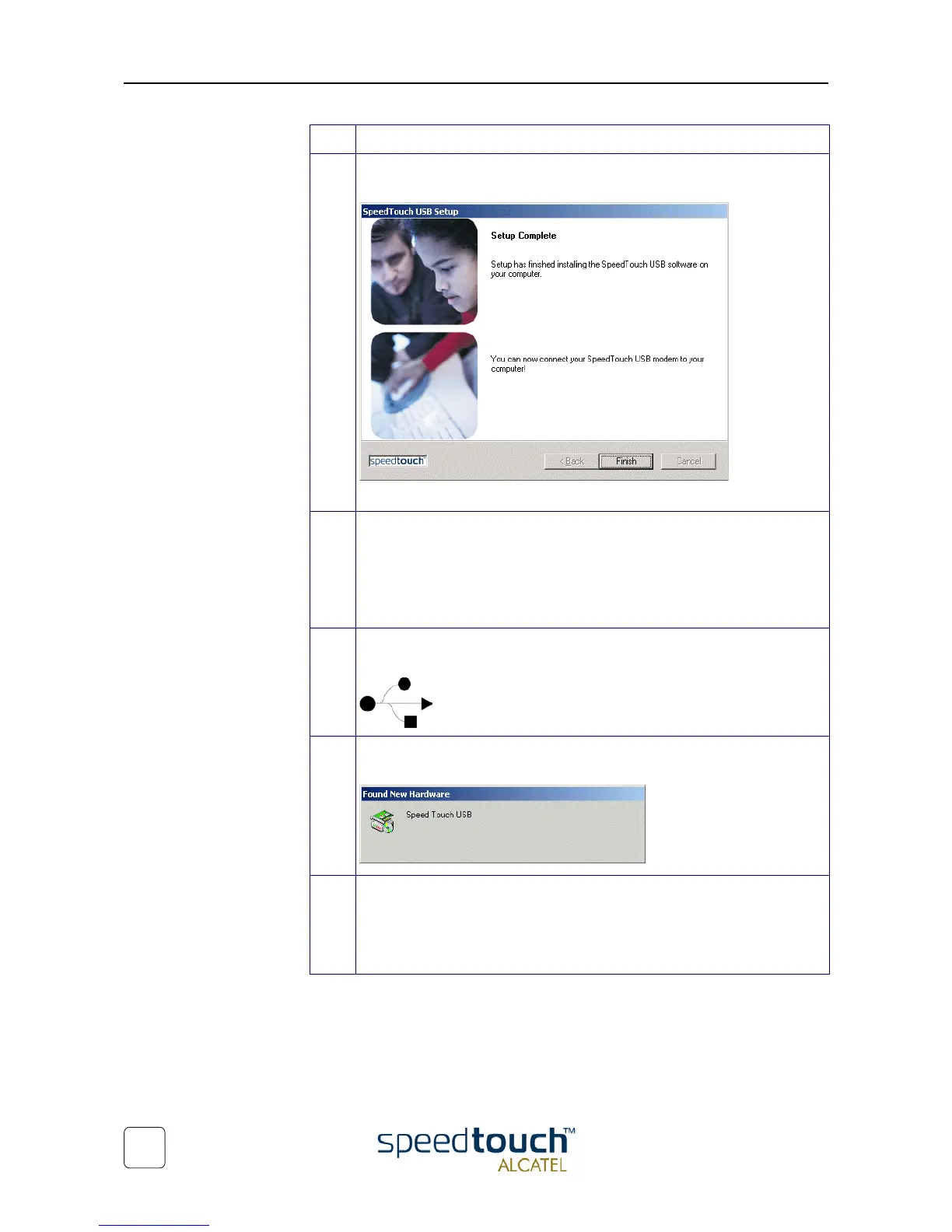
8 The 'Setup Complete' window pops up to announce that installation is
finished:
Click Finish to close the wizard.
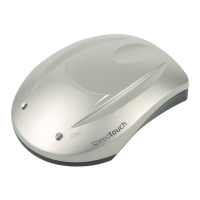
9 Plug the ADSL cable, provided in your package, into the inline receptacle of
the STUSB. Plug the other end of the ADSL cable into the wall socket termi-
nating ADSL service.
Note: Depending onto which pins of the wall socket the ADSL signals are
assigned, it might be necessary to plug in an RJ11 interchanger into the wall
socket prior to connect the ADSL cable.
10 Plug the STUSB's USB connector into the PC's USB port.
An USB port can be easily located, it is marked with the typical USB symbol:
11 The 'Windows found New Hardware' wizard will automatically continue with
the installation of the STUSB ADSL modem device:
12 The installation finishes with setting up STUSB's ADSL Wide Area Network
(WAN) connectivity.
The installation of the STUSB is now finished. The STUSB is now prepared for
connecting you to the Internet. (See section “3.2. Using the SpeedTouch™”
on page 16).
Step Action


 To Next Page