E-DOC-CTC-20090619-0010 v1.0
52
6 Sharing Content on
your Thomson Gateway
Accessing the shared content on Mac
Proceed as follows:
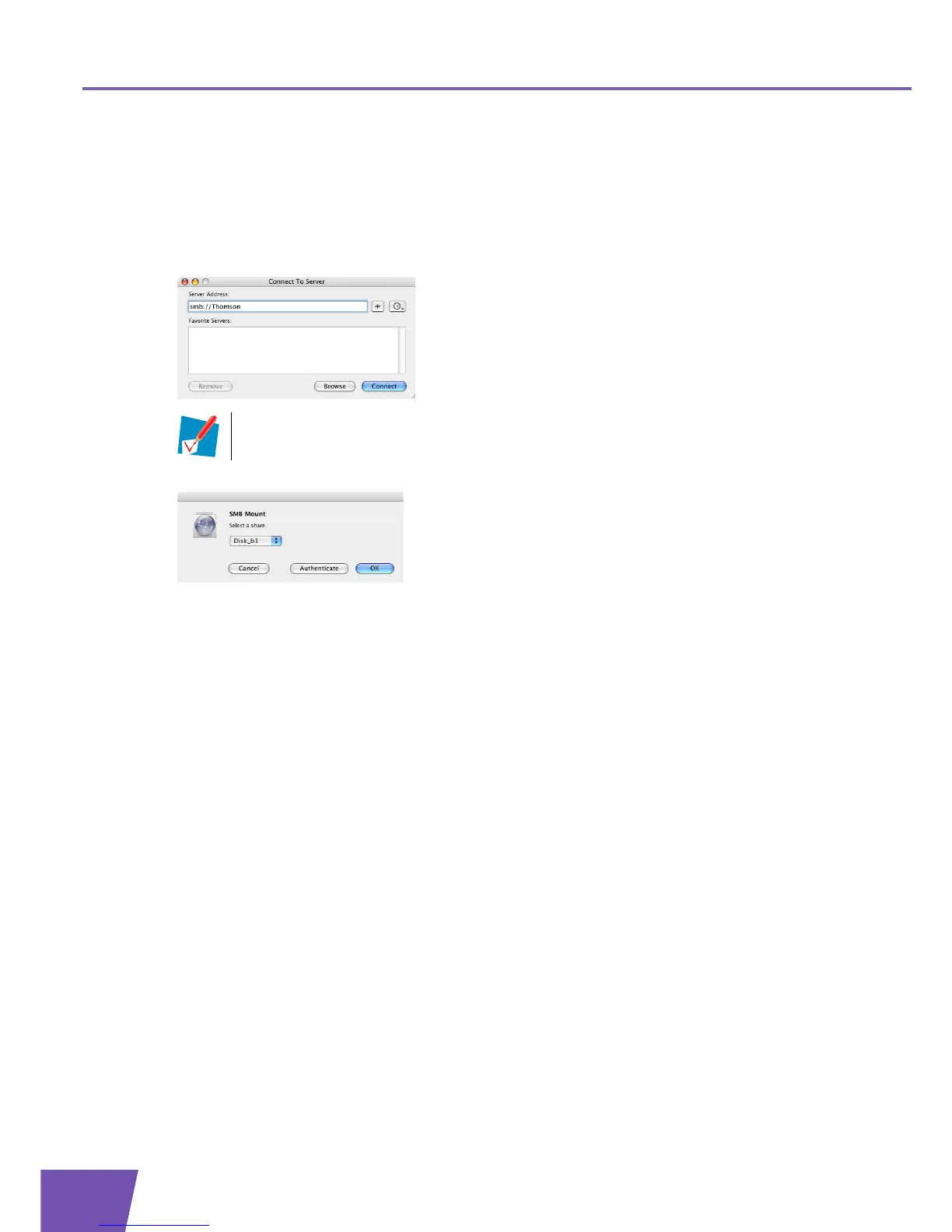
1 On the Go menu, click Connect To Server.
2 The Connect To Server window appears.
3 In the Server Address box, type smb://<server name>, where <server name> is the Server Name you
assigned to your USB storage device. So in our example we will type smb://Thomson.
4 The SMB Mount window appears.
Select the shared folder you want to mount and click OK.
5 The SMB/CIFS Filesystem Authentication window appears. You do not need to authenticate, click OK.
6 Your USB storage device is now mounted and is displayed on your desktop.
If you did not provide a server name, type smb://192.168.1.253.


 To Next Page