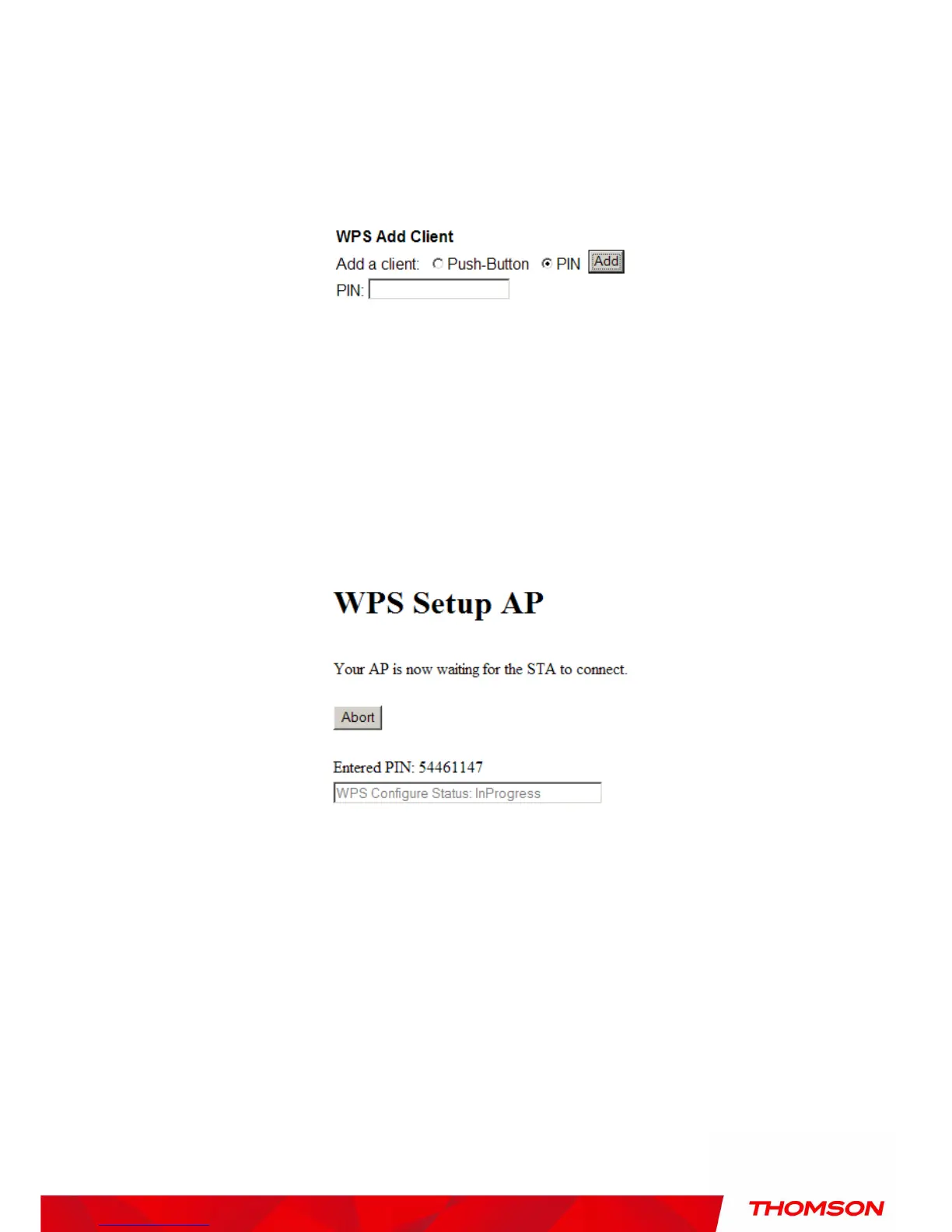
If you select WPS Method to PIN then it will ask for PIN while configuring the WiFi AP by
showing a text box so, you need to enter PIN to establish the connection. You can get the PIN
from your connected Wi-Fi client.
Fig. 45 WPS/PIN
PIN: Use this option to set the PIN, enter 4-8 digits PIN of the device you wish to configure.
After entering the pin click “Add” button, then the WPS Setup AP page will appear as shown in
Fig.41
Fig. 46 WPS Setup AP/PIN
And WPS Configure Status will be “In progress”, after establishing the connection the WPS
Configure Status will be “Success!” as shown below. After successful connection the client will
get IP address from AP and then internet will be accessible.


 To Next Page