EasyManua.ls Logo

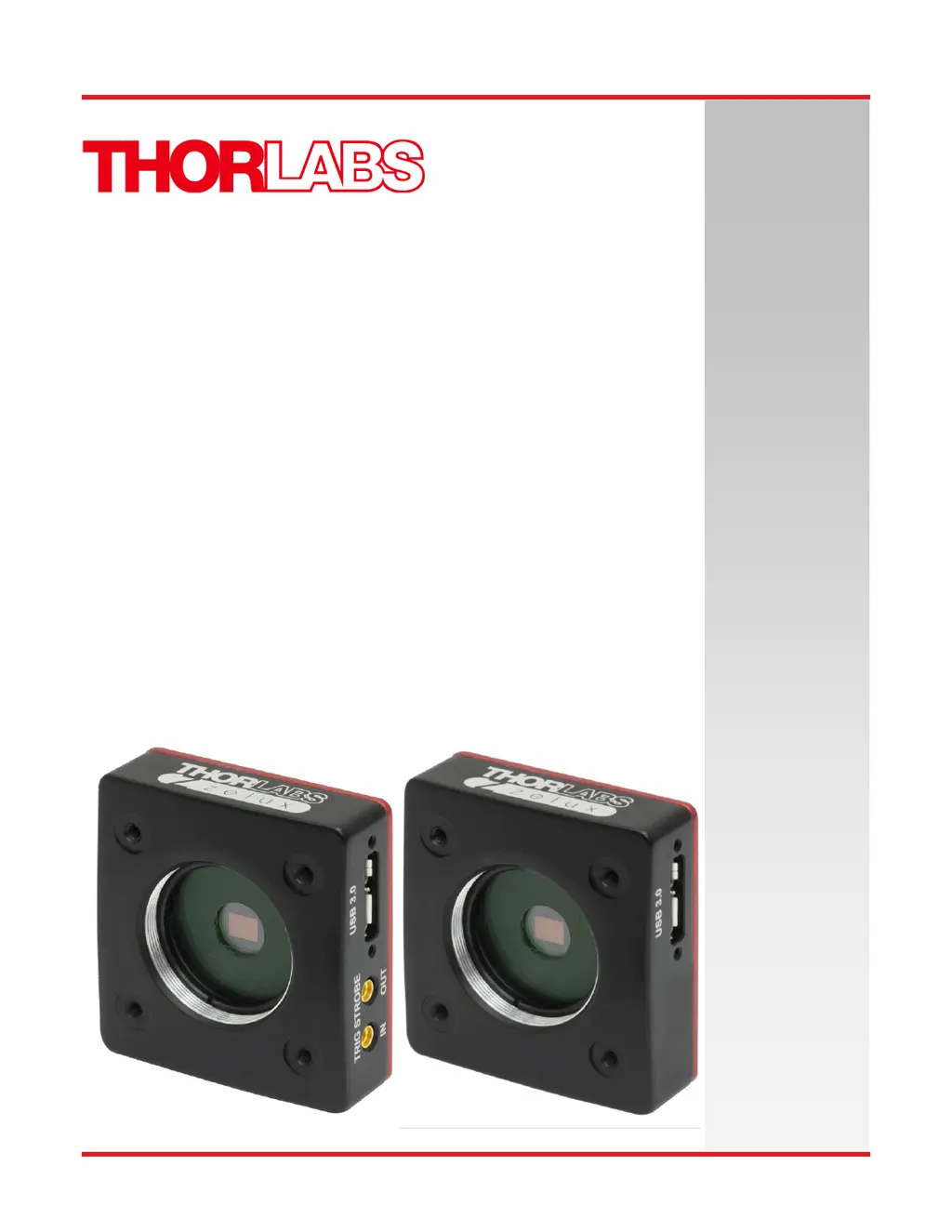
THORLABS CS165MU/M - User Manual

THORLABS CS165MU/M
41 pages
Print Icon
To Next Page IconTo Next Page
Loading...
Compact Scientific
Digital Cameras
User Guide
CS165 Series CMOS Scientific
Cameras

Table of Contents

Questions and Answers

  • V
    Victor ThomasAug 14, 2025
    What to do if the software cannot find a connected THORLABS CS165MU/M?
    • B
      Briana SotoAug 14, 2025
      If the software cannot find a connected THORLABS Digital Camera, ensure the camera is receiving power by connecting it to a USB 2.0 or 3.0 port. If the camera has been recently powered on, restart or refresh the software after waiting at least 30 seconds to allow the camera to complete enumeration. If the amber LED stays on, disconnect and reconnect the USB 3.0 cable, and if the problem persists, reboot the computer.
  • A
    Angela PowersAug 17, 2025
    Why is my THORLABS CS165MU/M Digital Camera excessively warm?
    • K
      kaitlyn38Aug 17, 2025
      If your THORLABS Digital Camera is excessively warm, ensure proper ventilation by removing any obstructions around the camera. If the problem persists, disconnect the camera from the USB3 port and contact customer service.
  • S
    Sarah BarkerAug 21, 2025
    What to do if THORLABS CS165MU/M Digital Camera is not found?
    • A
      Aaron TranAug 21, 2025
      If the THORLABS Digital Camera is not found, ensure it is connected to the USB3 port. If the issue persists, try a different cable. Reboot the computer.
  • T
    Thomas MccarthyAug 26, 2025
    How to fix low bandwidth USB 3.0 connection on THORLABS CS165MU/M?
    • S
      Sandra MyersAug 26, 2025
      If you experience a low bandwidth USB 3.0 connection with your THORLABS Digital Camera, consider using a PCIe high bandwidth USB 3.0 Card, such as Thorlabs’ USB3-PCIE, and reduce the frame rate. Also, ensure you are using the 3 m cable supplied with the camera or a high-quality cable with 26AWG signal wires (3 m max) or a 1 m cable.
  • J
    John MillerAug 28, 2025
    How to clean debris from image on THORLABS Digital Camera?
    • T
      Tim SummersAug 28, 2025
      If the displayed image from your THORLABS Digital Camera has spots or debris, carefully clean the protective window.
  • J
    josephmillerSep 1, 2025
    How to focus image with C-mount lens on THORLABS CS165MU/M Digital Camera?
    • H
      Heather CarrollSep 2, 2025
      If your image is not in focus when using a standard C-mount lens with your THORLABS Digital Camera, select an appropriate lens for the target distance. Ensure the C-mount lens uses the Thorlabs SM1A10Z C-mount adapter.
  • M
    Michael GonzalesSep 5, 2025
    How to focus image with CS-mount lens on THORLABS CS165MU/M Digital Camera?
    • S
      Sheila RileySep 5, 2025
      If your image is not in focus when using a standard CS-mount lens with your THORLABS Digital Camera, select an appropriate lens for the target distance. Ensure the C-mount lens uses the Thorlabs SM1A10 CS-mount adapter.
  • C
    Christopher HernandezSep 9, 2025
    Why is my THORLABS Digital Camera image too dark?
    • S
      Shane WestSep 9, 2025
      If you have insufficient illumination with your THORLABS Digital Camera: 1. Ensure that the exposure time is greater than 0. If it is, gradually increase the exposure time or gain. 2. Verify that the light source is turned on and the lens aperture is open. 3. Remove the lens cap.

Summary

Chapter 1 Safety

1.1. Precautions

Safety precautions to be followed before operating the digital camera. Essential for correct usage.

1.2. Warning Symbol Definitions

Definitions and explanations of various warning symbols used in the manual and on the device.

Chapter 3 Setup & Installation

3.1. Pre-Installation - USB 2.0 and USB 3.0

Requirements and considerations for connecting the camera to a PC via USB 2.0 or USB 3.0 ports.

3.2. Installing the Software

Step-by-step guide for installing the ThorCam software, drivers, and third-party application support.

3.3. Connecting the Camera

Procedure for physically connecting the camera to the host computer using the provided USB 3.0 cable and handling multiple cameras.

Chapter 4 Operation

4.1. Starting the Camera

Procedure for powering on the camera and understanding the status LED indicators for proper operation.

4.3. Frame-Rate Control

Feature to adjust frame rate in ThorCam software to manage dropped frames and optimize performance.

Chapter 5 CS165 MU Specifications

Chapter 6 CS165 CU Specifications

Chapter 7 Protective Glass Windows

Chapter 9 Troubleshooting

9.1. Interface

Solutions for common problems related to software not finding or displaying the camera connection.

9.2. Optical

Troubleshooting steps for focus issues, spots, or debris related to optical components and lenses.

9.3. Operational

Guidance for resolving issues like camera overheating, imaging timeouts, and low bandwidth USB connections.

9.4. Software

Solutions for software errors, camera not found, insufficient illumination, or issues with the lens cap.

Chapter 10 Maintenance

10.1. Cleaning Guidelines

Procedures and precautions for cleaning optical surfaces, filters, and the camera body to maintain performance.

Chapter 12 Warranty

THORLABS CS165MU/M Specifications

General IconGeneral
SensorCMOS
Pixel Size3.45 µm x 3.45 µm
Frame Rate60 fps
InterfaceUSB 3.0
MountC-Mount
Bit Depth12-bit
Sensor Size1/1.8"
Lens MountC-Mount
Sensor TypeCMOS
Operating Temperature0 °C to 50 °C
Storage Temperature-30 °C to 60 °C
Power Consumption2.5 W
Shutter TypeGlobal

Related product manuals