EasyManua.ls Logo

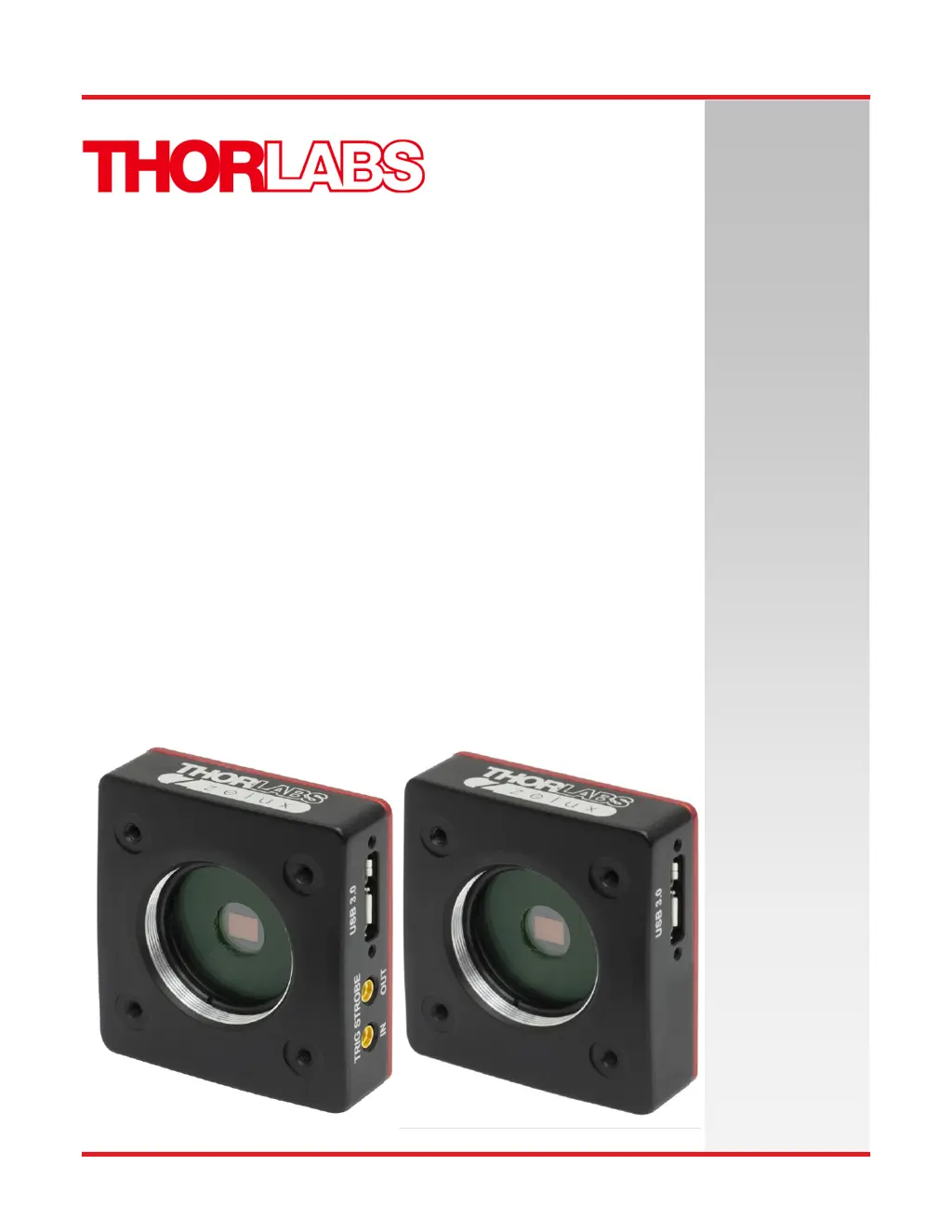
THORLABS CS165 Series - User Manual

THORLABS CS165 Series
41 pages
Print Icon
To Next Page IconTo Next Page
Loading...
Compact Scientific
Digital Cameras
User Guide
CS165 Series CMOS Scientific
Cameras

Table of Contents

Questions and Answers

  • E
    Edward BrooksAug 12, 2025
    What to do if the software cannot find a connected THORLABS Digital Camera?
    • L
      Lori HuertaAug 12, 2025
      If the software cannot find a connected THORLABS Digital Camera, ensure the camera is receiving power by connecting it to a USB 2.0 or 3.0 port. If the camera has been recently powered on, restart or refresh the software after waiting at least 30 seconds to allow the camera to complete enumeration. If the amber LED stays on, disconnect and reconnect the USB 3.0 cable, and if the problem persists, reboot the computer.
  • A
    Amy LeeAug 16, 2025
    Why is my THORLABS CS165 excessively warm?
    • R
      Randy JordanAug 16, 2025
      If your THORLABS Digital Camera is excessively warm, ensure proper ventilation by removing any obstructions around the camera. If the problem persists, disconnect the camera from the USB3 port and contact customer service.
  • J
    johnvelazquezAug 19, 2025
    What to do if THORLABS Digital Camera is not found?
    • M
      Michael JuarezAug 20, 2025
      If the THORLABS Digital Camera is not found, ensure it is connected to the USB3 port. If the issue persists, try a different cable. Reboot the computer.
  • J
    Jessica ThompsonAug 25, 2025
    How to fix low bandwidth USB 3.0 connection on THORLABS Digital Camera?
    • L
      Lee MooreAug 25, 2025
      If you experience a low bandwidth USB 3.0 connection with your THORLABS Digital Camera, consider using a PCIe high bandwidth USB 3.0 Card, such as Thorlabs’ USB3-PCIE, and reduce the frame rate. Also, ensure you are using the 3 m cable supplied with the camera or a high-quality cable with 26AWG signal wires (3 m max) or a 1 m cable.
  • S
    Samantha ThompsonAug 27, 2025
    How to clean debris from image on THORLABS CS165 Digital Camera?
    • T
      tiffanyblanchardAug 27, 2025
      If the displayed image from your THORLABS Digital Camera has spots or debris, carefully clean the protective window.
  • R
    Richard CarrilloAug 31, 2025
    How to focus image with C-mount lens on THORLABS CS165?
    • R
      Ralph TaylorAug 31, 2025
      If your image is not in focus when using a standard C-mount lens with your THORLABS Digital Camera, select an appropriate lens for the target distance. Ensure the C-mount lens uses the Thorlabs SM1A10Z C-mount adapter.
  • K
    Kimberly RiosSep 4, 2025
    How to focus image with CS-mount lens on THORLABS CS165?
    • P
      penajessicaSep 4, 2025
      If your image is not in focus when using a standard CS-mount lens with your THORLABS Digital Camera, select an appropriate lens for the target distance. Ensure the C-mount lens uses the Thorlabs SM1A10 CS-mount adapter.
  • M
    Michael PerrySep 8, 2025
    Why is my THORLABS CS165 Digital Camera image too dark?
    • P
      philip87Sep 8, 2025
      If you have insufficient illumination with your THORLABS Digital Camera: 1. Ensure that the exposure time is greater than 0. If it is, gradually increase the exposure time or gain. 2. Verify that the light source is turned on and the lens aperture is open. 3. Remove the lens cap.

Summary

Safety

Precautions

Read manual carefully before operating. Safety and technical specs apply when operated correctly.

Warning Symbol Definitions

Explains common warning symbols used in the manual and on the device for user safety.

Product Care

Guidelines for handling, storage, and maintenance to ensure proper operation and longevity.

Service

Only trained and approved Thorlabs personnel should service the system. Contact techsupport@thorlabs.com.

Accessories and Customization

Use only Thorlabs accessories. Modifications by unqualified personnel void warranty. Contact Thorlabs for customization.

Description

Introduction

Overview of the Compact Scientific camera series and its capabilities.

Receiving and Unpacking

Procedures for accepting delivery, inspecting for damage, and initiating returns.

Supplied Equipment

Lists all hardware and software components included with the camera.

Optional Items

Describes optional accessories available for purchase for the camera.

Setup & Installation

Pre-Installation USB and Connectivity

Requirements and considerations for connecting the camera via USB 2.0 or USB 3.0 ports.

Installing the Software

Step-by-step guide for downloading and installing the ThorCam software and drivers.

Driver Selection

Instructions on selecting the correct camera drivers during software installation.

3 rd Party Software Support

Information on integrating the camera with third-party analysis packages like MATLAB.

Connecting the Camera

Step-by-step instructions for physically connecting the camera to the host computer.

Multiple Camera Operation

Recommendations for operating multiple cameras on the same computer, including port usage.

Optical and Mechanical Mounting

Guidance on mounting lenses and attaching the camera to optical systems and mounts.

Using a C-Mount Lens

Details on using C-mount lenses with the camera, including adapter recommendations.

Using a CS-Mount Lens

Details on using CS-mount lenses with the camera, including adapter recommendations.

Mounting the Camera

Information on camera mounting options using tapped holes for tripods or cage systems.

Cage System Compatibility

How to integrate the camera with Thorlabs' 30 mm cage systems.

SM1 Compatible Threads

Explanation of SM1 thread compatibility for lens tubes and accessories.

Optical Front End

Description of components located at the front of the camera, like windows and retaining rings.

Optical Front End Components

Details on lens caps, protective windows, and NIR blocking filters.

Optical Front End Procedures

Procedures for handling and maintaining the optical front end components.

Window Removal and Replacement

Step-by-step guide for removing and replacing the protective glass window.

Window Re-Assembly

Instructions for correctly re-assembling the protective window after cleaning or replacement.

Auxiliary I;O Connectors

Description of the auxiliary I/O connectors for camera control and status signals.

I;O Port Descriptions

Detailed explanation of the STROBE OUT and TRIGGER IN port functions and specifications.

Auxiliary Cable

Information about the supplied BNC-to-MMCX auxiliary cables.

Operation

Starting the Camera

Guide to powering on the camera and understanding the status LED indicators.

Camera Timing Diagrams

Visual representations of external trigger and strobe signals during camera operation.

Timing Considerations

Specific timing delays and signal behaviors for triggered exposure modes.

Frame-Rate Control

How to adjust frame rate in ThorCam software to prevent dropped frames.

CS165 MU Specifications

CMOS Sensor Specifications

Technical details of the monochrome CMOS sensor used in the camera.

Quantum Efficiency

Graph showing the sensor's quantum efficiency across different wavelengths.

Imaging Specifications

Key imaging parameters like exposure time, ADC resolution, and read noise.

Example Frame Rates

Table showing typical frame rates for different Regions of Interest (ROI).

Power Consumption

Specifies the maximum power consumption of the camera.

Operating and Storage Temperatures

Recommended temperature ranges for operating and storing the camera.

CS165 CU Specifications

CMOS Sensor Specifications

Technical details of the color CMOS sensor used in the camera.

Quantum Efficiency

Graphs showing the sensor's quantum efficiency for Red, Green, and Blue channels.

Imaging Specifications

Key imaging parameters like exposure time, ADC resolution, and read noise.

Example Frame Rates

Table showing typical frame rates for different Regions of Interest (ROI).

Power Consumption

Specifies the maximum power consumption of the camera.

Operating and Storage Temperatures

Recommended temperature ranges for operating and storing the camera.

Protective Glass Windows

Window Dimensions

Provides the physical dimensions of the protective glass windows.

AR-Coated Window Specs

Details the specifications for the anti-reflective coating on protective windows.

IR Filter Transmission Curve

Graph showing the transmission characteristics of the IR blocking filter.

Mechanical Drawings

Troubleshooting

Interface Troubleshooting

Common problems and solutions related to camera connectivity and software detection.

Optical Troubleshooting

Issues related to focus, image clarity, and debris on optical components.

Operational Troubleshooting

Problems related to camera temperature, imaging timeouts, and USB bandwidth.

Software Troubleshooting

Solutions for software errors, camera not found, or insufficient illumination issues.

Maintenance

Cleaning Guidelines

Procedures for cleaning optical components like lenses and protective windows.

Regulatory Compliance

CE Declaration of Conformity

Official declaration of the camera's compliance with CE standards and directives.

FCC Statement

Statement regarding the device's compliance with FCC rules and regulations.

Warranty

General Product Warranty

Thorlabs' standard warranty covering defects in material and workmanship.

Specific Warranties and Repairs

Information on specific warranty terms and repair procedures.

Thorlabs Worldwide Contacts

THORLABS CS165 Series Specifications

General IconGeneral
BrandTHORLABS
ModelCS165 Series
CategoryDigital Camera
LanguageEnglish

Related product manuals