Thrustmapper user manual — 3/19
3. Home page
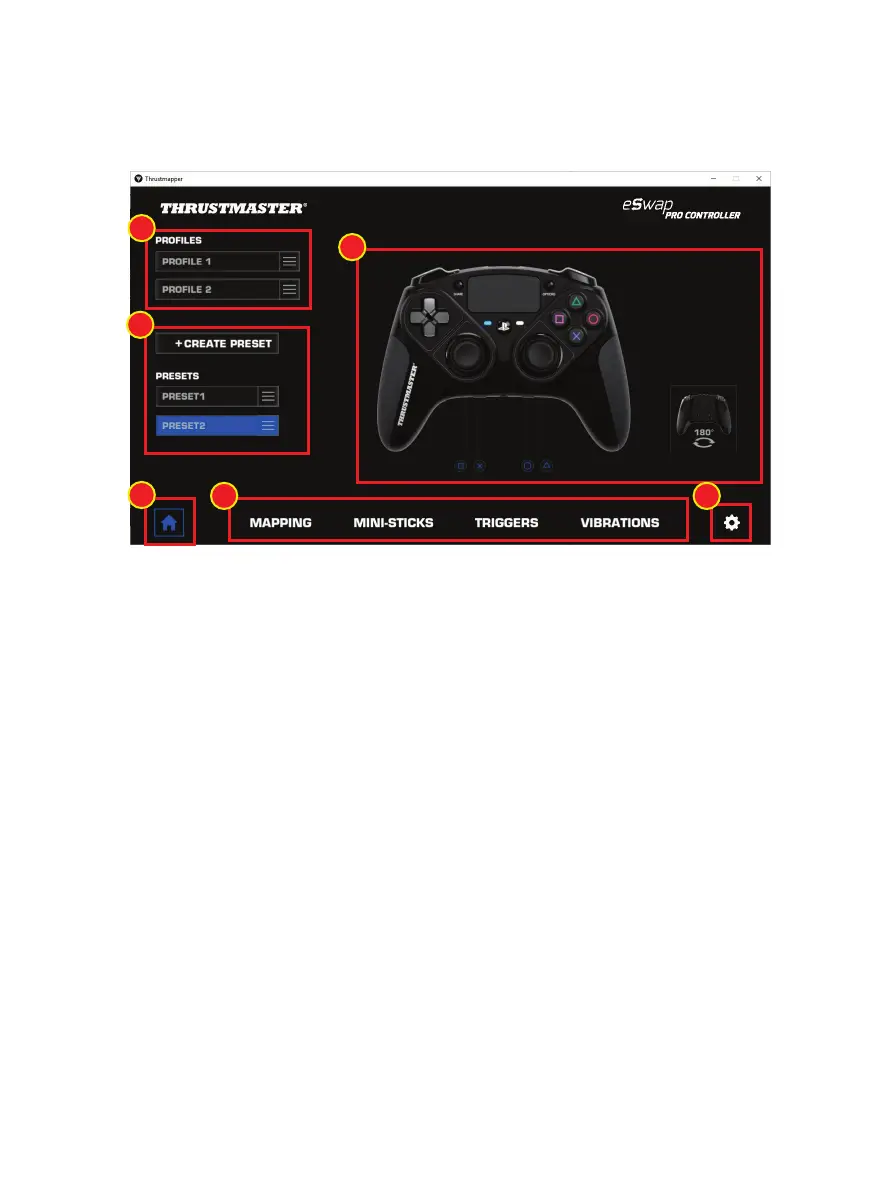
- Select one of the gamepad’s two profiles in order to modify it (1).
- Create presets grouping together all of your customized settings. These presets can then be
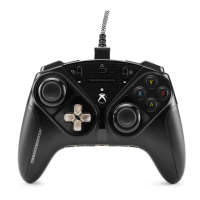
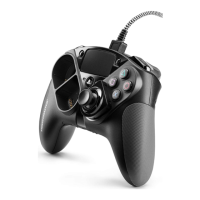
saved in one of the two profiles for your eSwap PRO Controller (2).
- Quickly view the mapping of buttons for the selected profile or preset (3).
- Access advanced settings for the selected profile or preset (4):
Mapping: remap buttons according to your gaming style.
Mini-sticks: adjust the response curve and the dead zones for the left and right mini-sticks.
Triggers: precisely adjust the dead zones for the left and right triggers.
Vibrations: set the maximum intensity of the left and right vibrations on your eSwap PRO
Controller.
- Verify the current firmware version for your gamepad, the driver version for your gamepad,
and the version of the Thrustmapper software (5).
- Return to the home page from other menus (6).






 To Next Page