8/19 — Thrustmapper user manual
4. Mapping of buttons
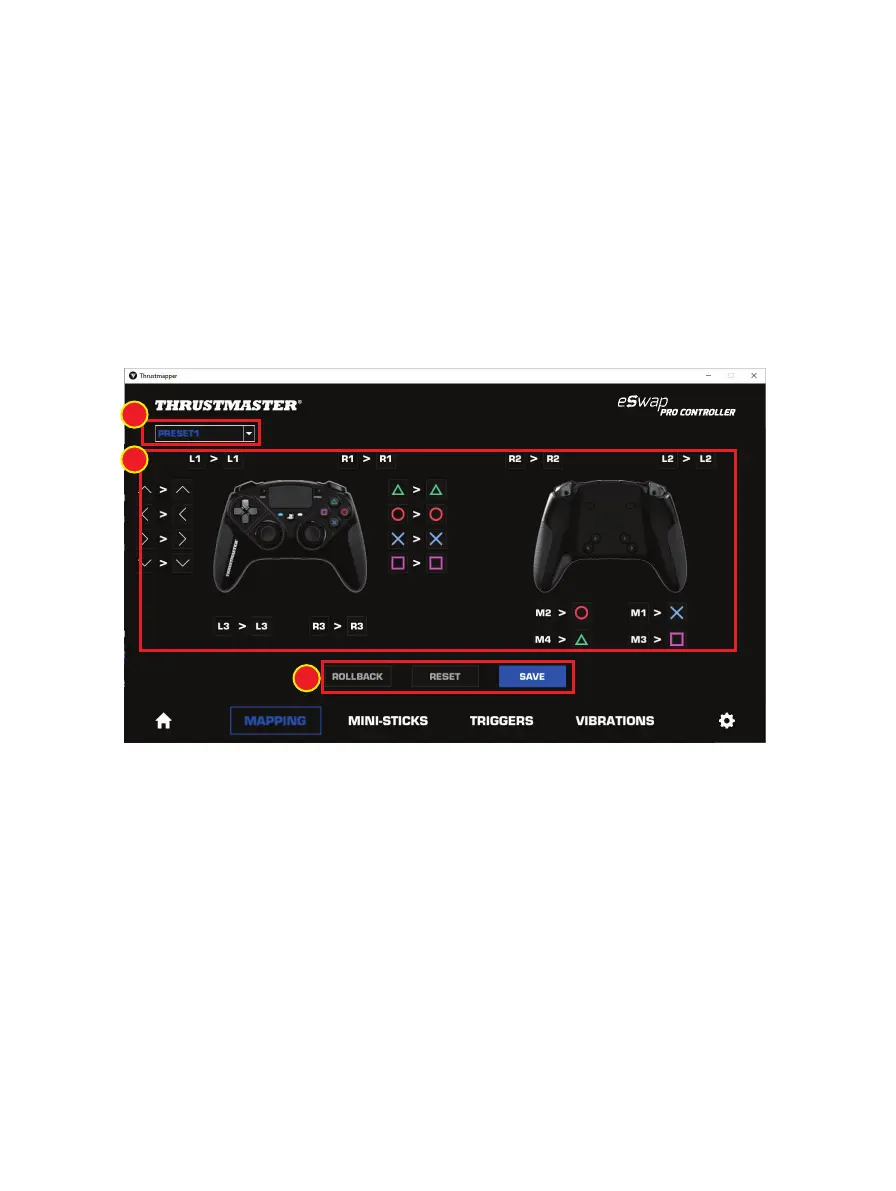
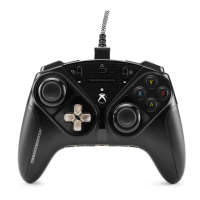
You can modify the mapping of the gamepad’s buttons according to your gaming preferences.
- You can modify the functions of all buttons apart from: PS, Share, Options, the touchpad
(button and gestures), as well as the Profile and Microphone buttons.
- Only the M1, M2, M3, M4, M5 and M6 buttons can be mapped with a duplicate button.
- You can only map a single button onto another button: no combos (i.e. combinations of two or
more buttons) are possible.
- The drop-down menu in the upper left-hand corner (1) lets you switch between profiles and
presets in the mapping page.
- You can modify the mapping of the gamepad’s buttons by swapping their functions (2).
- Rollback, Reset and Save buttons (3):
Rollback: return to the previous settings, since the last save.
Reset: reset all of the settings and content to their default values.
Save: save the current settings in the selected profile or preset.







 To Next Page