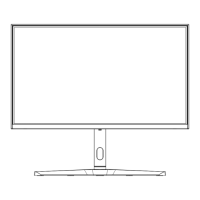
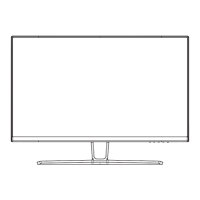
This document is a user manual for a Titan Army C32C1S LCD monitor. It provides instructions for installation, operation, and maintenance, along with important technical specifications and precautions.
Function Description:
The Titan Army C32C1S is an LCD monitor designed for general use, offering a high refresh rate and various display modes. It supports multiple input sources, including HDMI and DisplayPort, and features an On-Screen Display (OSD) menu for adjusting various settings. The monitor is capable of displaying video signals from PCs and other compatible devices.
Important Technical Specifications:
- Product Name: LCD Monitor
- Product Model: C32C1S
- Screen Size: 31.5 inches
- Aspect Ratio: 16:9
- Viewing Angle: 178°(H) / 178°(V)
- Pixel Pitch: 0.091 (H) * 0.272(V) mm
- Contrast Ratio: 3000:1 (Typical)
- Colors: 16.7M
- Resolution: 2560x1440
- Maximum Refresh Rate: 240Hz
- Power Specifications: 100-240V~50/60Hz 2.0A (Standard voltage and current may vary by country)
- Product Dimensions (Without Base): 712.5 x 422.8 x 113.3mm
- Product Dimensions (With Base): 712.5 x 505.6 x 226.5mm
- Tilting Angle: Forward tilting: -5°±2°; Backward tilting: 15°±2°
- Rotation Angle: NA
- Height Angle: NA
- Pivot Angle: NA
- Environmental Conditions (Action): Temperature: 0°C~40°C (32°F~104°F), Humidity: 10%~90% RH (non-condensing)
- Environmental Conditions (Storage): Temperature: -20°~60° (-4°F~140°F), Humidity: 5%~95% RH (non-condensing)
- Input Interfaces: HDMI, DisplayPort (DP)
- Output Interfaces: Audio Out
Usage Features:
- Installation: The manual details two installation methods:
- Base Installation: Involves attaching a stand stem and base using screws, then securing the monitor to the stand. The stand allows for tilting adjustments.
- Mount Installation: Instructions are provided for removing the original screws and attaching the monitor to a wall mount (not supplied) using included mount screws. Safety precautions are emphasized for wall mounting.
- Adjustments: The monitor offers a tilting angle range of -5°(±2°) to +15°(±2°) for ergonomic viewing.
- On-Screen Display (OSD) Menu: Accessed via the "M" button, the OSD menu provides extensive control over monitor settings.
- Navigation: Uses "Down" and "Up" buttons for scrolling, "M" for selection/confirmation, and "E" to exit.
- Game Settings: Includes Standard Mode, RTS/RPG Mode, FPS Arena Mode, MOBA Arena Mode, Adaptive-Sync (Off/On), Shadow Balance (0-100), Response Time (Off/Standard/Fast/Ultrafast), Refresh Rate (Off/On), Game Crosshair (Off/On with multiple crosshair options), and Game Time (Off/On with various time settings).
- Picture Settings: Offers Dynamic Brightness (Off/Standard/Expert/Elaboration), HDR (Off/HDR Standard), MPRT (Off/On), Ambient Lighting (Off/On), Brightness (0-100), Contrast (0-100), DCR (Off/On), Contextual Model (Off/On: Movie Mode/Reading Mode/Night Mode), Low Blue Light (0-100), Sharpness (0-5), Gamma (1.8/2.0/2.2/2.4/2.6/S.curve), and Aspect Ratio (Wide Screen/4:3/1:1/Auto).
- Color Settings: Includes Warm (Off/On), Natural (Off/On), Cool (Off/On), User1/2/3 (Off/On), Hue (R/G/B/C/M/Y: 0-100), and Saturation (R/G/B/C/M/Y: 0-100).
- PIP/PBP Settings: Supports Off/PIP Mode/PBP 2Win 1:1, with options for Sub-Signal Source (DP1/DP2/HDMI1/HDMI2), Audio Source (Auto/DP1/DP2/HDMI1/HDMI2), PIP Position (Top Right/Top Left/Bottom Right/Bottom Left), PIP Size (Small/Medium/Large), and Window Swap (Off/On).
- OSD Settings: Allows adjustment of OSD Time Out (5-60), OSD H-Position (0-100), OSD V-Position (0-100), OSD Transparency (0-5), and OSD Lock (Off/On).
- Hotkey Settings: Customizable hotkeys (Hotkey1, Hotkey2, Hotkey3) for quick access to various functions like Brightness, Contrast, Volume, Mute, Shadow Balance, Game Crosshair, Refresh Rate, Game Time, Contextual Model, PIP/PBP Mode, Input Signal, Dynamic Brightness, and HDR.
- Other Settings: Includes Input Signal (Auto/DP1/DP2/HDMI1/HDMI2), Volume (0-100), Mute (Off/On), Auto Power (Off/On), Eyeshield Remind (Off/On), Reset (No/Yes), and Information (Input Source/Resolution/Mode/HDR Ver).
- Indicator Light: A solid blue light indicates normal operation, while a flashing blue light signifies no video source detected.
- Cable Connection:
- HDMI: Connects to the HDMI IN interface of the monitor from a PC's HDMI OUT interface. An HDMI-DVI cable can also be used, but audio may require a separate loudspeaker connection.
- DP: Connects to the DP IN interface of the monitor from a PC's DP OUT interface.
- AUDIO OUT: For connecting audio output devices like earphones.
- AC IN: For connecting the power cable to a grounded power outlet.
Maintenance Features:
- Precautions:
- Keep away from water and damp places.
- Place on a flat surface to prevent falls.
- Store in a cool, dry, well-ventilated place, away from heat sources.
- Do not cover or block vent holes.
- Use within specified supply voltage range.
- Disconnect power during long periods of disuse or during rainy days.
- Use a reliable grounded socket and avoid overloading.
- Prevent foreign matters from entering the monitor.
- Do not disassemble or repair; contact after-sales service for faults.
- Do not pull or twist the power cable forcefully.
- Do not peel off the polarizer layer on the screen surface, as it is not a protective film and doing so will damage the product and void the warranty.
- Cable Replacement: If the power or signal cable is damaged, it must be replaced with special soft cables or components purchased from the manufacturer or maintenance department.
- Screen Handling: When standing the monitor upright or during wall mounting, avoid pressing the liquid crystal screen with hands to prevent damage.

 Need help?
 General

 To Next Page