EasyManua.ls Logo

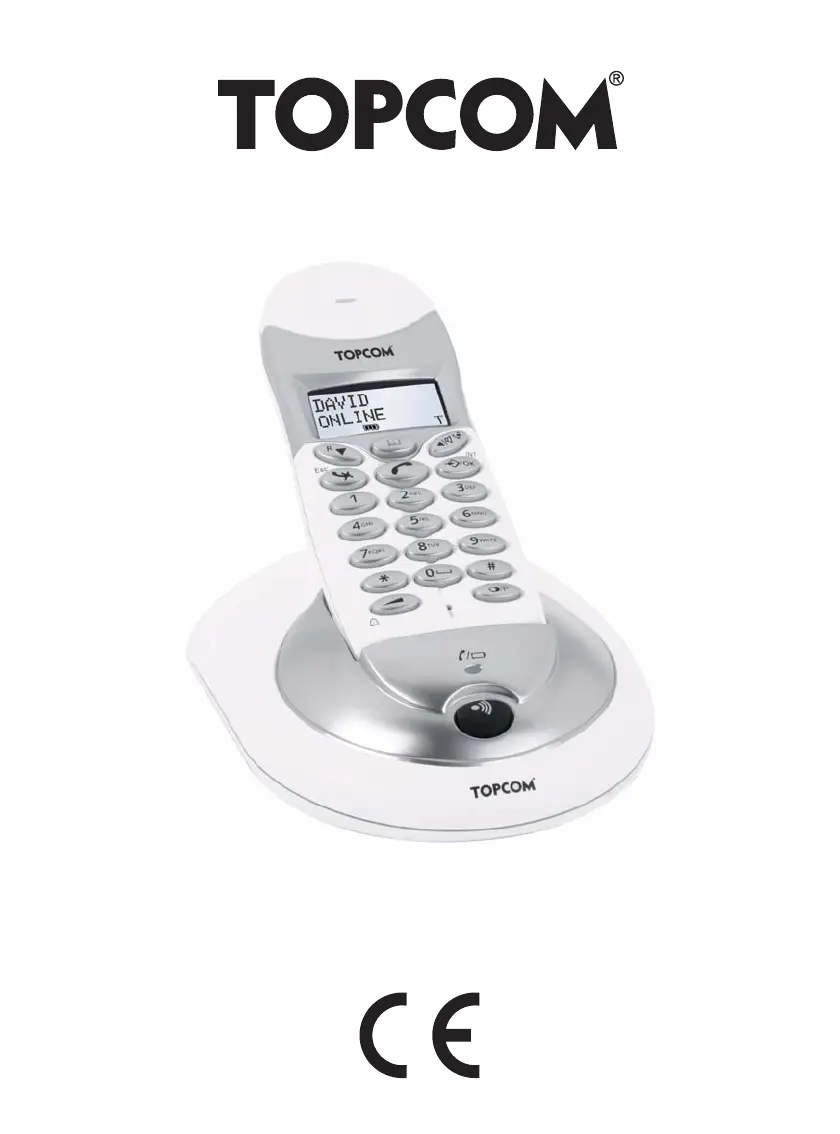
Topcom Butler 4012 USB VoIP - User Manual

Topcom Butler 4012 USB VoIP
40 pages
Print Icon
To Next Page IconTo Next Page
Loading...
BUTLER 4012 USB VOIP
USER GUIDE
2.1
HL_B4012 USB VoIP UK.book Page 1 Tuesday, October 11, 2005 3:15 PM

Table of Contents

Questions and Answers

  • J
    Jennifer LeblancAug 15, 2025
    Why is there no audio for PC calls on my Topcom Cordless Telephone?
    • R
      Rodney LoweAug 15, 2025
      If your Topcom Cordless Telephone displays no audio for PC calls, ensure the audio device for Speech is correctly set to ‘USB phone’ or ’C-media USB headset’ in Windows. Navigate to ‘Control panel’, then ‘Audio and sound devices’, and select ‘Speech’. Verify that both playback and voice recording are set to ‘C-media USB headset’. Also, in Skype, go to ‘Tools’ -> ‘Options’. At the ‘Privacy’ settings, select ‘manage other programs access skype’ and ensure only Butler 4012 is shown in the list.
  • J
    jensenshaneAug 18, 2025
    What to do if my Topcom Cordless Telephone has no display?
    • D
      Dylan HigginsAug 18, 2025
      If your Topcom Cordless Telephone has no display, the batteries might be uncharged or the handset might be turned off. Check the position of the batteries and recharge them. If that doesn't work, ensure the handset is turned on.
  • J
    Joseph RodriguezAug 21, 2025
    How to fix no PC sound when using other applications with Topcom Cordless Telephone?
    • M
      Matthew MeyerAug 21, 2025
      If there's no PC sound when using other applications with your Topcom Cordless Telephone, the audio device for Audio might not be correctly set to your PC audio card in Windows. To fix this, go to ‘Control panel’, select ‘Audio and sound devices’, then ‘Audio’, and ensure both playback and recording are set to your PC audio card.
  • E
    Eric JohnsonAug 25, 2025
    Why my Topcom Cordless Telephone does not react to pressing the keys?
    • K
      Kelly ZimmermanAug 26, 2025
      If your Topcom Cordless Telephone does not react when you press the keys, it could be due to a manipulation error or the keypad lock being on. Try removing the batteries and putting them back in place. If that doesn't work, turn off the keypad lock.
  • J
    John WestAug 28, 2025
    What to do if Topcom Cordless Telephone base or handset does not ring?
    • A
      Amber PayneAug 28, 2025
      If your Topcom Cordless Telephone base or handset isn't ringing, the ringing volume might be set to zero or be too low. Try adjusting the ringing volume to a higher level.
  • N
    Nicholas SimmonsAug 31, 2025
    Why is there no tone on my Topcom Cordless Telephone?
    • T
      Tiffany NelsonAug 31, 2025
      If you are experiencing no tone on your Topcom Cordless Telephone, check the telephone cord connection to ensure it is properly connected. Also, the line might be occupied by another handset, so wait until the other handset hangs up.
  • E
    elevySep 4, 2025
    What does it mean when the icon flashes on my Topcom Cordless Telephone?
    • C
      Christine BradleySep 4, 2025
      If the icon is flashing on your Topcom Cordless Telephone, it could be due to several reasons: the handset might be out of range, the base might not have a power supply, or the handset might not be registered to the base. Try bringing the handset closer to the base. Also, check the mains connection to the base. If neither works, register the handset to the base.
  • C
    Carly RandallSep 7, 2025
    What to do if Topcom Cordless Telephone tone is good, but there is no communication?
    • M
      Matthew SmithSep 7, 2025
      If the tone on your Topcom Cordless Telephone is good, but there is no communication, the dialling mode might be wrong. Adjust the dialling mode to either pulse or tone.
  • T
    toddshortSep 10, 2025
    How to fix if Flash (R) Key does not work on Topcom Cordless Telephone?
    • B
      Brenda PriceSep 12, 2025
      If the Flash (R) Key does not work on your Topcom Cordless Telephone, the flash time might be wrong. Try changing the flash time.

Summary

Installation

Base

Instructions for connecting the base unit to power and the telephone network.

Charger

Instructions for connecting the charger to the electric socket.

Handset

Steps for inserting batteries and charging the handset on the base unit.

Handset operation

Making PSTN Calls

Instructions on how to make calls using the public switched telephone network.

Receiving a PSTN Call

Procedure for receiving incoming external calls and caller ID display.

Receiving an external call

Procedure for receiving incoming external calls and caller ID display.

Activate;deactivate handsfree function

Functionality to enable or disable the handsfree mode.

Turning off the microphone (mute)

Muting the microphone during a call.

The Phone Book

Storing and managing contact numbers and names.

Adding a number and a name to the Phone Book

Steps to save contact information into the phone book.

Looking up a number in the Phone Book

Instructions on how to search and retrieve contacts from the phone book.

Changing a name or number in the Phone Book

How to edit existing entries in the phone book.

Deleting name and number from the Phone Book

Steps to remove contacts from the phone book.

Changing the PIN code

Modifying the personal identification number for security.

Subscribing a handset to a B24 xx, 28 xx, 29 xx, 32 xx, 40 xx, 46 xx

Registering a handset to a compatible base unit.

Subscribing Butler 4012 handset on another base (other brand;model)

Registering the handset to a different brand base unit.

Default settings (reset) of the parameters

Restoring the telephone to its factory default settings.

Complete reinitialisation of the telephone

Performing a full reset of the telephone, deleting all data.

Caller ID;CLIP

USB PC interface operation

Installing the software

Steps to install the necessary software for PC connectivity.

General PC call settings

Configuring ring melody and volume for PC calls.

Setting the PC ringer melody and volume on the handset

Adjusting ringtones and volume for PC-based calls.

Skype interface

How to use the phone with the Skype application.

Making Skype calls

How to make and receive calls using Skype.

Making a Skype call from the online buddy list

Calling contacts from the Skype buddy list.

Interworking Skype calls and normal PSTN calls

Handling simultaneous PSTN and Skype calls.

During a conversation an incoming second call

Handling simultaneous PSTN and Skype calls.

Trouble shooting

Safety Instructions

Topcom Butler 4012 USB VoIP Specifications

General IconGeneral
BrandTopcom
ModelButler 4012 USB VoIP
CategoryCordless Telephone
LanguageEnglish

Related product manuals