for 6 sec
to return to COMPUTER
MODE after riding.
for
6 sec to switch.
( 3 sec to clear
and reset all data)
for 6 sec
to return to COMPUTER
MODE.
On computer for 6 sec to enter
REMOTE MONITOR MODE.
to enter each setting mode.
to change digit. to next selection.
Keep following the & processes for the rest of setting then to confirm .
Follow the procedure in each section to set up your computer:
GB
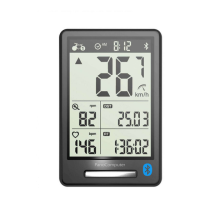
PanoComputer
Wireless
User's Guide
• PanoComputer data syncs with Topeak PanoBike App only.
• Please read all instructions before first use!
• Before riding, close the PanoBike App on your smart device to record ride data in Computer Mode.
PanoComputer Mount
(Fits ø 31.8 mm Handlebar only)
Bolt
SET Button
RESET ButtonMODE Button
Press Press and Hold
OPERATION SYMBOLS
REQUIRED ACCESSORIES
HOW TO SET UP YOUR PANOCOMPUTER
HOW TO OPERATE IN SECOND MONITOR MODE (SECOND MONITOR function) (Using English version as an example)
6 sec
Data syncs with computer
Start riding...
Please download and install Topeak PanoBike App from Apple App Store or GooglePlay to your smart device first.
Tap II to stop and save ride
data to your smart device.
1 sec: select digit
3 sec: go to next section /
into setting mode
6 sec: switch COMPUTER
MODE and REMOTE
MONITOR MODE.
OPTION A [ COMPUTER MODE ]
|
OPERATE THE COMPUTER
Confirm
Turn the crankarm counterclockwise. When "1" appears,
the Speed & Cadence Sensor pairing is successful.
Note: Bike B will indicate "2".
Wear the Heart Rate Monitor on your chest.
When "1" appears, the pairing is successful.
Note: Bike B will indicate "2".
3 sec 3 sec
BIKE A.B Date 12/ 24h clock km/ m ODO
Wheel Circumference
Pairing Speed & Cadence
Sensor + Heart Rate Monitor
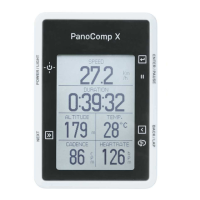
SCREEN DISPLAY (RIDING STATUS) (COMPUTER MODE ONLY)
If no button is touched for 10 seconds,
the screen will switch to Screen 1
automatically.
Screen 1 Screen 2 Screen 3
3 sec
3 sec
to save
ride data
to check the ride
data just saved.
SAVING RIDING DATA (COMPUTER MODE ONLY)
PAIRING
SPEED &
CADENCE
SENSOR
+
HEART
RATE
MONITOR
Ride data is transmitted to
computer from smart device.
Smart device screen can be
turned o to save battery.
OPTION B [ REMOTE MONITOR MODE ]
|
SETTING THE COMPUTER WITH PANOBIKE APP (Using English version as an example)
Open PanoBike App in your smart device then
tap “ ” icon.
6 sec
Tap "Setup" button to pair smart device with computer.
Choose desired time and unit format. Insert power zones and
wheel size setting. Tap "Save" to complete.
Follow the pairing procedures to pair Speed & Cadence Sensor and Heart Rate Monitor as in OPTION A.
PanoComputer includes “DUAL MODE” function
Sensors transmit ride data to
PanoBike App on your smart
device and displays ride data on
computer. Smart device screen
is turned off to save battery.
[ COMPUTER MODE ]
Sensors transmit ride data
to computer directly.
After riding, data can be
transferred to PanoBike
App on your smart device.
[ REMOTE MONITOR MODE ]
1 2 3 4
On computer for 6 sec to enter REMOTE MONITOR MODE.
Open Topeak PanoBike App. Tap "START RIDE", then tap "START" to record your ride.
1 2 3
PanoBike Speed &
Cadence Sensor
PanoBike Heart
Rate Monitor
Art No. TPB-HRM01 Art No. TPB-CS01
Turn-on Bluetooth® on your smart device first.

 Need help?
 General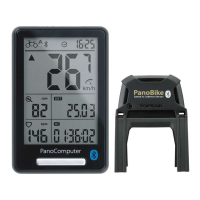




 To Next Page