42 Listing Services
group list and press the
OK
button to select it. The high-
light bar then moves to the services list.
2.
To add a service to the selected group, put the highlight
bar on a desired service entry and press the
OK
button.
The selected service entry gets added to the favourite list.
Repeat this step to add more entries.
3.
Press the
F1
button and the highlight bar get moved to
the favourite list. You can delete a favourite entry with
the
OK
button.
4.
To select another group, press the
F1
button again. By
pressing the
F1
button, the highlight bar gets moved to
each column.
To add radio services, press the button; then radio service
entries get listed in the services list. To recall the television
services list after adding radio services, press the button
again.
With your favourite services list, you can select your favourite
services more easily. Refer to § 5.2.2 for detailed description.
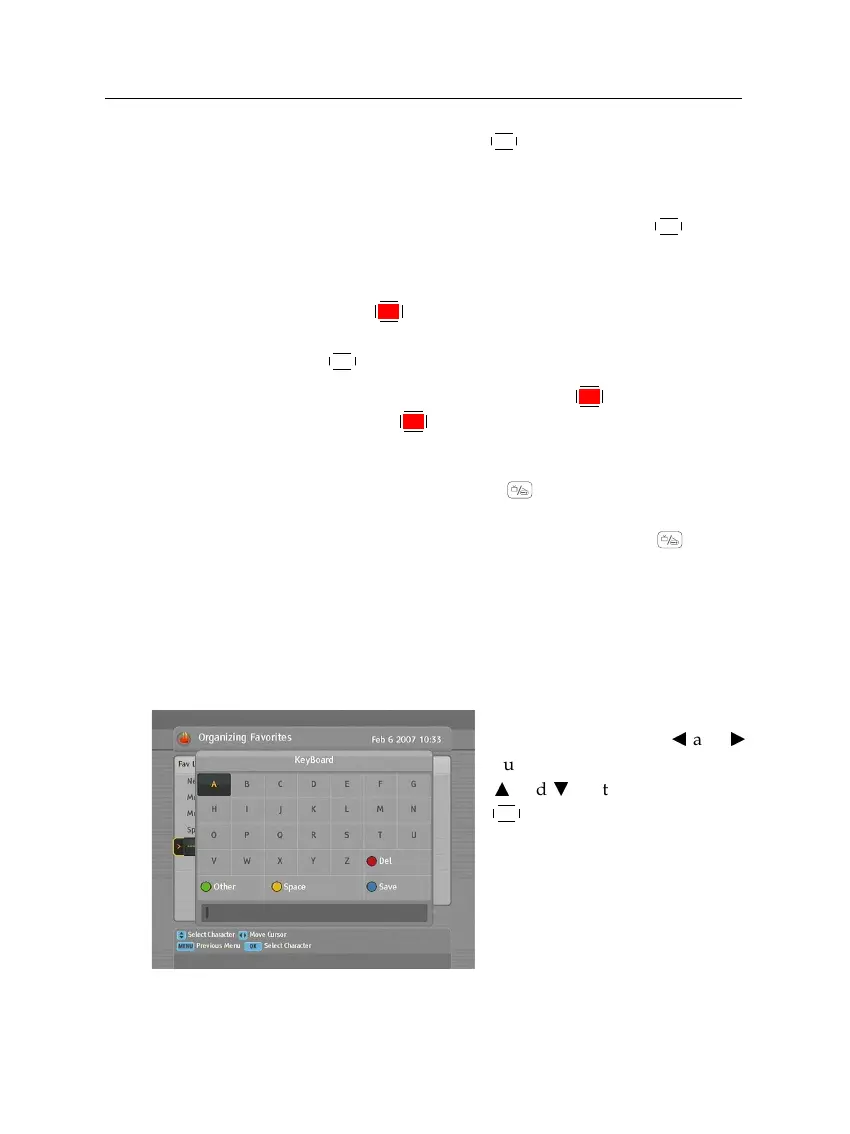
6.3 How to use on-screen keyboard
You can move the highlight key
horizontally with the
b
and
d
buttons and vertically with the
a
and
c
buttons. Pressing the
OK
button on a key enters its let-
ter in the input line. To type a
space, select the Space key. To
type lower case letters or numer-
als, select the Other key.
To delete a letter, put the cursor to the right of the desired letter
on the input line and then select the Del key. You must select



 To Next Page