I N D E X
IMPORTANT WARNINGS 2
INTRODUCTION 3
INSTRUCTIONS FOR INSTALLATION 3
NAME AND LOCATION OF IMPORTANT PARTS 4
KEYBOARD 5
GENERAL VIEW FINDER (LCD DISPLAY) 6
OPERATIONS DESCRIPTION 6
HOW TO WEIGHT A PRODUCT 6
HOW TO ENTER PRICES 7
HOW TO CLEAR WRONG PRICES 7
USE OF THE " FIXED PRICE" 7
USE OF THE "TARE" 7
HOW TO USE THE "REFERENCE TO ZERO" 8
PRICE ADD UP 9
PRICE MULTIPLING FUNCTION 9
HOW TO SAVE MEMORIES 9
HOW TO LOAD A MEMORY 10
HOW TO TURN ON THE BACKLIGHT 10
POWER OFF TIMER FUNCTION 11
USE OF THE BATTERY 11
BATTERY RECHARGE 11
LIFE TIME OF THE RECHARGEABLE BATTERY 11
LOW BATTERY INDICATOR 11
HOW TO ACCESS DE COUNTERS 12
OTHER IMPORTANT MESSAGES THAT APPEAR ON THE SCALE 12
MAINTENANCE AND CLEANING 14
TROUBLESHOOTING 14
TECHNICAL SPECIFICATIONS 15
I M P O R T A N T W A R N I N G S
1.- In case you have a problem 2.- Do not open the scale on 3.-”Never” press the keyboard
with the scale, first read the your own. your warranty will with objects such as pencils,
the warranty conditions. be canceled. pens,knives,etc.
4.- use a 220 v ac outlet exclusive for the scale 5.- “never” wash the scale using a flow of water .this
avoiding overload or voltage variations. can damage the electronic components. for more
information read “maintenance and cleaning”
section.
6.- protect the scale from insects 7.- do not drop or hit the scale 8.- do not use solvents or
(mainly from roaches) they can seriously with the product to be weighted detergents for cleaning
damage the electronic components. Use because as time goes by it will only use a damp
rag.
solid products against roaches. damage the weight sensor.
9.- do not place fans or heaters 10.- do not place the scale where 11.- only authorized and qualified
directed towards the scale. there is a lot of moisture and/or personnel should check and
dust. repair your scale.
I N T R O D U C T I O N
DEAR CUSTOMER:
We appreciate that you have chosen this product and we assure that you will get the
maximum satisfaction of the new acquisition for your bussines. The scale has been designed to
give you a great deal saving time and money, avoiding losses by human mistakes of
interpretation and calculation, offering you more fluency and security in your commercial tasks.
To make your equipment a long lasting investment, we suggest to read carefully this manual
and make sure to keep it at hand for later consultations. In this manual we indicate the necessary
steps to benefit and prolong your appliances availability.
INSTRUCTIONS FOR INSTALLATION
1.- Unpack the scale and check the conditions of the product.
If it is damaged report it inmediately to your authorized distributor.
2.- Place the scale where there is not any movement
or vibration, make sure it is leveled adequately
checking that the four leveling bases are supporting the scale
over the surface were it has been placed and if the level bubble
(under the plate) is centered, to adjust, tighten or loosen the leveling
bases until the bubble is in the center of the circle.
3.- Connect the AC/DC power supply (if you use it)
to 220 V A.C. outlet.
4.- Turn the scale on after the countdown sequence your
scale will display zeroes and will be ready to use.
IMPORTANT NOTE: If your scale displays "HELP" after you followed the previous steps and
after the initial countdown, it means that it was handled roughly and/or got hit during the
shipment, wich cause irreversible damage in its operation. Call your authorized distributor. Is
possible that the scale displays “HELP“ when you turn it on with weight on the plate, when this
happens, remove the weight and turn the scale off and then turn it on
KEYBOARD
1) Key used to turn on the scale.
2) When this key is pressed the appliance turns off.
3)
This key is used to start with zero on the weight.
4) This key is used to eliminate any containers weight that you do not wish to consider
during a transaction (for example: boxes, bags, bottles, etc).
5)
It is used to store prices in a memory location of the scale.
6)
It is used to load a PLU price from memory.
7)
Key used to add prices up.
8) ,..., Numerical section: it is useful to enter data into the scale such as price per
pound or kilogram.
9) Enter two zeroes.
10) Key used to clear wrong data that has been entered with the keyboard. It is also used
to eliminate the "FIXED PRICE" function.
11)
It enables the function "FIXED PRICE".
12)
Keys used to multiply the unit price under 1/2 o 1/4 lb or kg mode.
13) , ..., PLU's direct access keys.
14) Key used to turn on/off the backlight.
GENERAL VIEW FINDER ( LCD DISPLAY )
.- UPPER-LEFT indicator: shows the products weight in POUNDS or KILOGRAMS when this
happens, the symbol lb or kg appears in the alphanumeric ("MODE") indicator .
.- PRICE indicator: shows the price per POUND or KILOGRAM of the product. This price can
have up to 5 digits.
.- ALPHANUMERIC ( "MODE" ) indicator: this can show the following readings:
lb. / kg. When a product is being weighed on the scale.
NEG. When there is a negative weight.
TOT. When you want to see the "total sale".
.- Total amount to pay indicator (" TOTAL "): shows the partial or total sale during a
commercial transaction.
.- ZERO indicator: this reference to ZERO indicates that the scale is ready to start weighing
products. The indicators disappear when a weight is placed on the scale.
.- NET indicator: indicates that the TARE function has been activated. This indicator
disappears when you press the key.
.- FIXED PRICE indicator: when it is activated, it indicates that the price per POUND or
KILOGRAM that is shown in the indicator will not be cleared automatically when the product is
removed from the scale (it is fixed).
.- LOW BATTERY indicator: when the battery energy is too low, this indicator turns on to tell
you that it is necessary to recharge it.
.- AC/DC POWER SUPPLY indicator: it means that the scale was connected to the AC/DC
power supply.
OPERATIONS DESCRIPTION.
HOW TO WEIGHT A PRODUCT
At the end of this countdown sequence, zeroes will appear in the view finder, indicating that
the scale is ready to use.
If not, see section reference to zero. Then place the product to be weighed on the plate and
you will see the weight in the corresponding indicator.
HOW TO ENTER PRICES
The product price per pound or kilogram is entered pressing the numbers of the keyboard to
indicate the desired value. This value will appear in the "PRICE" indicator and the total amount
to pay will be calculated automatically being shown in the "TOTAL" indicator. For example, if the
product price per pound in the previous examples is $8.20, just press
and the
following display will appear:
HOW TO CLEAR WRONG PRICES
When a mistaken price is entered, you can clear it in two ways:
a) Manually: Simply press the clear key and enter the correct price.
b) Automatically: The price is automatically cleared removing the product from the plate, except
if it's not enabled the fixed price function.
FIXED PRICE FUNCTION
When it is necessary to constantly be weighing the same kind of product, one does not change
its price, you can use the "FIXED PRICE" function. It is used to keep the price "FIXED" in the
"PRICE" indicator avoiding it to be automatically cleared when the weight is removed from the
scale.
To fix a price, follow these steps:
1.- Place the product on the plate.
2.- Enter the product price per pound or kilogram.
3.- Press
.
After these steps, a small arrow will light up in the upper right corner of the "TOTAL" indicator,
pointing to the label "P-PACK" (fixed price). As an example, suppose that the product is ham,
the weight is 4 pounds, and the price is $2.70 per pound after entering the fixed price, the view
finder will look like this:
To clear the fixed price function, just press the key.
USE OF THE "TARE"
When you wish to weight a product in a container but you do not want to consider the
containers weight during the operation, you can use the TARE function. To use this function
follow this steps:
FABRICANTES DE BASCULAS TORREY
S.A. DE C.V.
ELECTRONIC SCALE
L-PC SERIES
USER’S MANUAL
REVISION:1.1
IMPORTANT:
BEFORE OPERATING THIS SCALE, PLEASE READ THIS MANUAL THROUGLY
NAME AND LOCATION OF IMPORTANT PARTS
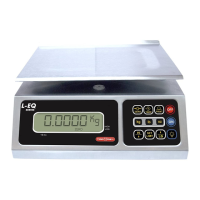
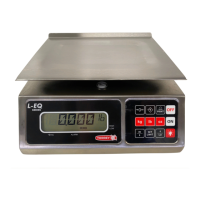
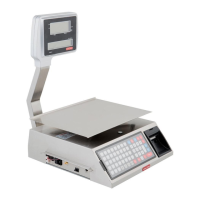
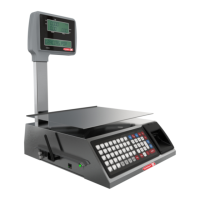
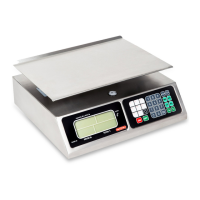
1. CABINET: Manufactured in stainless steel and resistant to corrosion and
strokes.
2. PLATE: Also manufactured in stainless steel with the border bent and
rounded.
3. PLATE HOLDER: Manufactured in aluminum that provides resistance to
corrosion.
4. LEVEL BUBBLE: Inserted in the cabinet. It is used to level the scale.
5. MEMBRANE KEYBOARD: It has multifunctions, with big and readable keys.
6. GENERAL VIEW FINDER: It shows the necessary information it has individual indicators
upper left indicator, alphanumeric ("MODE") indicator,
"PRICE" indicator, "TOTAL" indicator.
7. LEVELING BASES: They level the scale tightening or loosening them.
8. JACK: Connects the AC/DC power supply to the scale.
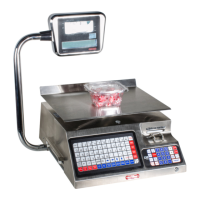
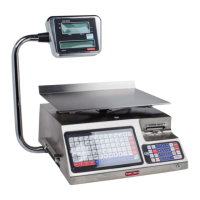
9.- CUSTOMER VIEW FINDER: Customer display.


 To Next Page
 General