EasyManua.ls Logo

Torrey LSQ-40L - User Manual

Torrey LSQ-40L
24 pages
Print Icon
To Next Page IconTo Next Page
Loading...
LSQ-40L
LABEL PRINTING SCALE
QUICK START
MANUAL
REV 1.0

Questions and Answers

Summary

Initial Setup and Basic Operation

Before You Begin: Cleaning and Requirements

Essential guidelines for scale cleaning and necessary equipment for computer programming.

First Time Scale Setup and Printer Test

Steps for unpacking, initial setup, and verifying the printer's functionality.

Printing Your First Label

Instructions to print a basic label with product information after setup.

Network and Software Configuration

Setting Up the Network Connection

Connecting scale and computer via a hub and installing the Scalenet software.

Configuring Computer Network Settings

Manual IP address configuration for the computer to enable scale communication.

Configuring Scale Network IP Address

Procedure to view and change the scale's IP address for network connectivity.

Starting and Using Scale Master Software

Launching the LSQ-40L software and navigating to the Scale Master for managing scales.

Product Management and General Settings

Adding Scales and Configuring General Parameters

Adding scales to the network and setting up general parameters like currency and date format.

Adding and Managing Products (PLUs)

Detailed steps for entering product information, including PLU, price, tax, and expiry.

Moving Products to;from Scale

Transferring product data between the scale and the computer software.

Assigning Products to Keyboard Shortcuts

Mapping products to specific keys on the scale's keyboard for quick sales.

Label Design and Programming

General Configuration for Labels and Features

Configuring label printing, bar codes, and other scale operational features.

Customizing Printed Text and Format

Modifying text content, layout, and print formats for labels.

Headline, Password, and Scrolling Message Setup

Setting store headlines, security passwords, and display scrolling messages.

Programming Scale Features via Keyboards

Using the scale's keyboard to program store info, text lines, and scrolling messages.

Advanced Label and Barcode Features

Removing or Customizing Barcodes

Steps to remove barcodes or select specific barcode types (EAN-13, UPC-13).

Barcode Data Structure and Customization

Understanding barcode elements (P, W, C, T, A, N, X) and customizing their layout.

Placing Text and Data Fields on Labels

Arranging text, data fields, font sizes, and justification on the label.

Adding PLU Details and Assigning Keys

Entering PLU information and assigning products to keyboard keys for quick access.

Troubleshooting and Support

Common Scale and Printer Issues

Resolving problems like scale power, label printing errors, and communication failures.

Connectivity and Display Error Solutions

Addressing issues with computer communication, label output, and display anomalies.

Mechanical Problems and Dealer Contact

Guidance on handling mechanical issues and contacting the dealer for support.

Summary

Initial Setup and Basic Operation

Before You Begin: Cleaning and Requirements

Essential guidelines for scale cleaning and necessary equipment for computer programming.

First Time Scale Setup and Printer Test

Steps for unpacking, initial setup, and verifying the printer's functionality.

Printing Your First Label

Instructions to print a basic label with product information after setup.

Network and Software Configuration

Setting Up the Network Connection

Connecting scale and computer via a hub and installing the Scalenet software.

Configuring Computer Network Settings

Manual IP address configuration for the computer to enable scale communication.

Configuring Scale Network IP Address

Procedure to view and change the scale's IP address for network connectivity.

Starting and Using Scale Master Software

Launching the LSQ-40L software and navigating to the Scale Master for managing scales.

Product Management and General Settings

Adding Scales and Configuring General Parameters

Adding scales to the network and setting up general parameters like currency and date format.

Adding and Managing Products (PLUs)

Detailed steps for entering product information, including PLU, price, tax, and expiry.

Moving Products to;from Scale

Transferring product data between the scale and the computer software.

Assigning Products to Keyboard Shortcuts

Mapping products to specific keys on the scale's keyboard for quick sales.

Label Design and Programming

General Configuration for Labels and Features

Configuring label printing, bar codes, and other scale operational features.

Customizing Printed Text and Format

Modifying text content, layout, and print formats for labels.

Headline, Password, and Scrolling Message Setup

Setting store headlines, security passwords, and display scrolling messages.

Programming Scale Features via Keyboards

Using the scale's keyboard to program store info, text lines, and scrolling messages.

Advanced Label and Barcode Features

Removing or Customizing Barcodes

Steps to remove barcodes or select specific barcode types (EAN-13, UPC-13).

Barcode Data Structure and Customization

Understanding barcode elements (P, W, C, T, A, N, X) and customizing their layout.

Placing Text and Data Fields on Labels

Arranging text, data fields, font sizes, and justification on the label.

Adding PLU Details and Assigning Keys

Entering PLU information and assigning products to keyboard keys for quick access.

Troubleshooting and Support

Common Scale and Printer Issues

Resolving problems like scale power, label printing errors, and communication failures.

Connectivity and Display Error Solutions

Addressing issues with computer communication, label output, and display anomalies.

Mechanical Problems and Dealer Contact

Guidance on handling mechanical issues and contacting the dealer for support.

Overview

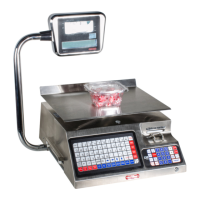
The TORREY LSQ-40L is a label printing scale designed for commercial use, offering a range of features for product weighing, pricing, and label generation. This device is particularly useful in retail environments where accurate weighing and clear, informative labels are essential for customer service and inventory management.

Function Description:

The primary function of the LSQ-40L is to accurately weigh products and print corresponding labels. It integrates a weighing platform with a thermal label printer and a user interface, allowing for seamless operation from weighing to label dispensing. The scale can be programmed to store product information, including descriptions, PLU numbers, prices (per pound or per unit), tax rates, and expiration days. This stored data is then used to generate comprehensive labels that include weight, price, total sale, date, and other customizable text.

The device supports both weighed and unweighed products, with options to lock or unlock prices, providing flexibility for various product types. For weighed products, it calculates the total sale based on the entered price per pound and the measured weight. For unweighed products, it can print labels based on a set unit price.

The LSQ-40L also features network connectivity, allowing it to be programmed and managed from a personal computer. This is particularly advantageous for businesses with multiple scales, as it enables centralized programming and data management. The software facilitates adding new products, moving products to and from scales, and configuring general parameters such as currency symbols and decimal settings.

Usage Features:

The LSQ-40L offers both standalone operation via its integrated keyboard and display, and networked operation through a computer interface.

  • Standalone Operation:

    • Weighing and Printing: To print a label, a product is placed on the platter, the price is entered (or a pre-programmed PLU is selected), and the PRINT key is pressed. The scale then dispenses a label with printed information such as weight, date, and total sale. The printer will not operate if no price is entered, no weight is on the platter, or a negative weight is displayed.
    • Programming Mode: The scale can be put into a programming mode using a physical key and specific key sequences. In this mode, users can configure various settings directly from the scale's keyboard.
    • Store Information: Users can enter store-specific information, such as the store name and address, which will be printed at the top of the labels. The number of lines dedicated to headlines can be configured.
    • Scrolling Message: A customizable scrolling message can be displayed on the lower window of the scale's indicator when it is idle, useful for displaying store names or daily specials.
    • Configuration Settings: Various parameters can be adjusted, including date and time format (DDMMYR, 24-hour HRMM), agent tracking (enabling employees to enter their ID before a transaction), and allowing sales of non-programmed PLUs.
    • Label Customization: The scale allows for customization of label print formats. Users can choose from preset formats or create their own by dragging and dropping text objects and data fields onto a visual representation of the label. Font sizes (1=smallest, 5=largest) and text justification (left, center, right) can be adjusted. The maximum label width is 58mm, and length is 80mm to avoid printer errors.
    • PLU Management: Products (PLUs) can be added directly through the scale's keyboard, including description, code, department, group, price, type (weighed/unweighed, locked/unlocked), tare, expiration date, tax, and ingredients.
    • Key Assignation: Frequently sold products can be assigned to specific keys on the main keyboard for quick access during sales.
  • Networked Operation (via PC Software - Scalenet LSQ-40L):

    • Connectivity: The scale connects to a computer via a network adapter (hub) and Category 5 cables. Each scale on the network requires a unique IP address. The software is designed for Windows XP with SP2.
    • Scale Master: The software's "Scale Master" interface allows users to add and manage multiple scales on the network. This involves entering the scale's IP address and searching for it on the network.
    • General Parameters: System configuration allows for setting company information (store details) and system data (currency symbol, decimal symbol, decimal number).
    • Product Management: The "Products Master" section enables adding new products, editing existing ones, and saving the information. This includes detailed fields like description, PLU number, price, tax, expiration days, and group assignment.
    • Net Distribution: This feature allows for efficient programming of multiple scales. Scales can be organized into groups, and information can be programmed to all scales within a group simultaneously.
    • Access Direct: This feature provides a visual representation of the scale's keyboard, allowing users to drag and drop products onto specific keys, effectively assigning PLUs to quick access buttons.
    • Configuration: The software provides a comprehensive interface for configuring label printing features, lock/unlock options, and bar code settings.
    • Bar Code Setup: Users can select from various bar code configurations (EAN-13, UPC-13) or customize their own, defining the layout of product data within the bar code (e.g., prefix, weight, product code, total sale). If a bar code is not desired, it can be deleted from the label format.
    • Printed Text on Label: The software allows for changing default text labels (e.g., "Agent" to "Employee") and customizing print formats, including the ability to drag and drop data fields onto a label template.

Maintenance Features:

Proper maintenance ensures the longevity and optimal performance of the LSQ-40L scale.

  • Cleaning:

    • Metal Areas: Stainless cleaner or mild soap can be used to wipe down metal surfaces.
    • Keyboards and Display: These should be wiped with a damp cloth only. Care must be taken to prevent liquids from entering between plastic and metal surfaces.
    • Print Head: Only the supplied cleaning kit should be used to clean the print head. Sharp objects should be avoided around the print head and pinch roller to prevent damage that could lead to unreadable labels or internal scale damage.
    • Power Supply: The power adapter should not be immersed in water. It should be unplugged and wiped with a damp cloth, avoiding cleaning fluids.
    • Print Cartridge Area: This area must be kept clean of food and debris to prevent contaminants from being picked up by labels and affecting print quality or damaging the print head.
  • Troubleshooting: The manual provides a detailed troubleshooting guide for common issues:

    • Scale Not Turning On: Solutions include checking the power plug connection, replacing the fuse, or plugging into a different outlet.
    • Too Many Labels Coming Out: This often indicates too much text being printed, requiring removal of some text or making font sizes smaller. A dirty or bad label sensor can also be a cause.
    • Stretched Printout: This could be due to a defective step gear motor or labels wrapped around the pinch roller.
    • Poor Printing: Causes include a dirty print head, low contrast settings, or a defective print head. Solutions involve cleaning the print head, adjusting contrast, or replacing the print head.
    • Out of Paper: Requires replacing the label roll. If labels move away from the sensor, the cartridge guide may need adjustment.
    • Print Head Up Error: Indicates the print head is not properly closed, requiring the lever to be moved down. A defective print head position sensor could also be a cause.
    • Communication Issues (with computer): Solutions involve checking the scale's IP address, disabling other network connections, ensuring cables are correctly plugged into the hub, and verifying network configuration.
    • No Label Comes Out: Check if the scale is set for paper mode instead of label mode, verify the plug on the cartridge is in the D position, ensure the configuration is set for "label with gap," and confirm there is weight on the platter and it's not negative.
    • Labels Tearing: The cartridge guide might be too tight, or the label roll could be bad.
    • Label Roll Snaps/Paper Off Spooler: Reinstall the label roll, check for tightness, or replace a defective label roll.
    • Scale Says "Unload" or "Help": Could indicate a defective DC motor or possible load cell damage, requiring professional contact.
    • Strange Characters on Display: Suggests corrupted memory, which may require a total reset (losing all data).
    • Scale Drifts: Often caused by vibration or air blowing on the platter, requiring relocation to a hard, quiet area.
    • Quick Access Keys Show Only Letter/Character: Indicates the scale is in ABC mode, requiring pressing ESC and the ABC button to turn it off.
  • Password Management: The scale allows for setting additional passwords to prevent unauthorized programming. However, lost passwords require returning the machine to the factory for reset, which is not covered under warranty.

The TORREY LSQ-40L is a robust and versatile label printing scale, designed to streamline weighing and labeling processes in various retail and commercial settings, with comprehensive features for both direct operation and networked management.

Torrey LSQ-40L Specifications

General IconGeneral
Capacity40 kg
Readability5 g
Division5 g
Platform Size300 x 400 mm
Power Supply110V/220V AC
Display TypeLCD
Unitskg, lb
InterfaceRS-232
Auto CalibrationYes
Overload ProtectionYes

Related product manuals