EasyManua.ls Logo

Toshiba D-VR5SU - User Manual

Toshiba D-VR5SU
92 pages
Print Icon
To Next Page IconTo Next Page
Loading...
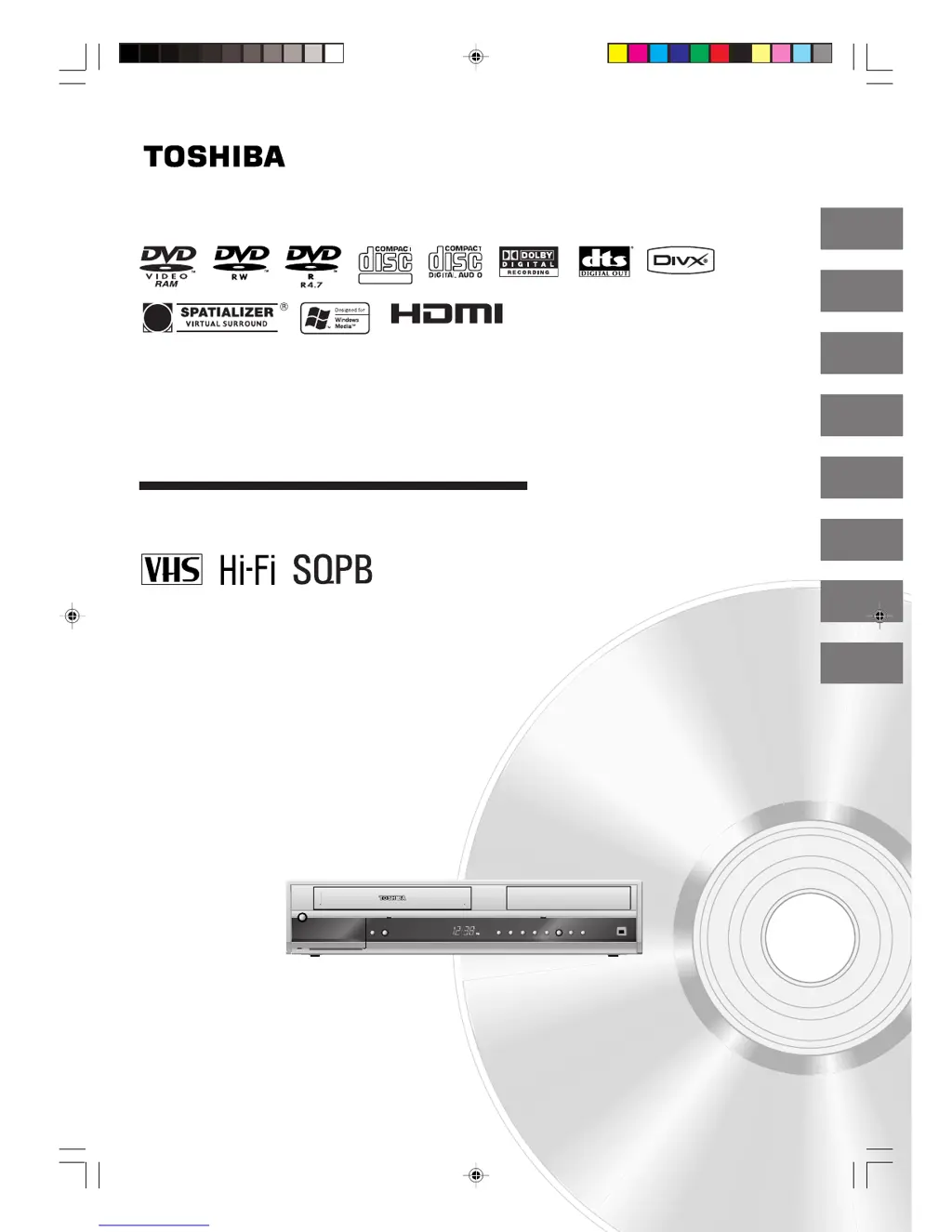
Hi-Fi VCR & DVD VIDEO RECORDER
D-VR5SU
OWNER’S MANUAL
2
24
34
49
53
63
Introduction
Various settings
Disc playback
Tape playback
Recording
Editing the disc
©2006 Toshiba Corporation
78
82
Dubbing
Additional information
This device does not tape-record copy protected DVD Video Discs.
DIGITAL VIDEO
2J40101A Cover 3/4/06, 10:42 AM1

Table of Contents

Other manuals for Toshiba D-VR5SU

Questions and Answers

  • S
    Samantha BradleySep 10, 2025
    Why can't I change audio/subtitle language on Toshiba DVD VCR Combo?
    • T
      Thomas Mendoza DDSSep 10, 2025
      If the audio soundtrack and/or subtitle language isn't changing when you playback a DVD on your Toshiba DVD VCR Combo, it might be because the DVD disc does not have multilingual language recorded. Use a DVD disc with multilingual language recorded.
  • N
    Natasha ChurchAug 22, 2025
    How to troubleshoot Toshiba DVD VCR Combo that does not operate?
    • H
      hahnrogerAug 22, 2025
      If your Toshiba DVD VCR Combo is not operating, ensure the power cord is properly plugged in. If it is, try a different AC outlet. Also, verify that the power is on and check the fuse or circuit breaker. As a troubleshooting step, unplug the unit and then plug it back in. Finally, confirm that you have selected the correct mode, either DVD or VCR, before attempting to use the device.
  • I
    ianhowardAug 25, 2025
    Why is there no picture on my Toshiba DVD VCR Combo?
    • D
      davidsweeneyAug 25, 2025
      If you're experiencing a 'no picture' issue with your Toshiba DVD VCR Combo, first, ensure the antenna connection is correct and the cable is securely connected. Check that the video channel is correctly positioned or that the TV is set to video channel 3 or 4. Also, verify that the unit is connected properly to the TV and that the video input selector on the TV is set to VIDEO (or the equivalent setting). Finally, make sure the channel is not set to external mode.
  • T
    Thomas WallaceAug 26, 2025
    What to do if my Toshiba D-VR5SU has no sound?
    • P
      Paula JordanAug 26, 2025
      If you're not getting any sound from your Toshiba DVD VCR Combo, make sure the unit is connected correctly. Then, check that the input selector on your amplifier is set appropriately. It's also possible that the unit is in a special playback mode, which might affect the audio output.
  • A
    Angela DanielsAug 28, 2025
    Why is my Toshiba D-VR5SU DVD VCR Combo not getting Cable TV reception?
    • K
      Kimberly HeathAug 28, 2025
      If your Toshiba DVD VCR Combo isn't receiving Cable TV, start by checking all Cable TV connections to make sure they are secure. If the connections are good, the issue might be with the station or the Cable TV system itself. Try tuning to another station to see if the problem persists.
  • M
    Michele HodgesAug 29, 2025
    What to do if playback doesn't start on Toshiba DVD VCR Combo?
    • P
      Peter SwansonAug 29, 2025
      If playback doesn’t start on your Toshiba DVD VCR Combo, first, make sure a disc is inserted. If a disc is inserted, it might be dirty, so try cleaning it. Also, confirm that the unit is capable of playing the type of disc you're using, as it cannot play DVD-ROMs, etc.
  • O
    oguerreroSep 18, 2025
    What to do if playback does not start on Toshiba D-VR5SU DVD VCR Combo?
    • P
      Paul FullerSep 18, 2025
      If playback does not start when the title is selected on your Toshiba DVD VCR Combo, check the Parental setup.
  • J
    Jorge SanchezSep 12, 2025
    What to do if Toshiba D-VR5SU DVD VCR Combo unit or remote key is not functioning?
    • D
      David HansonSep 12, 2025
      If the unit or remote operation key on your Toshiba DVD VCR Combo is not functioning, turn off the unit and unplug the AC power cord for several minutes, then replug it.
  • M
    Mr. Andrew BlairSep 8, 2025
    How to fix noise bars on Toshiba D-VR5SU DVD VCR Combo screen?
    • D
      Diane NixonSep 8, 2025
      If you're experiencing noise bars on the screen of your Toshiba DVD VCR Combo, try manual tracking adjustment, as the tracking may be beyond the range of the automatic tracking circuit. If that doesn't work, the video heads might be dirty, so try cleaning them. As a last resort, the tape could be worn or damaged; consider replacing it.
  • A
    Adrienne GriffithSep 5, 2025
    What to do if there is no picture, or the screen is blurred on Toshiba D-VR5SU?
    • J
      Jennifer TrujilloSep 5, 2025
      If you're not getting any picture or the screen is blurred or divided into two parts on your Toshiba DVD VCR Combo, it might be because the progressive scan mode is active while connected to your TV via the VIDEO OUT jack. Try deactivating the progressive scan mode.

Summary

Introduction

SAFTY PRECAUTIONS

Crucial safety warnings and precautions for operating the device.

IMPORTANT SAFEGUARDS

Essential safety instructions for proper usage and hazard prevention.

Features

Overview of the unit's playback, recording, editing, and dubbing capabilities.

Disc

Information on handling, storing, and cleaning various types of discs.

Parts and functions

Detailed identification of front and rear panel components and their functions.

Remote control

Explanation of each button on the remote control and its specific function.

Power Source

Instructions for connecting the unit to an AC power outlet for operation.

Antenna connections

Guide to connecting different types of antennas to the DVD/VCR unit.

Cable TV connections

Instructions for connecting the DVD/VCR to a cable TV system.

Connections with the TV or audio component

Methods for connecting the unit to various TV and audio systems.

Connect to a TV with HDMI output

How to connect the unit to a TV using an HDMI cable for digital audio and video.

Various settings

Setting the language

How to select menu, audio, and subtitle languages for DVD playback.

Setting the parental control

How to set playback restrictions based on age ratings for discs.

Setting the clock

How to set the clock automatically or manually, including DST and time zones.

Setting the disc

Functions for formatting, protecting, and finalizing discs.

Setting the disc; Other (SYSTEM SETUP)

Adjusting display brightness and screen output settings.

Setting the screen

Options for selecting TV screen size and input signal type.

Setting the image quality; Setting the audio

Adjusting image brightness, EBL, DRC, virtual surround, and audio output.

Setting the audio; Setting the recording

Configuring SAP, Dolby Digital output, and recording modes.

Setting the channel; Setting other items

Managing TV channels, JPEG interval, and DivX VOD registration.

Disc playback

Playback procedure

Step-by-step instructions for playing back discs on the unit.

Playback by selecting a title

How to choose and play a specific title from a disc's title menu.

Checking media information

How to view details about the loaded disc and playback status.

Special playback

Controls for fast forward, review, still, frame advance, and slow motion playback.

Instant skip; Locating a specific scene

Functions for skipping commercials and finding specific scenes by time or chapter.

Repeat playback

Options for instant replay, A-B repeat, and title/chapter repeat playback.

Title selection; DVD menu

How to select titles and navigate DVD menus for language or content selection.

Changing angles; Zooming; Karaoke playback

Features for changing viewing angles, zooming into images, and playing karaoke discs.

Changing soundtrack language; Subtitles; To turn off the PBC (VIDEO CD Version 2.0)

Options to change audio language, manage subtitles, and control Video CD playback.

Various operations on CD

How to play back tracks, manage playlists, and perform random playback on CDs.

MP3;WMA;JPEG;DivX playback

Instructions for playing audio, image, and video files from discs.

Tape playback

Loading and unloading a cassette tape

Steps for inserting and ejecting VHS cassette tapes from the unit.

Cassette tape playback

Procedures for playing back prerecorded VHS cassette tapes.

Special playback

Controls for picture search, still, slow motion, frame advance, and tracking adjustment.

ZERO RETURN function; Video index search system

Features for auto-rewinding tapes and searching recordings using index marks.

Recording

Read this before recording on disc

Important notes and information before attempting to record onto a disc.

Images that cannot be recorded

Information on copy-protected signals that prevent recording of certain content.

Recording a TV program

How to select channels, recording modes, and start recording TV programs.

One-touch Timer Recording (OTR)

Simple method for setting timed recordings using a single button.

Timer recording

Detailed procedure for setting date, time, and channel for recorded programs.

Editing the disc

Editing the disc

Overview of editing capabilities for recorded content on DVD-RW discs.

Editing a playlist

How to create and manage playlists by combining or editing original titles.

Changing a title name

How to rename playlists or original titles using the keyboard screen.

Erasing a scene (Edit title)

How to erase specific scenes from playlists or original titles.

Combining the title

How to combine multiple titles or playlists into a single playlist.

Erasing a playlist

How to delete a created playlist without affecting the original titles.

Adding a chapter mark

How to manually add chapter marks to original titles for easier navigation.

Changing an original title name

How to rename original titles using the keyboard screen.

Erasing an original title

How to delete original titles and their recorded content, freeing up disc space.

Changing a disc name

How to rename the disc using the on-screen keyboard.

Dubbing

Dubbing a tape onto a disc

Procedure for copying video and audio from a tape to a disc.

Dubbing a disc onto a tape

Procedure for copying video and audio from a disc to a video tape.

Dubbing using other equipment

Connecting and dubbing from external VCRs or digital video cameras.

Additional information

Glossary

Definitions of technical terms and features used in the manual.

Language code list

A list of language codes for setting DVD menus, audio, and subtitles.

Problems and troubleshooting

A checklist of common issues and their possible solutions for the unit.

Video head cleaning

Instructions and warnings regarding the cleaning of video heads.

Error;Warning message list

A list of error messages, their causes, and possible solutions.

Specifications

Technical details and specifications of the DVD/VCR unit.

Limited warranty

Information on warranty coverage, terms, and conditions for the product.

Toshiba D-VR5SU Specifications

General IconGeneral
BrandToshiba
ModelD-VR5SU
CategoryDVD VCR Combo
LanguageEnglish

Related product manuals