EasyManua.ls Logo

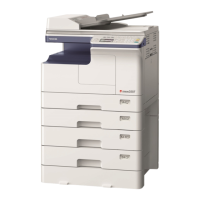
Toshiba e-Studio 202S - User Manual

Toshiba e-Studio 202S
74 pages
Print Icon
To Next Page IconTo Next Page
Loading...

Table of Contents

Other manuals for Toshiba e-Studio 202S

Questions and Answers

  • M
    Michelle NguyenAug 20, 2025
    What to do if my Toshiba All in One Printer doesn't turn on?
    • H
      heidi39Aug 20, 2025
      If your Toshiba All in One Printer is not operating, check the following: * Ensure the unit is plugged into a grounded outlet. * Verify the power switch is turned on. * Make sure the side cover is closed securely. * Confirm the front cover is closed, and then close the side cover.
  • M
    Megan EstesAug 21, 2025
    Why does my Toshiba e-Studio 202S All in One Printer frequently misfeed paper?
    • T
      Tina BoyerAug 22, 2025
      If your Toshiba All in One Printer frequently misfeeds paper, consider the following possible causes and solutions: * Ensure you are using standard paper. If using special papers, feed the paper through the multi-bypass tray. * Make sure the paper is not curled or damp. Store paper flat in the wrapper in a dry location. * Remove any pieces of misfed paper from inside the unit. * Verify the paper guides in the paper tray are set properly according to the paper size. * Avoid overloading the paper tray or multi-bypass tray; remove excessive paper.
  • R
    Richard McmillanAug 25, 2025
    What to do if my Toshiba e-Studio 202S makes blank copies?
    • M
      Maurice BrowningAug 25, 2025
      If your Toshiba All in One Printer is producing blank copies, check the following: * Ensure the original document is placed face down on the document glass or face up in the ADF. * Verify that the scan head locking switch is unlocked.
  • K
    Kaitlyn MonroeAug 26, 2025
    Why are images rubbing off the copy easily from Toshiba e-Studio 202S All in One Printer?
    • J
      James MarshallAug 26, 2025
      If images rub off the copy easily from your Toshiba All in One Printer, it may be due to the following: * The paper might be too heavy. Use paper within the specified range. * The fusing temperature may not be appropriate. In the user programs, set "Fusing temperature setting when the bypass tray is used" (program 29) to "2 (High)". * The paper might be damp. Replace it with dry paper. If the unit is not used for a long time, remove the paper from the paper tray and store it in its wrapper in a dry location.
  • J
    Jill DixonAug 27, 2025
    Why are my Toshiba All in One Printer copies too dark or too light?
    • M
      Madison LeeAug 28, 2025
      If your Toshiba All in One Printer copies are too dark or too light, consider the following: * If the original image is too dark or too light, adjust the exposure manually. * If the unit is in automatic exposure mode, adjust the automatic exposure level. * If the unit is in photo exposure mode, cancel the photo exposure mode.
  • L
    Lauren JonesAug 30, 2025
    What to do if the paper tray indicator is blinking on my Toshiba All in One Printer?
    • J
      Jennifer EstradaAug 30, 2025
      If the paper tray indicator is blinking on your Toshiba All in One Printer, push the tray all the way in or load paper in the tray.
  • R
    ryanarcherSep 1, 2025
    How to fix striped copies from Toshiba e-Studio 202S?
    • T
      Tammy JamesSep 1, 2025
      If you are getting striped copies from your Toshiba All in One Printer, clean the transfer charger.
  • L
    Lisa BellSep 3, 2025
    What does it mean if "CH" is blinking in the display of my Toshiba All in One Printer?
    • D
      Dr. Leslie GreeneSep 3, 2025
      If "CH" is blinking in the display of your Toshiba All in One Printer, check if the cartridge is installed and close the side cover securely by pressing the round projections near the side cover open button.
  • A
    Ashley BrooksSep 5, 2025
    Why is printing not uniform between the edges of the paper on my Toshiba e-Studio 202S All in One Printer?
    • B
      Briana ParkerSep 5, 2025
      If the printing is not uniform between the edges of the paper on your Toshiba All in One Printer, the fusing temperature may not be appropriate. In the user programs, set "Fusing temperature setting when the bypass tray is used" (program 29) to "1 (Low)".
  • K
    krystaljohnsonSep 6, 2025
    What does it mean if "P" is blinking in the display of my Toshiba e-Studio 202S?
    • C
      Cynthia BakerSep 7, 2025
      If "P" is blinking in the display of your Toshiba All in One Printer, load paper or remove the misfed paper.

Summary

For users in the USA

FOR YOUR RECORDS

Record serial number and purchase date for warranty and loss protection.

NOTICE

Important information regarding warranty and dealer responsibilities.

CAUTIONS

Caution label on the unit

Identifies danger and hot surface symbols on the unit.

Cautions on using

Guidelines for safe operation, including handling hot parts and electrical safety.

Installation site selection

Key factors for choosing an optimal and safe location for the unit.

Cautions on handling

Proper storage

Recommendations for storing toner cartridges and paper to maintain quality.

Trademark acknowledgements

Lists registered trademarks of various companies.

SOFTWARE LICENSE

Terms and conditions for using the provided software.

ENVIRONMENTAL INFORMATION

Laser information

Technical details about the unit's laser system.

SAFETY PRECAUTIONS

Specific safety measures related to laser radiation and ozone.

1 INTRODUCTION

Using the Manuals

Guidance on how to effectively use the operation manuals.

Operation Manuals Overview

Description of the main manual and online manual.

Conventions Used

Explanation of symbols, terms, and abbreviations.

PART NAMES

OPERATION PANEL

Exposure Controls

Keys for selecting and adjusting copy exposure modes.

Status Indicators

Lights and codes indicating unit status, errors, and maintenance needs.

Copy Ratio and Zoom Controls

Keys for setting reduction, enlargement, and zoom levels.

Operation Keys

Keys for starting, stopping, clearing, and selecting functions.

Display and Feed Indicators

Panel display and indicators for paper feed status.

CONNECTING THE POWER CORD

POWER ON

Steps to turn the unit on and prepare it for operation.

Initial operation panel settings

Power off methods

2 LOADING PAPER

PAPER

Details on supported paper types, sizes, and weights.

LOADING THE PAPER TRAY

BYPASS FEED (including special paper)

The multi-bypass tray

Information on the bypass tray's capacity and usage guidelines.

3 INSTALLING THE SOFTWARE

SOFTWARE

Lists the software components available on the CD-ROM.

BEFORE INSTALLATION

Hardware and software requirements

Specifies the system requirements for software installation.

Connecting a USB cable

Using the machine as a shared printer

INDICATORS ON THE OPERATION PANEL

USING THE PRINTER MODE

How to print

USING THE SCANNER MODE

Setting up the Button Manager

Configures the unit's scan buttons for specific applications.

Scan Button Destination Setting Dialog Box

Using the SCAN key to begin scanning

Scanning with the Scanner and Camera Wizard in Windows XP

Using the TOSHIBA TWAIN

4 MAKING COPIES

COPY FLOW

An overview of the sequential steps involved in the copying process.

ORIGINAL PLACEMENT

Using the document glass

Guidance on placing originals on the document glass for scanning.

Setting a large original

Using the ADF (Peripheral device)

Steps for loading multiple documents into the automatic document feeder.

SET THE COPY QUANTITY

Exposure Adjustment

Adjusting copy density for photos or manual control.

Automatic exposure adjustment

REDUCTION;ENLARGEMENT;ZOOM

SELECTING THE PAPER TRAY

How to choose the paper source for printing.

5 SPECIAL FUNCTIONS

DESCRIPTION OF SPECIAL FUNCTIONS

An overview of the special functions available on the unit.

Toner save mode

Function to reduce toner consumption by approximately 10%.

Power save modes

Explains preheat and auto power shut-off modes for energy saving.

Auto clear

Resets panel settings to default after a period of inactivity.

Resolution of AUTO & MANUAL mode

Allows setting the copy resolution for specific modes.

Prevention of OC copies

Feature to prevent wasteful toner use when covers are open.

TONER SAVE MODE

USER PROGRAMS

DISPLAYING TOTAL NUMBER OF COPIES

6 MAINTENANCE

TONER CARTRIDGE REPLACEMENT

Step-by-step instructions for replacing the toner cartridge.

SCAN HEAD LOCKING SWITCH

CLEANING THE UNIT

Cabinet

Cleaning the exterior surfaces of the unit.

Document glass and ADF components

Cleaning optical surfaces for clear copies and scans.

Transfer charger

7 TROUBLESHOOTING THE UNIT

TROUBLESHOOTING

A list of problems, their possible causes, and solutions.

STATUS INDICATORS

MISFEED REMOVAL

Misfeed in the paper feed area

Misfeed in the fusing area

Misfeed in the transport area

Misfeed in the lower paper feed area (Peripheral device)

Misfeed in the ADF (Peripheral device)

Paper misfeed in the main unit while using the ADF

DEVELOPER REQUIRED

MAINTENANCE REQUIRED

8 OPTIONAL EQUIPMENT

SYSTEM CONFIGURATION

Overview of how optional equipment enhances system capabilities.

AUTOMATIC DOCUMENT FEEDER (MR-2018)

Details on the Automatic Document Feeder option.

250-SHEET PAPER FEED UNIT (MY-1034)

Details on the optional 250-sheet paper feed unit.

Using the MY-1034 with the printer function

9 APPENDIX

SPECIFICATIONS

Detailed technical specifications for the e-STUDIO202s unit.

CAUTION (Laser warning)

For users in the USA

FCC WARNING

Warning against unauthorized modifications that could void operation authority.

Declaration of Conformity

Statement of compliance with FCC Part 15 rules.

Toshiba e-Studio 202S Specifications

General IconGeneral
BrandToshiba
Modele-Studio 202S
CategoryAll in One Printer
LanguageEnglish

Related product manuals