EasyManua.ls Logo

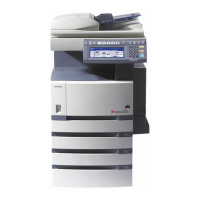
Toshiba e-studio222cs - User Manual

Toshiba e-studio222cs
166 pages
Print Icon
To Next Page IconTo Next Page
Loading...

Table of Contents

Other manuals for Toshiba e-studio222cs

Questions and Answers

  • C
    candice86Aug 20, 2025
    How to fix vertical white lines on Toshiba e-studio222cs?
    • J
      james60Aug 20, 2025
      If you're seeing vertical white lines on your printed pages from your Toshiba All in One Printer, it could be due to a few reasons. The LED head might be dirty, in which case you should wipe it with a soft, lint-free cloth. Another cause could be low toner; try opening the top cover and tapping the cartridge to redistribute the toner, or replace the cartridge if the problem continues. Also, foreign materials in the image drum or a dirty light-shielding film of the image drum cartridge can cause this issue, so you may need to replace the image drum cartridge or wipe the film with a soft, lint-free cloth.
  • Q
    qaguilarAug 22, 2025
    Why is my Toshiba e-studio222cs printing so light?
    • A
      Andrew KellerAug 22, 2025
      If the print quality from your Toshiba All in One Printer is too light, several factors could be responsible. First, ensure the toner cartridge is correctly installed by reinstalling it. Low toner can also cause light printing; try opening the top cover and tapping the cartridge to redistribute the toner, replacing it if needed. The paper itself might be the issue – make sure it's stored in proper conditions, is the recommended type, and the thickness is appropriately set in the Media menu. If you're using recycled paper, try setting one value thicker for media weight in the Media menu.
  • T
    Theresa PaulAug 25, 2025
    How to get rid of vertical lines on Toshiba e-studio222cs All in One Printer prints?
    • A
      angelaparkerAug 25, 2025
      If vertical lines are appearing on your printouts from the Toshiba All in One Printer, it could be due to a damaged image drum cartridge, which would require replacement. Another potential cause is low toner. In this case, open the top cover and tap the cartridge a few times to evenly distribute any remaining toner. If the lines persist, replace the toner cartridge.
  • G
    Garrett BlakeAug 27, 2025
    Why are images fading vertically on my Toshiba All in One Printer?
    • S
      stevenmcguireAug 27, 2025
      If your Toshiba All in One Printer is producing images that are fading vertically, a dirty LED head could be the culprit; try wiping it with a soft, lint-free cloth. Alternatively, low toner might be the cause. Open the top cover and tap the cartridge a few times to evenly distribute any remaining toner. If fading persists, replace the toner cartridge. Finally, ensure you are using paper that is suitable for your printer.
  • M
    michaelmortonAug 28, 2025
    What to do if horizontal lines and spots appear periodically on Toshiba e-studio222cs All in One Printer prints?
    • E
      Erin RogersAug 28, 2025
      If you notice horizontal lines and spots appearing periodically on printouts from your Toshiba All in One Printer, the cause depends on the interval between them. If the interval is about 94mm (4in), the image drum (the green tube) may be damaged or dirty; try wiping it lightly with a soft cloth, and replace it if damaged. For intervals around 30mm (1.2in), there might be foreign particles in the image drum cartridge; try opening and closing the top cover and printing again. If the interval is about 86mm (3.4in), the fuser unit could be damaged, requiring replacement. Lastly, if the image drum cartridge has been exposed to light, replace it if the problem continues.
  • S
    Spencer WattsAug 30, 2025
    Why does toner come off when rubbed on prints from my Toshiba All in One Printer?
    • D
      David VanceAug 30, 2025
      If toner is coming off when you rub printed pages from your Toshiba All in One Printer, it's likely due to incorrect paper settings. Ensure the media type and weight are correctly set in the Media menu, or try setting one value lighter for media weight. If you're using recycled paper, try setting one value thicker for media weight in the Media menu.
  • M
    michellecookSep 1, 2025
    Why is the white area of paper lightly stained when printing with my Toshiba All in One Printer?
    • D
      danielcortezSep 1, 2025
      If the white areas of paper are lightly stained when printing with your Toshiba All in One Printer, it could be due to static in the paper; ensure the paper is stored in proper temperature and humidity conditions. Also, using paper that is too thick can cause this issue, so try using thinner paper. Low toner may also be the cause, so open the top cover and tap the cartridge a few times to evenly distribute any remaining toner. If the staining persists, replace the toner cartridge.
  • C
    Charles FlynnSep 3, 2025
    What causes partially faded images on my Toshiba e-studio222cs?
    • S
      Sean Caldwell Jr.Sep 3, 2025
      If you're experiencing partially faded images with white spots and lines in solid prints from your Toshiba All in One Printer, the paper may be the issue. Ensure that the paper is stored in proper temperature and humidity conditions, as moist or dry paper can cause these problems.
  • J
    Jay LopezSep 5, 2025
    How to resolve smudged letters on my Toshiba All in One Printer?
    • C
      Colton CrawfordSep 5, 2025
      If the periphery of letters is smudged when printing with your Toshiba All in One Printer, the LED head might be dirty. Try wiping the LED head with a soft, lint-free cloth.
  • T
    timothy15Sep 7, 2025
    What to do if glossiness is not uniform on Toshiba All in One Printer prints?
    • J
      Julia MyersSep 7, 2025
      If the glossiness is not uniform on prints from your Toshiba All in One Printer, the thickness and type of paper may be incorrectly set. Set the correct value of media type and media weight in the Media menu or set one value lighter for media weight.

Summary

Preface

About This Guide

Documentation Suite Overview

Outlines the various documents available for the product.

Purpose of This User Guide

Explains the manual's objective: to provide in-depth usage information.

MFP Introduction and Features

Overview of MFP Features

Lists key features of the Multi Function Product (MFP).

MFP Hardware Overview

Front View of the MFP

Identifies and labels the components on the front of the MFP.

Rear View of the MFP

Identifies and labels the components on the rear of the MFP.

Control Panel Interface

Control Panel Button Functions

Describes the function of each numbered control panel button and display.

MFP Getting Started Guide

Powering the MFP On and Off

Provides step-by-step instructions for powering the MFP on and off.

Power Management Modes

Explains how to manage power saving and sleep modes for efficiency.

Installing MFP Drivers and Utilities

Windows Driver Installation Guide

Guides users through installing scanner and printer drivers for Windows.

Mac Driver Installation Guide

Guides users through installing the printer driver for Mac OS X.

Fax Driver Installation Process

Details the installation process for the fax driver.

Using the Configuration Tool

ActKey Utility Setup and Configuration

Configuring ActKey Utility Functions

Provides instructions on how to install and configure the ActKey utility.

Paper Recommendations and Handling

Paper Types and Sizes for Cassette Trays

Details recommended paper sizes, weights, and types for cassette trays.

Multi Purpose Tray Usage

Explains how to use the multi-purpose tray for various media types.

Loading Paper into the MFP

Loading Paper into Cassette Trays

Step-by-step guide on how to load paper into the machine's cassette trays.

Configuring Paper Tray Settings

Instructions on how to register loaded paper settings like size and type.

MFP User Authentication and Access Control

PIN Authentication for MFP Access

Explains how to log in using a PIN for access control.

User Name and Password Authentication

Explains how to log in using a user name and password.

MFP Operation via Computer

Printing from Windows

How to print documents to the MFP from a Windows computer.

Printing from Mac

How to print documents to the MFP from a Mac computer.

Sending Faxes from a PC

Instructions for sending faxes from a PC using the fax driver.

MFP Core Operations

Multi-Tasking Capabilities

Details how the MFP can handle multiple tasks simultaneously.

Loading Documents for Processing

How to load documents into the ADF or onto the glass.

Copying Document Procedures

Step-by-step guide for performing copying tasks.

Scanning Document Procedures

Instructions for scanning documents to various destinations.

Printing from Various Sources

How to print from job lists, USB memory, or switch online/offline.

MFP Maintenance and Servicing

Replacing Consumable Items

Guidance on replacing toner cartridges and other consumables.

MFP Cleaning Procedures

Instructions for cleaning the unit casing, LED head, ADF, and document glass.

Installing MFP Hardware Upgrades

Memory Upgrade Installation Guide

How to install additional RAM memory to increase MFP capacity.

SD Card Installation Guide

Guide for installing an SD card for storage of overlays and macros.

Additional Paper Tray Installation Guide

Steps for installing an optional additional paper tray.

Setting MFP Driver Device Options

Windows Driver Settings Adjustment

How to adjust printer driver settings for new hardware on Windows.

Mac OS X Driver Settings Adjustment

How to adjust printer driver settings for new hardware on Mac OS X.

Troubleshooting MFP Issues

Checking MFP Status and Device Status

How to check the MFP's operational status and identify issues.

Clearing Paper Jams

Detailed steps for clearing paper jams from various sections of the MFP.

Fax Troubleshooting Checklist

MFP Technical Specifications

Appendix A: MFP Menu System Navigation

Menu System: Reports

Lists available reports that can be printed from the machine.

Menu System: Paper Setup

Configuration options for paper trays, sizes, types, and weights.

Menu System: Address Book

Management of email addresses and groups for scanning/sending.

Menu System: Phone Book

Management of speed dial and group dial entries for faxing.

Menu System: Profile

Setup and management of network scan profiles.

Menu System: Network Scan Destination

Configuration of destinations for network scanning.

Menu System: Store Document Settings

Options for storing documents in bulletin boxes or the machine.

Menu System: View Information

Displays system and network information about the MFP.

Menu System: Shutdown Procedure

Procedure for safely powering down the MFP.

Menu System: Easy Setup

Simplified setup for date/time, fax, and network settings.

Menu System: Admin Setup

Advanced configuration settings, including email and copy defaults.

Toshiba e-studio222cs Specifications

General IconGeneral
Print Speed (Black)22 ppm
Print ResolutionUp to 600 x 600 dpi
Copy Speed (Black)22 cpm
Copy ResolutionUp to 600 x 600 dpi
Scan ResolutionUp to 600 x 600 dpi
FunctionsPrint, Copy, Scan
Print TechnologyLaser
Paper SizeA4, A5, B5, Letter, Legal
ConnectivityUSB
Operating System CompatibilityWindows, Mac OS

Related product manuals