3.Printer-specific Adjustments
e-STUDIO2010AC/2510AC/2515AC/3015AC/3515AC/4515AC/5015AC © 2018 TOSHIBA TEC CORPORATION All rights reserved
3-64
(2) Change the halftone setting on the printer driver.
If you do not want to change the color tone, select [Detail].
For details on how to make the change, refer to "3.1.10 Halftone Adjustment (when changing per
user)".
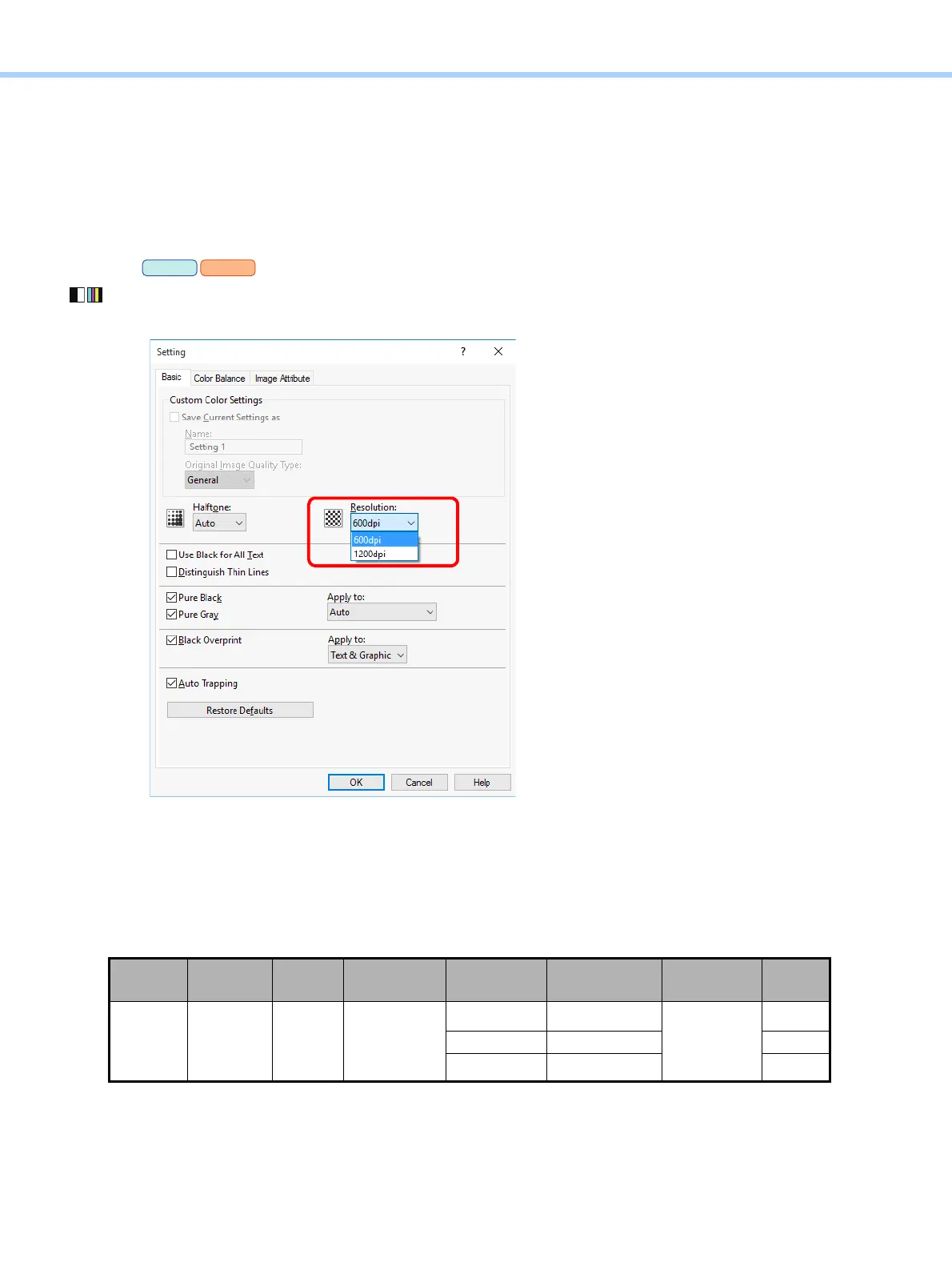
(3) Change the resolution to 1200 dpi.
Press “Settings”. Select “1200dpi” for Resolution on the “Basic” tab.
• “1200dpi” is selectable only for PS printer driver.
• You can obtain high effectiveness by changing both the image type and the halftone setting.
(4) Change the applicable range of the halftone.
When “Auto” is set for the halftone setting on the printer driver, a rough halftone will be applied to the
graphics. If you want to apply the fine halftone setting to graphics in the above condition, change the
value of 05-7383-2 to “1” (Detail).
• After the halftone setting has been changed, perform automatic calibration.
• When the halftone setting for Graphic is changed, stepped gaps or discoloration tend to occur in areas
where colors have gradated smoothly.
Color
mode
Resolution
[05]
Code
Contents Subcode
Recommended
value
Acceptable
value range
Default
Full color /
Black
1200 dpi 7383
Halftone
change when
[Auto] is being
set
0 (Text) 1
0 to 1
0: Smooth
1: Detail
1
1 (Graphic) 1 0
2 (Image) 0 0
PS
XPS



 To Next Page
 Loading...


