6.INSTALLING SCAN DRIVER AND UTILITIES
Installing Scan Driver and Utilities 207
6 INSTALLING SCAN DRIVER AND UTILITIES
2
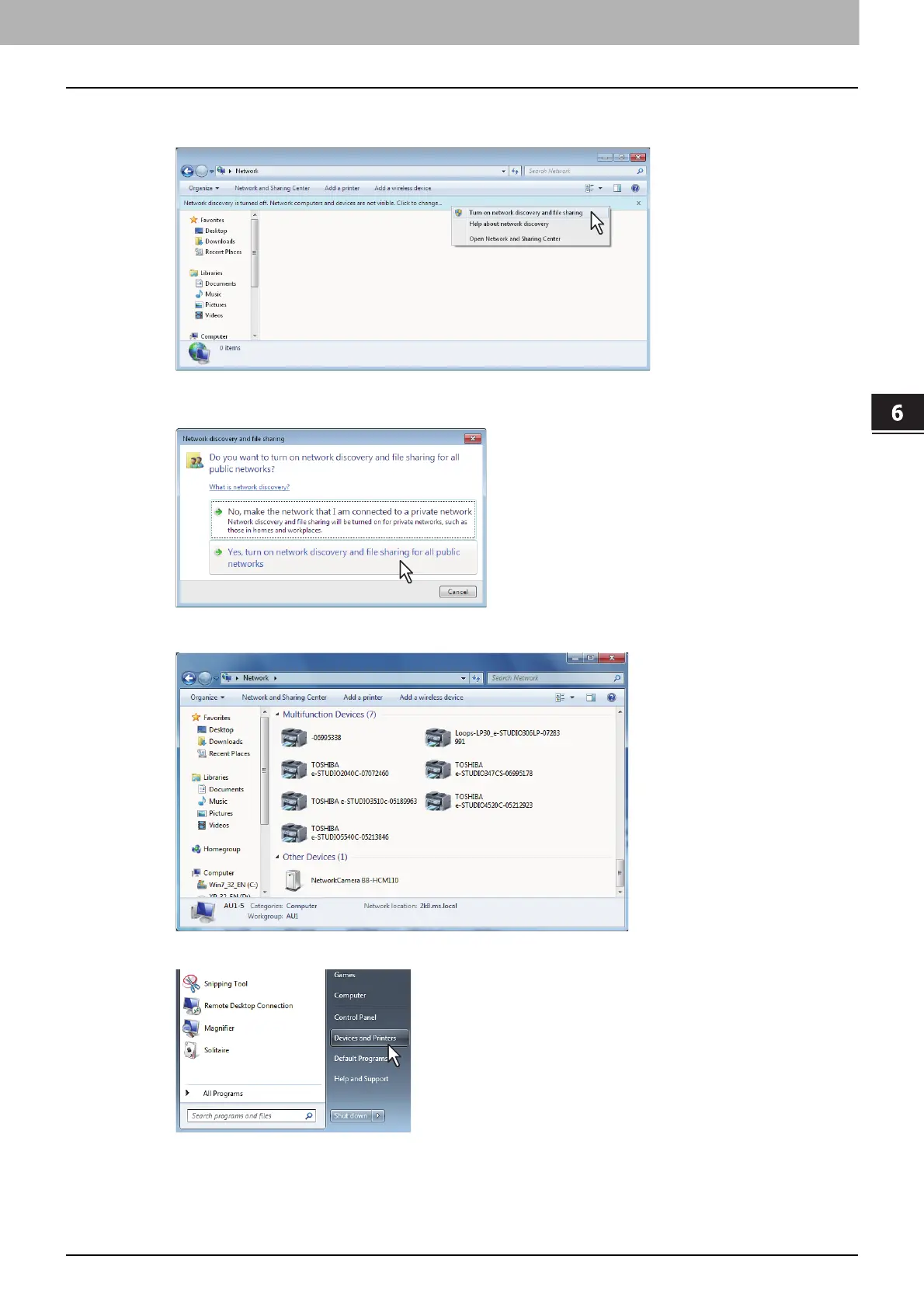
Click [Network discovery is turned off. Network computers and devices are not visible.
Click to change]. Then select [Turn on network discovery and file sharing].
The [Network discovery and file sharing] dialog box appears.
3
Click [Yes, turn on network discovery and file sharing for all public networks].
Connected computers and icons of the multifunction devices are displayed in the [Network] screen.
4
Click [Start] and click [Devices and Printers] to open the [Devices and Printers] folder.
When you are using Windows 8 or Windows Server 2012, see the following section to open the printers
folder.
P.54 “Accessing the printers folder on Windows 8 / Windows Server 2012”



 To Next Page
 Loading...











