3.INSTALLING PRINTER DRIVERS FOR WINDOWS
Installing the Printer Drivers 57
3 INSTALLING PRINTER DRIVERS FOR WINDOWS
SMB printing
Install a printer driver by specifying the SMB port manually.
SMB printing is targeted for a small network. If you are using Windows Vista, Windows 7, Windows 8,
Windows Server 2003, Windows Server 2008, or Windows Server 2012 as a print server then it is
recommended to set up printing through this print server.
Before starting the configuration, make sure that this equipment is connected to a network and also that
its power is turned ON.
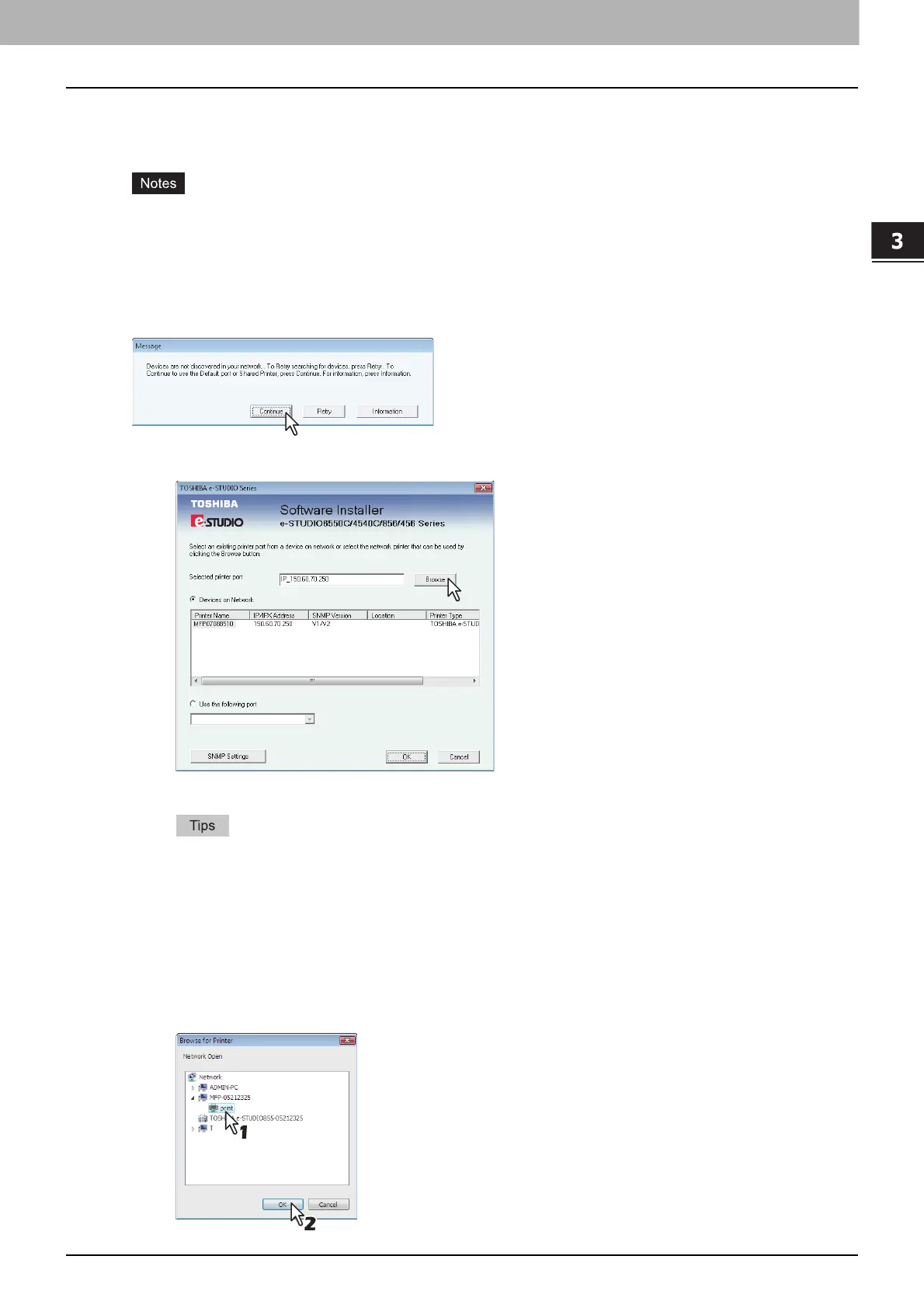
If this equipment is not discovered over the network after the installation is started, a dialog box
indicating this appears. Click [Continue] to continue the configuration.
7
Click [Browse].
The [Browse for Printer] dialog box appears.
If you know the IP address or the host name of this equipment, you can specify a printer port with
the direct entry from the keyboard instead of clicking [Browse]. Enter a network path shown
below in [Selected printer port], and then go to step 9.
\\<IP address or host name>\print
You may not be able to open the target MFP port via [Browse] button in OS such as Windows7,
Windows Vista depending on the network environment. In this case, enter a network path shown
below in [Selected printer port], and then go to step 9.
\\<IP address or host name>\print
8
Select “print” for this equipment and then click [OK].



 To Next Page
 Loading...











