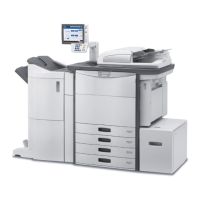
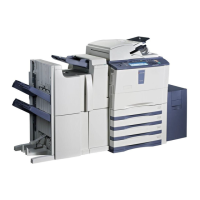
e-STUDIO5506AC/6506AC/7506AC (Ver01) © 2016, 2017 TOSHIBA TEC CORPORATION All rights reserved
5-6
5. Scanning-specific Adjustments
5.4 To Scan the Original, while Reducing the File Size
If the original is constantly scanned at the
default compression rate, the file size may
become larger than required.
If the original is scanned at a reasonable
compression rate, depending on the purpose of
the scanned-in image, the file size will be
Explanation
If an original is scanned in the default resolution and at the default compression rate, a proper image will be
obtained for general purposes. But the file size may become larger than required. The file size of the scanned-in
image significantly varies, depending on the selected resolution or compression rate. If an appropriate resolution
and a compression rate are selected in accordance with the purpose of the original, the image quality will be
maintained, while the file size is being reduced. Change the resolution, original mode, or compression rate or
perform the background adjustment, in order to minimize the file size of the scanned-in image.
The product offers the "Slim PDF" function. This will diminish the image quality but reduce the file size to
approximately 1/8 to 1/10, compared to the scanned-in image (300dpi, compression rate: MID) in JPEG format.
Procedures
* The procedure to use varies, depending on whether to reduce the file size by changing the options when
scanning the original or in Slim PDF. Refer to "To Reduce the File Size by Changing the Options when
Scanning the Original" in order to reduce the file size without changing the file format. Refer to "To Reduce
the File Size in Slim PDF" in order to give a higher priority to the file size reduction than the image quality.
* The above file sizes are just for your reference.
* The above file sizes are just for your reference.


 To Next Page
 Loading...