EasyManua.ls Logo

Toshiba PC-E70 - Page 5

Toshiba PC-E70
18 pages
Print Icon
To Next Page IconTo Next Page
To Previous Page IconTo Previous Page
Loading...
en
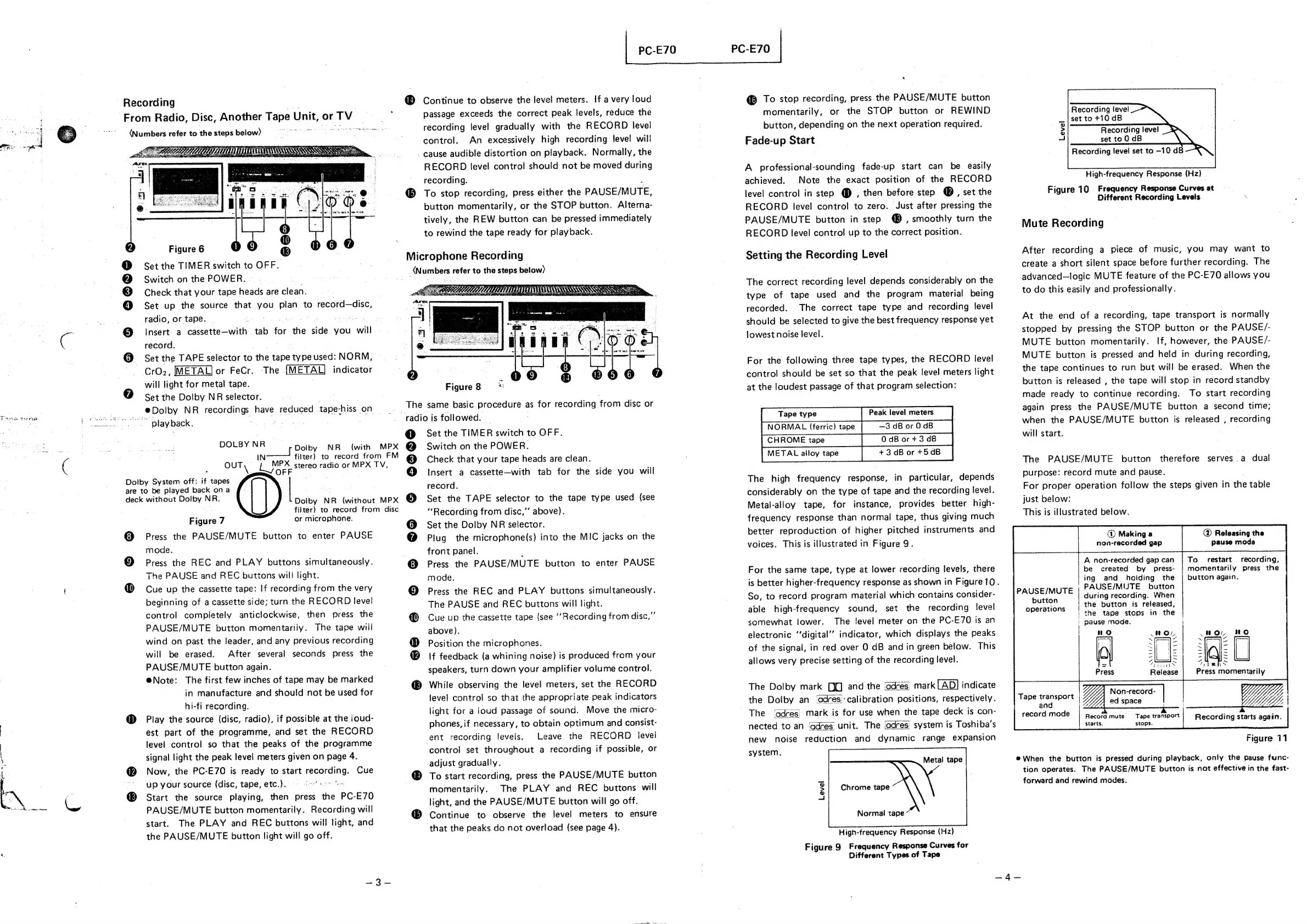
Recording
From
Radio,
Disc,
Another
Tape
Unit,
or
TV
(Numbers
refer
to
the
steps
below)
Figure
6
@
Set
the
TIMER
switch
to
OFF.
@
Switch
on
the
POWER.
.
®
Check
that
your
tape
heads
are
clean.
©
Set
up
the
source
that
you
plan
to
record—disc,
radio,
or
tape.
ee
ee
ae
caaiit
3
Insert
a
cassette—with
tab
for
the
side
you
will
record.
©
Set
the
TAPE
selector
to
the
tape
type
used:
NORM,
CrO2,
METAL]
or
FeCr.
The
indicator
will
light
for
metal
tape.
@
set
the
Dolby
NR
selector.
@Dolby
NR
recordings
have
reduced
tape-hiss
on
*”
playback.
:
DOLBY
NR
Dolby
System
off:
if
tapes
are
to
be
played
back
ona
deck
without
Dolby
NR.
Figure
7
or
microphone.
@
Press
the
PAUSE/MUTE
button
to
enter
PAUSE
mode.
@
Press
the
REC
and
PLAY
buttons
simultaneously.
The
PAUSE
and
REC
buttons
will
light.
@
Cue
up
the
cassette
tape:
If
recording
from
the
very
beginning
of
a
cassette
side;
turn
the
RECORD
level
control
completely
anticlockwise,
then
press
the
PAUSE/MUTE
button
momentarily.
The
tape
will
wind
on
past
the
leader,
and
any
previous
recording
will
be
erased.
After
several
seconds
press
the
PAUSE/MUTE
button
again.
@Note:
The
first
few
inches
of
tape
may
be
marked
in
manufacture
and
should
not
be
used
for
hi-fi
recording.
@
Play
the
source
(disc,
radio),
if
possible
at
the
joud-
est
part
of
the
programme,
and
set
the
RECORD
level
control
so
that
the
peaks
of
the
programme
signal
light
the
peak
level
meters
given
on
page
4.
Now,
the
PC-E70
is
ready
to
start
recording.
Cue
up
your
source
(disc,
tape,
etc.).
"os
®
Start
the
source
playing,
then
press
the
PC-E70
PAUSE/MUTE
button
momentarily.
Recording
will
start.
The
PLAY
and
REC
buttons
will
light,
and
the
PAUSE/MUTE
button
light
will
go
off.
8
Dolby
NR
(with
MPX
in!
titer)
to
record
from
FM
OUT,
Lee
stereo
radio
or
MPX
TV,
OFF
;
Dolby
NR
(without
MPX
filter)
to
record
from
disc
PC-E70
Continue
to
observe
the
level
meters.
If
a
very
loud
passage
exceeds
the
correct
peak
levels,
reduce
the
recording
level
gradually
with
the
RECORD
level
control.
An
excessively
high
recording
level
will
cause
audible
distortion
on
playback.
Normally,
the
RECORD
level
control
should
not
be
moved
during
recording.
®
To
stop
recording,
press
either
the
PAUSE/MUTE,
button
momentarily,
or
the
STOP
button.
Alterna-
tively,
the
REW
button
can
be
pressed
immediately
to
rewind
the
tape
ready
for
playback.
Microphone
Recording
(Numbers
refer
to
the
steps
below)
Figure
8
i
The
same
basic
procedure
as
for
recording
from
disc
or
radio
is
followed.
Set
the
TIMER
switch
to
OFF.
Switch
on
the
POWER.
Check
that
your
tape
heads
are
clean.
Insert
a
cassette—with
tab
for
the
side
you
will
record,
Set
the
TAPE
selector
to
the
tape
type
used
(see
“Recording
from
disc,’’
above).
Set
the
Dolby
NR
selector.
Plug
the
microphone(s)
into
the
MIC
jacks
on
the
front
panel.
.
Press
the
PAUSE/MUTE
button
to
enter
PAUSE
mode.
Press
the
REC
and
PLAY
buttons
simultaneously.
The
PAUSE
and
REC
buttons
will
light.
Cue
up
the
cassette
tape
(see
‘Recording
from
disc,”
above).
Position
the
microphones.
If
feedback
(a
whining
noise)
is
produced
from
your
speakers,
turn
down
your
amplifier
volume
control.
While
observing
the
level
meters,
set
the
RECORD
level
control
so
that
the
appropriate
peak
indicators
light
for
a
ioud
passage
of
sound.
Move
the
micro-
phones,
if
necessary,
to
obtain
optimum
and
consist-
ent
recording
leveis.
Leave
the
RECORD
level
control
set
throughout
a
recording
if
possible,
or
adjust
gradually.
To
start
recording,
press
the
PAUSE/MUTE
button
momentarily.
The
PLAY
and
REC
buttons
will
light,
and
the
PAUSE/MUTE
button
will
go
off.
®
Continue
to
observe
the
level
meters
to
ensure
that
the
peaks
do
not
overload
(see
page
4).
@
@6
6
©
©
89
&
6806
PC-E70
@
To
stop
recording,
press
the
PAUSE/MUTE
button
momentarily,
or
the
STOP
button
or
REWIND
button,
depending
on
the
next
operation
required.
Fade-up
Start
A
professional-sounding
fade-up
start
can
be
easily
achieved.
Note
the
exact
position
of
the
RECORD
level
control
in
step
@
,
then
before
step
@
,
set
the
RECORD
level
control
to
zero.
Just
after
pressing
the
PAUSE/MUTE
button
in
step
@
,
smoothly
turn
the
RECORD
level
control
up
to
the
correct
position.
Setting
the
Recording
Level
The
correct
recording
level
depends
considerably
on
the
type
of
tape
used
and
the
program
material
being
recorded.
The
correct
tape
type
and
recording
level
should
be
selected
to
give
the
best
frequency
response
yet
lowest
noise
level.
For
the
following
three
tape
types,
the
RECORD
level
control
should
be
set
so
that
the
peak
level
meters
light
at
the
loudest
passage
of
that
program
selection:
Tape
type
Peak
level
meters
NORMAL
(ferric)
tape
—3
dB
or
0
dB
CHROME
tape
0
dB
or+3
dB
METAL
alloy
tape
+3dBor+5dB
The
high
frequency
response,
in
particular,
depends
considerably
on
the
type
of
tape
and
the
recording
level.
Metal-alloy
tape,
for
instance,
provides
better
high-
frequency
response
than
normal
tape,
thus
giving
much
better
reproduction
of
higher
pitched
instruments
and
voices.
This
is
illustrated
in
Figure
9.
For
the
same
tape,
type
at
lower
recording
levels,
there
is
better
higher-frequency
response
as
shown
in
Figure10.
So,
to
record
program
material
which
contains
consider-
able
high-frequency
sound,
set
the
recording
level
somewhat
lower.
The
level
meter
on
the
PC-E70
is
an
electronic
‘‘digital’’
indicator,
which
displays
the
peaks
of
the
signal,
in
red
over
0
dB
and
in
green
below.
This
allows
very
precise
setting
of
the
recording
level.
The
Dolby
mark
[iQ]
and
the
‘adres’
mark
[AD]
indicate
the
Dolby
an
‘adrescalibration
positions,
respectively.
The
‘adres)
mark
is
for
use
when
the
tape
deck
is
con-
nected
to
an
‘adres’
unit.
The
(adres)
system
is
Toshiba’s
new
noise
reduction
and
dynamic
range
expansion
system.
Metal
tape
Chrome
tape
Level
Normal
tape
High-frequency
Response
(Hz)
Figure
9
Frequency
Response
Curves
for
Different
Types
of
Tape
Recording
level
set
to
+10
dB
Recording
level
set
to
0
dB
Recording
level
set
to
-10
dB
Level
High-frequency
Response
(Hz)
Figure
10
Frequency
Response
Curves
at
Different
Recording
Levels
Mute
Recording
After
recording
a
piece
of
music,
you
may
want
to
create
a
short
silent
space
before
further
recording.
The
advanced—logic
MUTE
feature
of
the
PC-E70
allows
you
to
do
this
easily
and
professionally.
At
the
end
of
a
recording,
tape
transport
is
normally
stopped
by
pressing
the
STOP
button
or
the
PAUSE/-
MUTE
button
momentarily.
If,
however,
the
PAUSE/-
MUTE
button
is
pressed
and
held
in
during
recording,
the
tape
continues
to
run
but
will
be
erased.
When
the
button
is
released
,
the
tape
will
stop
in
record
standby
made
ready
to
continue
recording.
To
start
recording
again
press
the
PAUSE/MUTE
button
a
second
time;
when
the
PAUSE/MUTE
button
is
released
,
recording
will
start.
The
PAUSE/MUTE
button
therefore
serves.a
dual
purpose:
record
mute
and
pause.
For
proper
operation
follow
the
steps
given
in
the
table
just
below:
@
Releasing
the
pause
mode
This
is
illustrated
below.
To
restart
recording,
Making
a
non-recorded
gap
momentarily
press
the
A
non-recorded
gap
can
button
again.
be
created
by
press-
ing
and
hoiding
the
PAUSE/MUTE
button
PAUSEINUTE
during
recording.
When
the
button
is
released,
|
the
tape
stops
in
the
button
operations
|
Pause
mode.
i
no
Hor
,H#o,
oO
SFAe
be
oe)
(a
a
ye
=
=
Zl}
z
=
=
“Pits
AVR
hN
Press
Release
Press
momentarily
Non-record-
iy
Tape
ee
el
adses
|
Ui,
YY
record
mode
Record
mute
_‘
Tape
transport
starts.
stops.
Recording
starts
again.
Figure
711
@When
the
button
is
pressed
during
playback,
only
the
pause
func-
tion
operates.
The
PAUSE/MUTE
button
is
not
effective
in
the
fast-
forward
and
rewind
modes.

Related product manuals