EasyManua.ls Logo

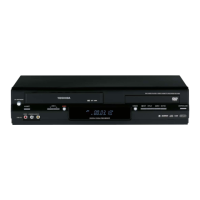
Toshiba SD-24VBSB - User Manual

Toshiba SD-24VBSB
41 pages
Print Icon
To Next Page IconTo Next Page
Loading...
1-6
SD-24VBSB
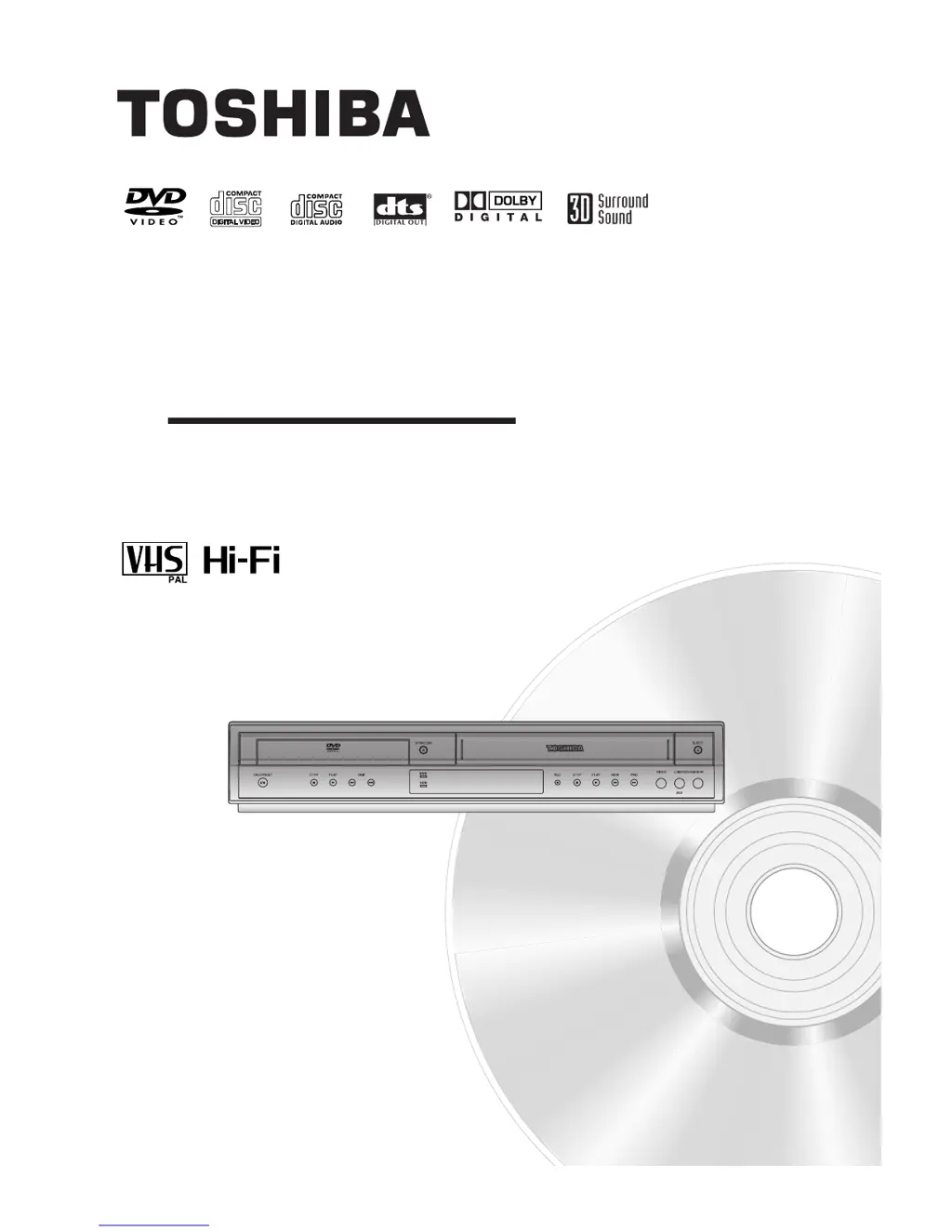
OWNER’S MANUAL
DVD PLAYER &
VIDEO CASSETTE RECORDER
Before connecting, operating or adjusting this product,
please read this instruction booklet carefully and completely.
©2004 Toshiba Corporation
This device does not tape-record copy protected DVD Video Discs.

Table of Contents

Questions and Answers

  • R
    Robert SanchezAug 18, 2025
    What to do if my Toshiba SD-24VBSB DVD VCR Combo remote control does not work?
    • G
      guerreroevanAug 18, 2025
      If the remote control for your Toshiba DVD VCR Combo isn't working, try the following: * Make sure there isn't anything blocking the path between the remote and the unit. Remove any obstacles. * Replace the batteries in the remote with new ones. * Point the remote directly at the remote sensor on the DVD+VCR. * Ensure you're operating the remote within 23 feet (7 meters) of the DVD+VCR. * If using VCR functions, press the VCR button first. For DVD functions, press the DVD button first. This remote uses the same buttons for both VCR and DVD functions.
  • X
    xarellanoAug 20, 2025
    How do I get Hi-Fi sound on my Toshiba SD-24VBSB?
    • D
      Derrick ShafferAug 20, 2025
      To get Hi-Fi sound on your Toshiba DVD VCR Combo, select STEREO by repeatedly pressing AUDIO on the remote control.
  • B
    Brian JonesAug 23, 2025
    How to display camcorder image on TV screen via A/V input to Toshiba SD-24VBSB DVD VCR Combo?
    • S
      Shelby LutzAug 23, 2025
      To display a camcorder image on the TV screen via the A/V input to your Toshiba DVD VCR Combo, press INPUT SELECT to select the LINE input channel (AV1 or AV3).
  • K
    Kimberly WilsonAug 26, 2025
    Why does my Toshiba SD-24VBSB DVD VCR Combo have no power?
    • R
      Ryan OdonnellAug 26, 2025
      If your Toshiba DVD VCR Combo has no power, it might be due to the power cord being disconnected. Ensure the power cord is securely plugged into the wall outlet.
  • J
    Javier McgeeAug 28, 2025
    Why is there no sound from my Toshiba SD-24VBSB?
    • K
      Keith HenryAug 28, 2025
      If you're not getting any sound from your Toshiba DVD VCR Combo, consider these potential causes: * The equipment connected with the audio cable might not be set to receive the DVD+VCR signal output. Select the correct input mode on the audio receiver. * The audio cables might not be securely connected. Ensure the audio cables are firmly plugged into the jacks. * The equipment connected with the audio cable might be turned off. Turn on the equipment. * The Digital Audio Output might be set to the wrong position. Set the Digital Audio Output to the correct position, then turn on the DVD+VCR player again by pressing +/1.
  • E
    Emily JamesAug 30, 2025
    Why is there no picture on my Toshiba DVD VCR Combo?
    • D
      Daniel GalvanAug 30, 2025
      If you're not getting a picture from your Toshiba DVD VCR Combo, here are a few things to check: * Make sure your TV is set to the correct video input mode to receive the signal from the DVD+VCR player. * Ensure the video cable is securely connected to the jacks. * If you've set Progressive Scan to On but are connected to a standard (analog) television, set Progressive Scan to Off.
  • T
    terrellaliciaSep 1, 2025
    What to do if my Toshiba SD-24VBSB DVD VCR Combo does not start playback?
    • T
      Timothy SandersSep 1, 2025
      If your Toshiba DVD VCR Combo isn't starting playback, consider the following: * Ensure that you've inserted a playable disc, checking both the disc type and regional code. * Make sure the disc is placed with the playback side down. * Verify that the disc is correctly placed within the guide on the disc tray. * Clean the disc if it's dirty. * If the Rating level is set, cancel the Rating function or change the rating level.
  • D
    Daniel HarrisSep 4, 2025
    Why is the playback picture poor on my Toshiba SD-24VBSB DVD VCR Combo?
    • P
      Patrick AlexanderSep 4, 2025
      If the playback picture quality is poor on your Toshiba DVD VCR Combo, consider these factors: * The disc might be dirty, so try cleaning it. * The TV channels might not be tuned correctly; check the tuning and carry out tuning again. * The tape heads could be dirty; clean the video heads. * If using a rental tape or one recorded on another VCR, use PR/TRK (+/-) for manual tracking adjustment while the tape is playing. * Ensure your TV supports 625p Progressive scan picture, or set Progressive scan to off, as this unit can only output 625p Progressive scan picture.
  • R
    Rhonda WatsonSep 6, 2025
    How to fix Toshiba DVD VCR Combo when the power is on, but it does not work?
    • J
      Jordan ThomasSep 7, 2025
      If the power is on but your Toshiba DVD VCR Combo isn't working, the issue might be: * DVD or VCR button is not switched properly. Please, refer to page 6. * No disc or tape is inserted. Insert a disc or tape and check that the disc or tape indicator in the display window is lit.
  • M
    marydavisSep 9, 2025
    How to fix Toshiba SD-24VBSB DVD VCR Combo when video tape cannot be inserted?
    • R
      Rachel JohnsonSep 9, 2025
      If you cannot insert a video tape into your Toshiba DVD VCR Combo, make sure that the cassette compartment is empty. Eject the tape if there is one.

Summary

Safety Precautions

Safe Use of Equipment Dos and Donts

Provides essential guidelines for the safe operation and handling of electronic equipment.

Before Use

Playable Discs

Lists the types of discs supported by the DVD+VCR, including DVD, VCD, and Audio CDs.

Moisture Condensation

Advises on proper acclimatization of the unit to prevent damage from temperature changes.

Remote Control Operation Range

Specifies the effective distance and angle for the remote control sensor.

Precautions

Offers general advice on handling, cleaning, and maintaining the unit's performance.

Notes on Discs

Provides guidance on handling, storing, and cleaning discs to ensure optimal playback.

Selecting the Viewing Source

Explains how to select between DVD and VCR sources for TV viewing.

Front Panel Controls

Overview of Buttons and Indicators

Identifies and describes the function of buttons and indicators on the front panel.

Display Window

Remote Control Functions

Button Functions Overview

Details the functions of various buttons on the remote control for DVD and VCR operation.

Rear Panel Connectivity

Input and Output Ports

Describes the various input and output connectors available on the rear panel.

Connections

Connecting to a TV

Provides basic AV, RF, and S-Video connection guides for TV setup.

Component;Progressive Scan Video Connection

Explains how to connect the unit for high-quality component or progressive scan video.

Connecting to Optional Equipment

Guides on connecting the unit to amplifiers, receivers, and other audio equipment.

Before Operation - VCR Part

Tuning in a Video Channel on Your TV

Guides the user through the process of tuning TV channels for VCR playback.

Initial Preset Procedure

Details the initial setup steps for the VCR after initial connection.

Setting the Clock Manually

Explains how to manually set the time and date for the VCR.

Setting the Colour System

Guides on selecting the correct colour system for TV display.

Setting the RF OUT Sound System

Instructions for configuring the RF OUT sound system for optimal audio.

Using the Main Menu

Explains how to navigate and use the VCR's main on-screen menu.

Automatic TV Station Tuning

Details the process of automatically scanning and storing TV channels.

Manual TV Station Tuning

Provides steps for manually tuning and naming TV stations when automatic tuning fails.

Changing TV Station Order

Instructions on how to reorder stored TV channels.

Deleting TV Stations

Guides on how to remove unwanted TV stations from the stored list.

Before Operation - DVD Part

General Explanation

Provides a basic overview of DVD player operation and disc compatibility symbols.

On-Screen Display Features

Explains how to view and change playback options via the on-screen display.

Initial Settings Guide

Guides on setting personal preferences for DVD playback, including picture and language.

Language Settings

Details how to select preferred languages for menus, audio, and subtitles.

Sound Settings

Covers options for digital audio output, sample frequency, and dynamic range control.

Digital Audio Output Options

Explains how to configure the digital audio output based on connected audio systems.

Sample Frequency Selection

Guides on selecting the appropriate sample frequency for audio output.

Parental Control Setup

Explains how to set parental controls for restricting content based on ratings.

Rating and Area Code Adjustment

Details how to set disc ratings and region codes for parental control.

Changing the 4-Digit Code

Provides instructions on how to change or reset the parental control password.

Operation with Tape

Playing a Tape

Guides on inserting, playing, and managing video cassette tapes.

OPR (Optimum Picture Response)

Explains how to use OPR to automatically improve playback picture quality.

One-Touch Timer Recording (OTR)

Details how to initiate instant recordings for a set period or until the tape ends.

Timer Recording Using On-Screen Display

Guides on setting up timed recording events using the on-screen menu.

Operation with DVD and Video CD

Playing DVDs and Video CDs

Covers basic playback operations for DVD and Video CD formats.

Moving Between Titles;Chapters

Explains how to navigate through titles, chapters, and tracks on discs.

Search and Still Picture Playback

Guides on using search functions and frame-by-frame playback.

Slow Motion, Random, and Repeat Functions

Details playback modes like slow motion, random playback, and repeat options.

Time Search and 3 D Surround

Explains time search functionality and the 3D Surround audio effect.

Screen Saver Operation

Describes the function of the screen saver that activates during idle periods.

Zoom and Marker Search

Covers zooming into images and marking/recalling playback points.

Special DVD Features

Explains how to access DVD menus for special features like camera angles and audio.

Camera Angle and Audio;Subtitle Settings

Guides on changing camera angles, audio languages, and subtitle languages.

Operation with Audio CD and MP3 Disc

Playing Audio CDs and MP3 Discs

Covers the process of playing Audio CDs and MP3 discs, including file navigation.

Notes on MP3 Recordings

Provides compatibility notes and requirements for playing MP3 files.

Playback Control Functions (Pause, Track, Search)

Details playback controls such as pause, track selection, and search modes.

Repeat and Random Playback Modes

Explains how to use repeat functions for tracks/discs and random playback.

3 D Surround and Audio Channel Selection

Guides on selecting 3D Surround sound and changing audio channels.

Operation with JPEG Disc

Viewing JPEG Discs

Covers the process of viewing JPEG image files from discs.

File Navigation and Picture Display

Details how to navigate files, display single pictures, and rotate images.

Notes on JPEG Recordings

Provides important information regarding JPEG file compatibility and formatting.

Programmed Playback

Programmed Playback with Audio CD;MP3

Explains how to create and manage programmed playback lists for audio discs.

Programmed Playback with Video CD

Details how to create programmed playback lists for Video CDs.

Managing Programmed Tracks

Guides on repeating programmed tracks and erasing tracks or the entire program list.

Additional Operation with Tape

Hi-Fi Stereo Sound System (NIC)

Explains the Hi-Fi stereo and NICAM digital sound capabilities for recording and playback.

On Screen Display (F.OSD)

Describes how to display various operational information on the TV screen.

Tape Counter Memory Stop

Details how to use the tape counter for precise location and rewind.

Blank Search Function

Explains how to quickly locate the end of recorded content on a tape.

Video Doctor (Self-Diagnosis)

Covers the self-diagnosis feature that reports VCR operational problems.

Wide Screen Compatibility 16:9

Explains how to record and play back 16:9 wide screen programs.

Decoder Setup

Guides on connecting and setting up an external decoder for pay-TV channels.

Copying from DVD to VCR

Provides instructions on how to copy DVD content onto a VHS tape.

Recording from Another Video Recorder

Explains how to record external video sources onto a VHS tape.

Troubleshooting

Video Head Cleaning

Provides information on when and how to clean the video heads.

Language Code List

Country;Area Code List

Specifications

Toshiba SD-24VBSB Specifications

General IconGeneral
BrandToshiba
ModelSD-24VBSB
CategoryDVD VCR Combo
LanguageEnglish

Related product manuals