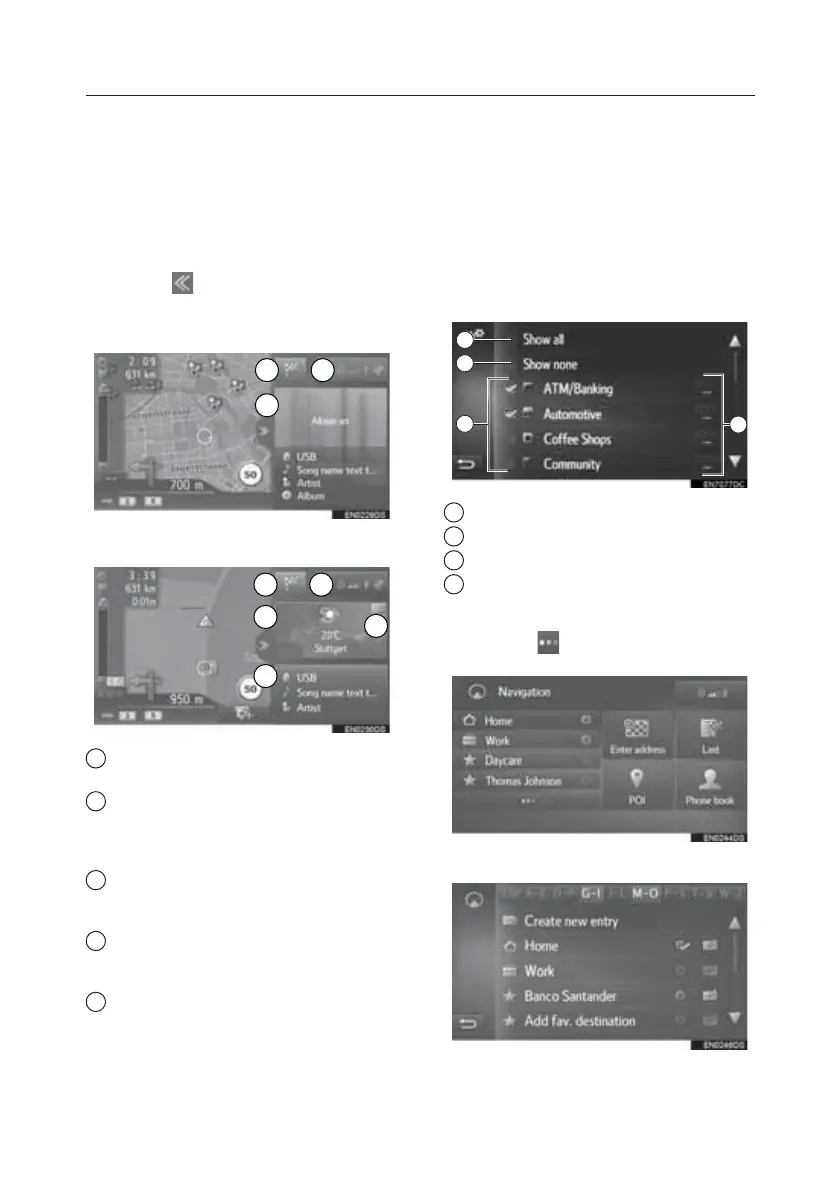
Split View Screen
The split view can display multiple
information such as media sources and
Toyota online apps simultaneously with
the map. When the information area is
selected, the selected item will be
displayed on full-screen.
1. Select
on the map screen.
2. Check that the split view is displayed.
1 Select to display the navigation
menu screen.
2 Displays the condition of the
Bluetooth
®
and Wi-Fi
®
connection. When
this icon is selected, the paired device list
screen will be displayed.
3 Displays the information of the
media source. When this area is selected,
the media source is displayed full-screen.
4 Displays the information of the
Toyota online app. When this area is
selected, the app is displayed fullscreen.
5 Select to change the Toyota online
app displayed on the panel.
• Layout of split view can be selected by
the map settings.
Change Guidance Prompt Volume
1. Press the “SETUP” button.
2. Select “General”.
3. Select “Volume settings”.
Points Of Interest
1. Display the “Map settings” screen.
2. Select “POIs on map”.
3. Select the desired POI categories.
1 Select to display all categories.
2 Select to hide all icons.
3 Select to select main categories.
4 Select to select subcategories.
Registering “HOME”
1. Select “ ” on the navigation menu
screen.
2. Select “Home”.
With media information
1 2
3
With app and media information
1 2
4
5
3
1
2
3
4
TOUCH-SCREEN MULTIMEDIA
21






 To Next Page