65
Chapter 4 Congure the Router
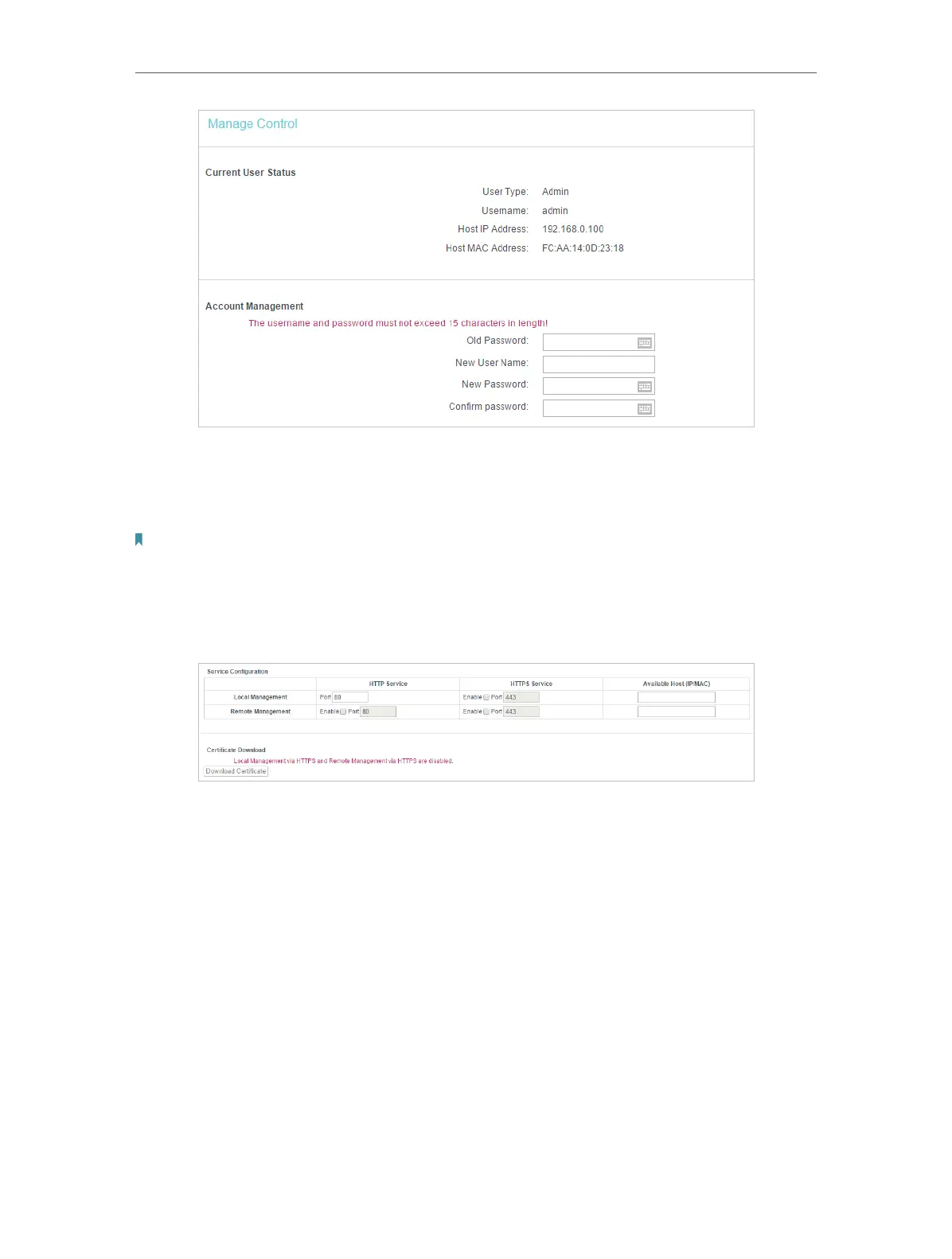
It is strongly recommended that you change the default username and password of the
router, for all users that try to access the router’s web management or Quick Setup will
be prompted for the router’s username and password.
Note:
The new username and password must not exceed 15 characters and not include any spacing.
• To manage your router via the internet:
1. Specify the management web port number and click Save.
• Port - The default management web port number is 80 for HTTP, 443 for HTTPS.
For greater security, you can change the management web port to a number
between 1024 and 65535 but do not use the number of any common service
port. Tick Enable to enable local or remote management via HTTP or HTTPS.
• Available Host (IP/MAC) - This is the current address you will use when accessing
your router from the internet.
• Certificate - A file that provides you with authentication information. Download
and install the certificate for Local/Remote Management via HTTPS if you need
it. Once the certificate is installed, warnings will not pop up when you access
the router via HTTPS.
2. Enter your router’s WAN IP address into your browser’s address bar, followed by a
colon and the custom port number you set in the Web Management Port box. For
example, if your Router’s WAN address is 202.96.12.8 and you use port number 8080,
enter http://202.96.12.8:8080 in your browser.


 To Next Page