1
Configuration Guide
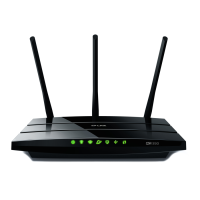
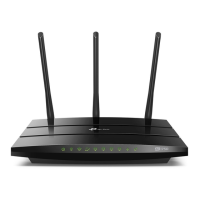
TP-LINK C1200
TP-LINK C1200
For Windows 8
IMPORTANT MESSAGE
Your router has been pre-configured, you do not need to
follow each step of the set-up guide but should retain this
document in case you need to manually configure your
equipment.
To configure your PC/Laptop with your wireless password including
changing your wireless password, please proceed to step 4.
Contents
1. Physical Connection
2. Network Configuration
3. Configuring Internet
4. Configuring WI-FI
5. Change of Password
1. PHYSICAL CONNECTION
Please refer to the Quick Installation Guide that came with your router.
PLEASE NOTE: Have your router powered on and connected directly to your
PC via Ethernet Cable before you begin, as these instructions are based on
wired Ethernet connection
2. NETWORK CONFIGURATION
PPPoE connection does not require you to have an IP address or DNS
settings manually encoded on your network card.
PPPoE connection uses authentication to establish the Internet
connection and its after doing this that your router is assigned an
IP and DNS settings from TPG.
To begin, your PC needs to receive a private IP address from the
router. Most NBN routers have DHCP enabled by default that
will take care of this.

 Need help?
 General





 To Next Page