3
Configuration Guide TP-LINK C1200
3. CONFIGURING ROUTER
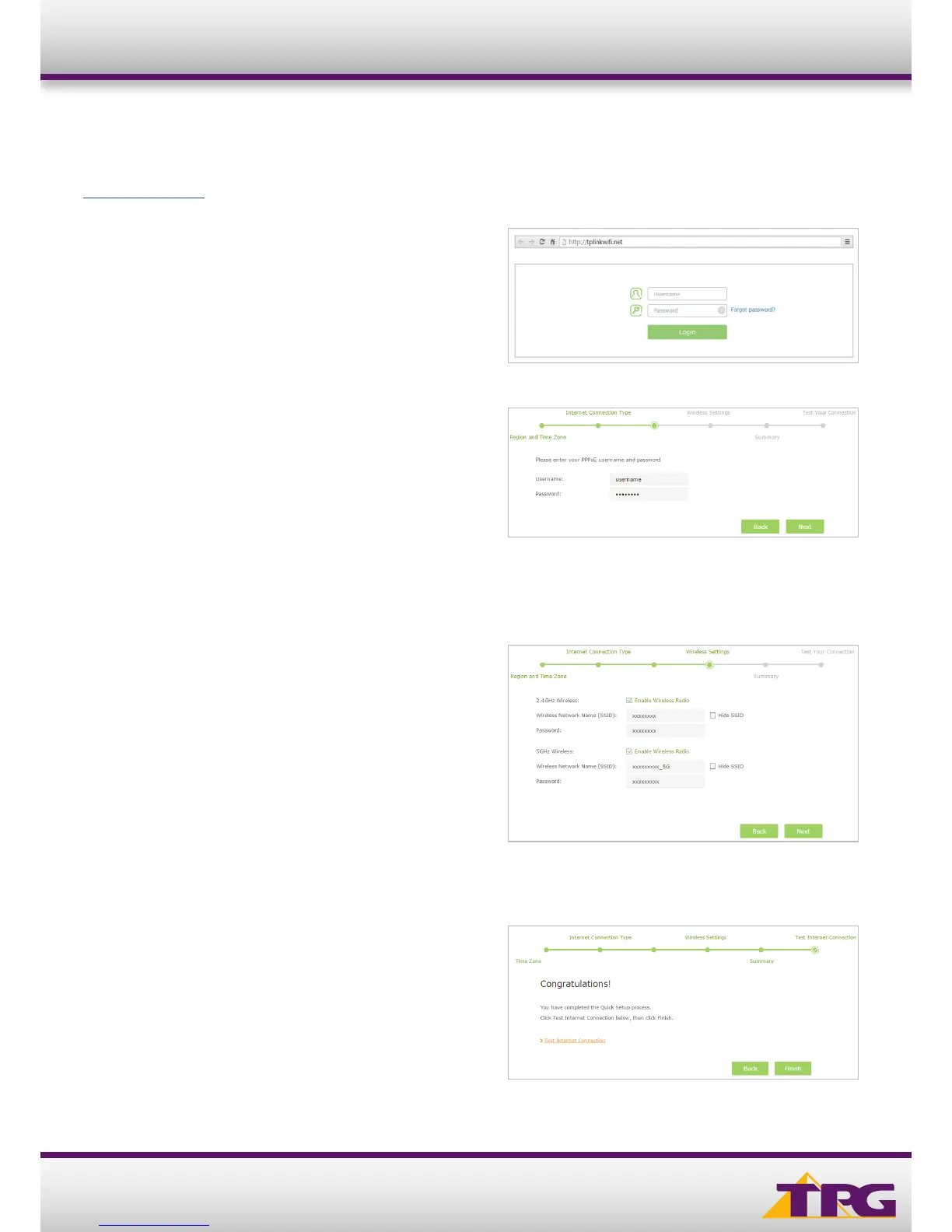
A. Open your browser and in the address bar type
http://tplinkwifi.net or http://192.168.1.1 and press Enter
B. Enter admin for both the username and password and
click Login. If you have changed the login credentials,
please enter the current username and password for your
router interface.
C. Click Quick Setup tab towards the top of the page.
D. Select your Time Zone, and click Next.
E. Click on PPPoE, and click Next.
F. Type in your own TPG username and password, and
click Next.
G. You can change your Wi-Fi settings in this step. By default,
the router is configured with the following Wi-Fi security settings:
SSID (name for the Wi-Fi connection): TP-LINK_XXXX
(XXXX is a random 4 digit alpha numeric code)
Password: By default, the password is printed on a sticker
underneath your router (Wireless Password/Pin). You can
enter your own text as an option.
Click Next to continue.
H. On the summary page click Save
Click Finish to complete the Quick Setup.






 To Next Page