3
STEP 3 (continued):
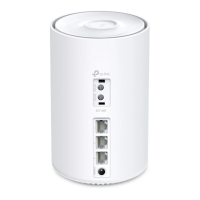
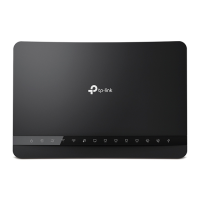
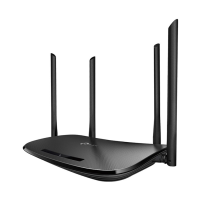
About your modem
STEP 4:
Wi-Fi for your devices
Once the modem has connected to a
network connection, you can connect
devices such as your laptop, smart
phone, tablet, etc. wirelessly via Wi-Fi
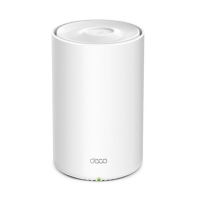
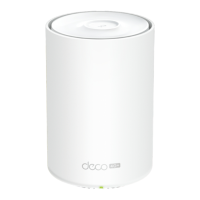
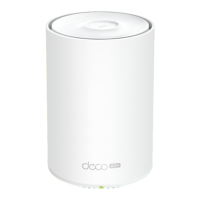
to your TP-Link deco 4G+ modem to
access the internet.
Please refer to the label on the bottom of
your TP-Link deco 4G+ modem where you
will locate:
• The wireless Wi-Fi network name
(Wi-Fi Name)
• Wireless password (Wi-Fi Password)
On your device, open the Wi-Fi (wireless)
connection setting, look for the Wi-Fi name,
select it and enter the Wi-Fi Password.
Pulse Yellow:
Deco is resetting.
Solid Yellow:
Deco is starting up.
Pulse Blue:
Deco is ready for setup,
or WPS is in progress.
Solid Blue:
Deco is setting up.
Pulse Green:
Deco is upgrading firmware.
Solid Green:
Deco is all set up and connected.
Solid Red:
Deco has an issue.
RED: No Internet connection –
indicates the modem cannot
connect to a wireless tower nearby.
Possible causes and self-help:
• Modem stuck - disconnect power
for a few seconds, plug in and
allow to restart for two minutes
• Outside of wireless tower - try again
when you a coverage area
• SIM card issue - check SIM card is
inserted correctly and securely or it
has not been activated..
If the problem persists please call our
friendly support team on 09 280 3672.
9





 To Next Page