
 Need help?
Do you have a question about the TP-Link Omada SG2218P and is the answer not in the manual?
The TP-Link Omada Smart Switch is a business networking solution designed for robust and scalable network management. It offers advanced L2 management features, including comprehensive QoS, IGMP snooping/filtering, and VLAN capabilities, making it suitable for diverse workgroup and department needs. The switch integrates seamlessly into Omada SDN (Software Defined Networking) for centralized cloud management, enhancing efficiency and simplifying network administration.
The Omada Smart Switch provides wire-speed performance and abundant L2 management features, catering to various service features and multiple powerful functions for high security. It supports the EAP-standardized framework and smart configuration capacity, offering flexible solutions for a variable scope of networks. The switch is designed to optimize voice and video applications, and its link aggregation capabilities increase aggregated bandwidth. It integrates multiple functions with excellent performance, making it suitable for managing complex network environments and meeting the needs of users demanding higher networking performance.
Specific models like the SG2210MP, SG2218P, SG2428P, and SL2428P are Power Sourcing Equipment (PSE), meaning they can automatically detect and supply power to powered devices (PDs) compliant with IEEE 802.3af and IEEE 802.3at. This PoE functionality simplifies deployment for devices like IP cameras, wireless LAN access points, and IP phones, eliminating the need for separate power cables.
The switch can operate in two modes: Standalone Mode and Controller Mode. In Standalone Mode, the switch is configured and managed individually via a web-based GUI or CLI. In Controller Mode, the switch is managed by an Omada Hardware Controller (OC200/OC300) or Omada Software Controller, allowing for centralized management of multiple Omada devices. This centralized approach simplifies configuration, monitoring, and troubleshooting across the entire network.
The Omada Smart Switch series adheres to various IEEE standards, including IEEE 802.3i, IEEE 802.3u, IEEE 802.3ab, IEEE 802.3ad, IEEE 802.3z, IEEE 802.3x, IEEE 802.1p, IEEE 802.1q, IEEE 802.1x, IEEE 802.1d, IEEE 802.1s, IEEE 802.1w, and IEEE 802.3af/at (for PoE models).
The switches feature various LEDs to indicate status:
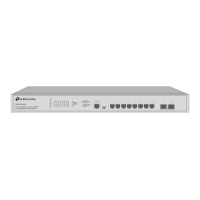
The switches offer various port configurations, including 100M/1000M/10Gbps RJ45 ports, 10/100/1000 Mbps RJ45 ports, 10/100 Mbps RJ45 ports, SFP Slots, and SFP+ Slots, depending on the specific model. For instance, the SG2210MP has 8 10/100/1000 Mbps RJ45 PoE ports and 2 SFP slots. The SG2428P has 24 10/100/1000 Mbps RJ45 PoE ports and 4 SFP+ slots.
Installation: The switch supports both desktop and rack installation. For desktop installation, it should be placed on a flat surface with sufficient space for ventilation. For rack installation, it can be mounted in an EIA standard 19-inch rack using the provided rack-mounting brackets. Proper air circulation is crucial, requiring at least 5 to 10 cm of space around the device.
Omada SDN Integration: The switch is a key component of the Omada SDN solution, which provides centralized cloud management. This allows users to manage their entire network from a single interface, including access points, switches, and gateways. The Omada app provides convenient remote management via a smartphone or tablet.
PoE Functionality: For PoE-enabled models, the switch automatically detects and powers connected PDs, simplifying network deployment and reducing cabling requirements. This is particularly useful for IP surveillance systems, VoIP phones, and wireless access points.
Electromagnetic Interference: The device is designed to minimize electromagnetic interference. However, to ensure optimal performance, avoid placing the switch near strong electromagnetic sources. Use shielded cables and ensure proper grounding.
Lightning Protection: The switch is designed with surge protective devices (SPD) to mitigate damage from lightning strikes. For detailed lightning protection measures, refer to the TP-Link website for relevant guides. It is recommended to use the provided grounding terminal to connect the switch to a protective earth ground.
Troubleshooting: The manual provides troubleshooting steps for common issues, such as:
Firmware Updates: For optimal performance and security, it is recommended to regularly check for and install firmware updates from the official TP-Link website. The user guide and CLI reference guide, available on the download center, provide detailed instructions for managing and maintaining the device.
Community Support: TP-Link offers a community forum for users to ask questions, find answers, and communicate with other users and engineers. Technical support, user guides, and other information are also available on the TP-Link support website.


 To Next Page
 General