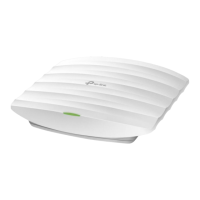
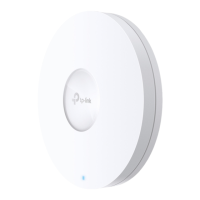
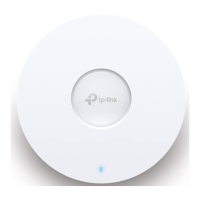
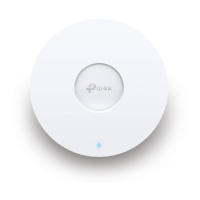
EasyManua.ls Logo

TP-Link Omada - User Manual

TP-Link Omada
2 pages
Print Icon
To Next Page IconTo Next Page
Loading...
Quick Installation Guide
Wireless Access Point
Setup with videos
Visit https://www.tp-link.com/support/setup-video/ or scan the QR code to search for
the setup video of your product model.
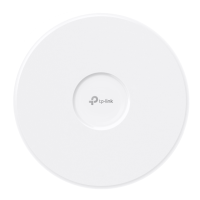
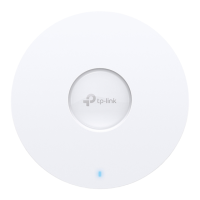
Note: For simplicity, we will take EAP660 HD for example throughout the Guide. The image may dier from the
actual product.
Hardware Overview
1
On:
Working normally/Initializing.
Off:
Working abnormally/Power o/LED is turned o.
Flashing:
Initialization
: The LED ashes twice after initialization is completed.
Upgrade
: The LED ashes once per second while upgrading.
Reset
: The LED ashes quickly during the reset. The EAP will then reboot.
Locate
: When the Locate feature is activated in the Omada controller, the LED ashes quickly to locate and
identify the device. The LED will ash for 10 minutes, or you can disable the feature manually to stop it ashing.
LED Indicator
RESET
With the device powered on, press and hold the button for about 5 seconds until the LED flashes quickly . Then release the
button. The device will restore to factory default settings.
The port is used to connect to a router or a switch to transmit data, or to a PSE (Power Sourcing Equipment), such as a PoE switch,
for both data transmission and Power over Ethernet (PoE) through Ethernet cable. The port supports transmission speed of
10/100/1000/2500 Mbps for EAP660 HD and 10/100/1000 Mbps for EAP610 / EAP620 HD.
Ethernet Port: 2.5G ETH (PoE) (for EAP660 HD) | ETH (PoE) (for EAP610 / EAP620 HD)
Plug one end of the provided power adapter to this port and the other end to a standard electrical wall outlet to power the EAP.
Power Port: 12V 2A (for EAP660 HD) | 12V 1A (for EAP610 / EAP620 HD)
2
Insert the plastic wall anchors into the 6 mm
diameter holes.
4
Connect the Ethernet cable to the Ethernet port on
the EAP.
5
Attach the EAP to the mounting bracket, then
rotate the EAP until it locks into place, as shown on
the left.
M3×20 Self-tapping Screws (Qty.4)
M3×28 Plastic Wall Anchors (Qty.4)
1
If your Ethernet cable feeds through the wall, you
can position the mounting bracket below the cable
hole. Mark four positions for the screw holes and
then drill four 6 mm diameter holes at the marked
positions.
3
Secure the mounting bracket to the wall by driving
the self-tapping screws into the anchors. Make
sure that the shoulders of the mounting bracket are
on the outside.
1
Remove the ceiling tile.
2
Place the mounting bracket in the center of the
ceiling tile. Mark four positions for the screw
holes and a position for the Ethernet cable hole.
Drill four 4 mm diameter holes for the screws and
a 25 mm diameter hole for the Ethernet cable at
the marked positions.
3
Secure the mounting bracket to the ceiling tile
using four M3x30 pan-head screws, washers and
wing nuts, as shown on the left.
4
Feed the Ethernet cable through the hole and set
the ceiling tile back into place.
5
Connect the Ethernet cable to the Ethernet port.
Attach the EAP to the mounting bracket, then
rotate the EAP until it locks into place, as shown on
the left.
Note: Make sure that the ceiling tile is bigger than the EAP.
Wing Nuts (Qty.4)Washers (Qty.4) M3×30 Pan-head Screws (Qty.4)
The EAP can be ceiling-mounted or wall-mounted. Choose a mounting method according to your
needs. Follow the steps below for the appropriate installation.
Hardware Installation
2
Drill Hole for Ethernet cable
X4
X4
Front Panel
Rear Panel
Option 1: Ceiling Mounting Option 2: Wall Mounting
Option1: Ceiling Mounting
Option2: Wall Mounting
Question and Answer IconNeed help?

Do you have a question about the TP-Link Omada and is the answer not in the manual?

Summary

Hardware Overview

Front Panel

Details about the physical front panel of the EAP device.

LED Indicator

Explanation of the LED indicator states and meanings.

Rear Panel

Overview of rear panel components and ports including RESET button.

Hardware Installation

Option 1: Ceiling Mounting

Step-by-step guide for securely mounting the EAP to a ceiling tile.

Option 2: Wall Mounting

Step-by-step guide for securely mounting the EAP to a wall.

Power Supply

Option 1: Via PoE Switch

How to power the EAP using a compatible PoE switch (802.3at).

Option 2: Via Power Adapter

How to power the EAP using the provided power adapter.

Software Configuration

Standalone Mode

Configure individual EAPs via Omada App or web browser for small networks.

Controller Mode

Centralized management of EAPs using Omada Software, Hardware, or Cloud Controller.

Summary

Hardware Overview

Front Panel

Details about the physical front panel of the EAP device.

LED Indicator

Explanation of the LED indicator states and meanings.

Rear Panel

Overview of rear panel components and ports including RESET button.

Hardware Installation

Option 1: Ceiling Mounting

Step-by-step guide for securely mounting the EAP to a ceiling tile.

Option 2: Wall Mounting

Step-by-step guide for securely mounting the EAP to a wall.

Power Supply

Option 1: Via PoE Switch

How to power the EAP using a compatible PoE switch (802.3at).

Option 2: Via Power Adapter

How to power the EAP using the provided power adapter.

Software Configuration

Standalone Mode

Configure individual EAPs via Omada App or web browser for small networks.

Controller Mode

Centralized management of EAPs using Omada Software, Hardware, or Cloud Controller.

Overview

This document describes a Wireless Access Point (EAP), specifically using the EAP660 HD as an example, though the instructions apply to other models like EAP610 and EAP620 HD. The device is designed for robust wireless connectivity in various network environments, offering both standalone and centralized management options.

Function Description

The EAP functions as a Wireless Access Point, extending a local area network (LAN) wirelessly. It allows client devices to connect to the network via Wi-Fi. The device can be powered either through Power over Ethernet (PoE) from a compatible switch (802.3at standard) or via a dedicated power adapter. This flexibility in power supply makes it adaptable to different installation scenarios.

The EAP supports two primary configuration modes:

  1. Standalone Mode: This mode is suitable for smaller networks with a few EAPs, where each device is configured individually. It allows for basic setup and management directly through a mobile app (Omada App) or a web browser interface.
  2. Controller Mode: Designed for large-scale networks with numerous devices, this mode enables centralized configuration and monitoring of multiple EAPs. It can be managed using an Omada Software Controller (installed on a PC with Windows or Linux OS), an Omada Hardware Controller (OC200/OC300), or an Omada Cloud-Based Controller. This centralized approach simplifies network management, allowing administrators to configure settings, monitor performance, and troubleshoot issues from a single interface.

Usage Features

The EAP offers several features to enhance usability and network management:

  • Flexible Mounting Options: The device can be mounted on either a ceiling or a wall, providing versatility in placement to optimize wireless coverage. The manual provides detailed instructions for both mounting methods, including drilling templates and hardware requirements (screws, anchors, washers, wing nuts).
  • LED Indicator: A front-panel LED provides visual feedback on the device's status. It indicates normal operation (On), abnormal operation or power off (Off), and various flashing patterns for specific states such as initialization, firmware upgrade, reset, and device location.
  • Ethernet Connectivity: The EAP features an Ethernet port (2.5G ETH for EAP660 HD; 1G ETH for EAP610/EAP620 HD) for data transmission and PoE input. This port connects the EAP to a router or switch, facilitating both data transfer and power delivery when using PoE.
  • Power Options: The device supports both PoE (802.3at compliant) and a traditional power adapter (12V=2A for EAP660 HD; 12V=1A for EAP610/EAP620 HD), offering flexibility in power sourcing.
  • Omada App Integration: The Omada App (available on App Store and Google Play) provides a convenient way to manage the EAP. In Standalone Mode, the app allows for quick configuration of common settings. In Controller Mode, the app can be used for both local and remote management of the Omada Software Controller or Omada Cloud-Based Controller, provided Cloud Access is enabled and a TP-Link ID is bound.
  • Web Browser Management: For more advanced configurations in Standalone Mode, users can access the EAP's web interface by connecting to its default SSID and navigating to http://tplinkeap.net. This interface allows for setting up a new username and password, modifying wireless parameters, and other advanced functions.
  • Cloud Management: The Omada Cloud Portal (https://omada.tplinkcloud.com) enables remote access to the Omada Software Controller and Omada Cloud-Based Controller. Users can log in with their TP-Link ID to manage controllers bound to their account, facilitating network administration from anywhere with internet access.
  • Quick Setup Wizard: Both the Omada Software Controller and Omada Cloud-Based Controller include quick setup wizards to guide users through the initial configuration process, making it easier to get the network up and running.
  • Default SSID: The device broadcasts a default SSID (e.g., TP-Link_2.4GHz/5GHz_XXXXXX) for initial connection, which is printed on the product label.
  • DHCP Requirement: A DHCP server (typically integrated into a router) is required in the local network to assign IP addresses to the EAPs and connected clients.

Maintenance Features

The EAP includes features designed for easy maintenance and troubleshooting:

  • Reset Button: A physical reset button allows users to restore the device to its factory default settings. Pressing and holding the button for approximately 5 seconds until the LED flashes quickly will initiate the reset process, after which the EAP will reboot.
  • Locate Feature: When activated in the Omada controller, the "Locate" feature causes the EAP's LED to flash quickly for 10 minutes, helping administrators easily identify the physical location of a specific device within a large deployment. This feature can also be manually disabled.
  • Firmware Upgrade Indication: The LED flashes once per second during a firmware upgrade, providing a clear visual cue of the ongoing process.
  • Troubleshooting Resources: TP-Link provides extensive support resources, including a community forum (https://community.tp-link.com), a support website (https://www.tp-link.com/support), and setup videos (https://www.tp-link.com/support/setup-video/) to assist users with questions, technical support, and product guides.
  • Safety Information: The manual includes important safety guidelines, such as keeping the device away from water, fire, humidity, or hot environments, and not attempting to disassemble, repair, or modify the device. It also advises using only recommended chargers and ensuring the adapter is easily accessible.
  • GPL Code Information: TP-Link provides information regarding the use of GNU General Public License (GPL) software code within its products, ensuring transparency and compliance with open-source licenses.

TP-Link Omada Specifications

General IconGeneral
Wireless StandardsIEEE 802.11a/b/g/n/ac/ax
Frequency2.4 GHz, 5 GHz
Antenna TypeInternal
Ethernet Ports1-2 Gigabit Ethernet ports
Power Supply802.3af/at PoE or External Power Adapter (depending on the specific model)
DimensionsVaries by model
MountingCeiling, Wall (depending on the specific model)
Wireless SpeedsVaries by model
Wireless FunctionsAirtime Fairness, Band Steering
Wireless SecurityWPA3 (depending on the specific model), MAC Address Filtering
ManagementOmada Controller
WeightVaries by model
ModelEAP225, EAP245, EAP265 HD, EAP660 HD, etc.
MIMO2x2, 3x3, 4x4

Related product manuals